Choose a portable-first laptop setup if you change desks often or cannot count on compatible equipment at both locations. A dock and display setup makes more sense for regular, longer desk sessions, provided your exact laptop supports the dock’s video, charging and software requirements. Before buying either route, check the laptop’s ports, external-display limit and charging needs.
Who each setup suits
Frequent desk switchers
If you carry a laptop between home, the office and changing desks, decide which charger and input devices need to travel with you. A setup that needs several desk connections at every stop may be less practical than one you can pack and reconnect quickly.
Dual-location desk workers
If you spend long, repeated sessions at a desk in either location, a dock can keep displays and peripherals connected there. Check the exact laptop’s display and charging support before planning around a single cable.
Managed-laptop users
An employer-managed laptop may need approved software for some display arrangements. DisplayLink documents corporate deployment methods, so check whether a proposed dock requires its software and whether your device can use it before ordering.
What to check before buying
Portable-first setup
Choose it when: You frequently change desks or cannot leave compatible equipment at each location.
Trade-off: You may need to carry or duplicate a charger and input devices rather than leave them connected at a desk.
Dock and display setup
Choose it when: You return to a desk for substantial sessions and can leave displays and peripherals connected there.
Trade-off: The intended display, charging and software functions must work with your exact laptop; the desk equipment stays behind.
For a laptop setup used between home and office, identify the need that would decide your purchase if several of these concerns apply.
| Concern | What to check | Who this matters to |
|---|
| Laptop and dock compatibility |
Check the exact laptop’s USB-C video capability and external-display limit, then compare them with the dock’s host requirements. |
I need to know that my laptop, dock and display will work together before committing to a desk setup; around 25% of consumers put compatibility certainty first. |
| Desk connections |
Count the displays and peripherals you use at the desk; check which connections and charging functions work with your laptop. |
When I return to the same desk for long sessions, reconnecting several devices is the issue I most want to solve; roughly 25% of consumers prioritise desk expansion. |
| Portability |
Decide what travels each day and what can stay at either desk; consider the number of items and cables to carry. |
I change desks often, so keeping the kit manageable matters more to me than leaving a full workstation connected; around 20% of consumers place portability first. |
| Charging |
Compare the laptop maker’s recommended adapter wattage with power delivered through any hub or dock, and check the cable rating. |
I need my laptop to charge adequately at either location, including when other devices share the charger; about 15% of consumers make charging their primary concern. |
| Posture and calls |
Consider whether either desk needs a separate keyboard and mouse, a raised screen or different camera positioning. |
During long desk sessions and calls, I need a workable screen and input arrangement at both locations; roughly 15% of consumers put posture and calls first. |
Common buying mistakes
-
Assuming every USB-C port can run a dock
A matching plug does not establish that the laptop supports the video and charging functions a particular dock needs. HP specifies DisplayPort Alt Mode as a host requirement for its USB-C Dock G5.
Check the exact laptop’s port specifications against the dock’s requirements, including video support and USB Power Delivery where needed.
-
Planning displays from the dock’s connectors alone
The laptop can limit how many external displays work and at which resolution and refresh settings. Apple advises checking the supported display count for the particular Mac; Lenovo documents functional limits with some non-Lenovo laptops.
Start with your laptop’s display specifications, then check the dock’s supported configuration for that host.
-
Choosing a charger by its headline wattage
Power available to the laptop can differ from a charger’s total rating. For its A210B hub, Anker states that the hub uses 15W of a 100W input before passing power on.
Compare the power delivered through the intended hub or dock with your laptop’s recommended adapter wattage, and check the cable and any shared-port allocation.
-
Duplicating desk equipment before discussing work needs
A laptop-only arrangement may not suit long sessions at both desks. The Health and Safety Executive says display screen equipment assessments should cover home and office situations where both are used.
Ask whether your work arrangement has been assessed at both locations and what equipment is appropriate before choosing a second desk setup.
Brands to consider
Lenovo
Relevant to ThinkPad and mixed-PC desk setups using USB-C docks.
- Lenovo lists display and data connections and up to 100W charging for its Universal USB-C Dock.
- Lenovo makes dock functions conditional on host capabilities and documents limitations with some non-Lenovo laptops. Check the exact compatibility guidance.
Dell
Relevant to buyers considering a dock for a Dell laptop and a repeatable desk connection.
- Dell describes USB-C and Thunderbolt docks that connect video, audio and data through one laptop connection.
- Do not assume the same display, charging or management functions will work with every other laptop; check the dock and host specifications together.
HP
Relevant to USB-C business docks with stated host requirements.
- HP specifies DisplayPort Alt Mode and USB Power Delivery host requirements for its USB-C Dock G5.
- HP’s stated display and charging capabilities for a dock depend on the connected laptop; check the intended model and configuration.
Anker
Relevant to portable charging and travel-hub arrangements.
- Anker provides model-specific guidance on how a hub’s own power use affects laptop charging.
- Check the particular hub, charger and cable together rather than applying one model’s power figures to another.
Logitech
Relevant to separate keyboards, mice and webcams for portable or repeated desk setups.
- Logitech presents compact input devices and webcams as options for arranging a work area around a laptop or external display.
- Check the keyboard layout, connection method and device compatibility, then decide whether to carry one set or keep equipment at each desk.
Joybuy products for these setups
These products cover a laptop, desk connections, portable charging and separate input devices. Choose the parts that fit your route and check compatibility with your exact work laptop before combining them.
 Image unavailable
Targus USB-C Universal Dual HDMI 4K Docking Station with 100W Power Delivery Pass-Thru, Retail Packaging
Consider this for a desk where you want to connect external displays through a dock.
The title specifies dual HDMI 4K connections and 100W Power Delivery pass-through; check your laptop’s display support and the power adapter needed for your intended setup.
View on Joybuy
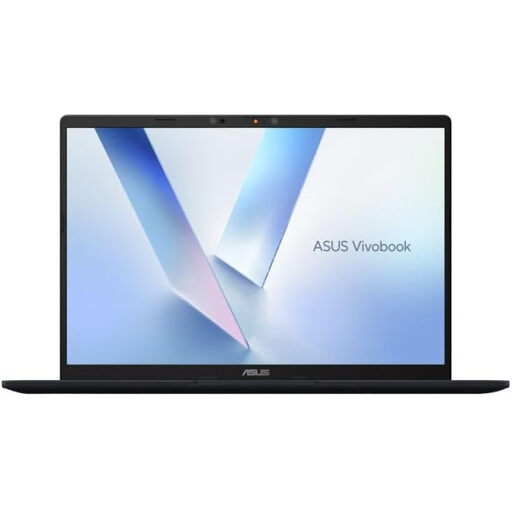 Image unavailable
ASUS Vivobook 14 X1407QA-LY003W Copilot+ PC, Snapdragon X, 16GB RAM, 512GB SSD, Quiet Blue
A laptop is the starting point if you need to work from the same computer at home and in the office.
This 14-inch variant is named with Snapdragon X, 16GB RAM and a 512GB SSD. Check its exact ports, external-display support and carrying weight against the accessories you plan to use.
View on Joybuy
 Image unavailable
Baseus Metal Gleam Series II 10-in-1 USB Hub, Cosmic Black
Consider a hub when you need several desk connections without planning around a full docking station.
The title lists HDMI outputs labelled 4K120Hz and 4K60Hz, USB ports, RJ45, SD/TF and a USB-C Power Delivery connection. Check the video modes your laptop can use and how much charging power reaches it.
View on Joybuy
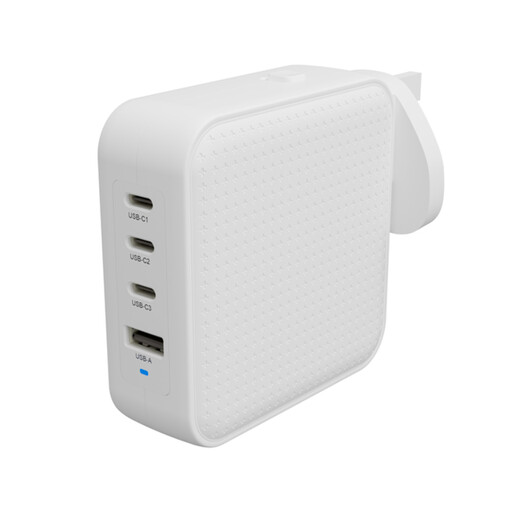 Image unavailable
Hyper HyperJuice 100W USB-C GaN Travel Charger (3C+1A), White
A travel charger is worth considering if power is an item you need to take between locations.
The title specifies three USB-C ports, one USB-A port and a 100W rating. Check output at the port you will use, particularly when charging other devices, and confirm your laptop’s cable requirements.
View on Joybuy
 Image unavailable
HP 680 CFT Dual-Mode Keyboard/Mouse Combo
A separate keyboard and mouse can suit a desk where you want to position the laptop screen independently of your input devices.
Check the keyboard layout and which connection modes your work laptop permits; also consider whether you would carry the set or leave it at one desk.
View on Joybuy
Frequently asked questions
Will any USB-C dock run a monitor and charge my laptop?
No: a USB-C connector alone does not establish video or charging support. Check the exact laptop and dock for compatible video capability, USB Power Delivery and sufficient delivered power.
Can I choose a dock by counting its HDMI and DisplayPort sockets?
No: the laptop’s external-display limits also govern the arrangement. Check the supported display count and resolution and refresh combinations for your exact laptop, then compare them with the dock configuration.
Why ask IT about a DisplayLink dock for a work laptop?
A DisplayLink-based arrangement may require software that an employer-managed laptop cannot install through the usual user route. DisplayLink documents corporate deployment methods; confirm the required software and approval route before choosing that dock. Not all docks use DisplayLink.
Should I discuss my home and office desks before adding equipment?
Yes, if your work arrangement calls for a display screen equipment assessment, discuss both locations rather than planning each desk in isolation. The Health and Safety Executive says assessments should cover home and office situations where both are used; ask what arrangement and equipment are appropriate for your work.


