Regular laptop users at a desk
If you use a laptop for extended periods, screen position and separate input devices are the starting point. The Health and Safety Executive advises using a separate keyboard and mouse so a laptop screen can be raised.


For regular desk-based laptop work, start by positioning the screen and input devices separately: raise the laptop or use an external monitor, with a separate keyboard and mouse, as the Health and Safety Executive advises for prolonged laptop use. Add a USB-C or Thunderbolt dock if it simplifies the connections you use at a fixed desk, but check your exact laptop’s video, display and charging capabilities first. If you work for an employer, check what its display screen equipment assessment identifies for your home and office setups before choosing equipment.
The equipment worth adding depends on how long you work at a desk, what moves between locations and how many connections you need.
If you use a laptop for extended periods, screen position and separate input devices are the starting point. The Health and Safety Executive advises using a separate keyboard and mouse so a laptop screen can be raised.
A portable stand and input devices may travel with you; a fixed monitor or dock stays at a regular desk. Where display screen equipment rules apply, the Health and Safety Executive says an employer’s assessment should cover both home and workplace arrangements.
If your desk uses a display, wired network or several USB accessories, a dock may make reconnection simpler. Check its video outputs and charging against your exact laptop rather than assuming its connector or port count establishes compatibility.
Set up the screen and keyboard for regular work first, then decide whether repeated connections or meeting needs justify further accessories.
| Priority | What to check | Your needs |
|---|---|---|
| Screen and input position | Choose between a raised laptop and a separate monitor according to screen-space and desk-space needs. For prolonged laptop use, allow room for a separate keyboard and mouse, as the Health and Safety Executive advises. | I want to position the screen without having to reach up to type on a raised laptop. |
| Display connection | Match the laptop or dock’s video output to the monitor input and required cable or adapter. Check the laptop’s supported number of external displays; Apple says this varies by Mac model and, for MacBook Pro, by chip and display configuration. | If I use a second screen, I need to know that my laptop can drive the display arrangement I intend to use. |
| Dock and charging | Check the exact USB-C or Thunderbolt port functions, dock compatibility and charging requirements. A USB-C-shaped port alone does not establish video output, a particular display arrangement or suitable charging. | One desk connection would be useful when I regularly reconnect several peripherals, provided it works with my laptop. |
| Two work locations | Decide what must travel and what can remain at each desk. Where an employer’s display screen equipment assessment applies, the Health and Safety Executive says it should cover home and office use and determine any additional equipment needed. | I switch locations and want a setup I can use comfortably in both, rather than assuming one fixed arrangement covers them. |
| Calls and meetings | Consider a webcam if the laptop camera’s position is impractical, or a headset if your call environment calls for one. Check computer connections, conferencing requirements and workplace device approval. | A separate camera or headset matters to me only if my existing meeting setup presents a specific problem. |
Video output, charging and external-display support depend on the laptop and dock together. Apple, for example, says a Mac’s external-display support depends on its technical specifications.
Note your exact laptop model and charger requirements, then check its documented port functions and display limits against the dock and monitors you plan to connect.
A higher screen also lifts the built-in keyboard and trackpad. For prolonged laptop use, the Health and Safety Executive advises a separate keyboard and mouse so the screen can be positioned independently.
Pair a riser with separate input devices, or arrange an external monitor and keyboard and mouse so each can sit in a suitable position.
Where UK display screen equipment rules apply, the Health and Safety Executive says an individual assessment determines what equipment is needed. It says workers cannot be charged when that assessment identifies equipment the employer needs to provide.
Check the assessment for both work locations and ask which devices your employer supplies or approves before selecting a monitor, dock or specialist peripheral for work.
A connected screen does not settle lighting, glare or cable placement. The Health and Safety Executive also identifies these as practical workstation considerations.
Once the setup is in place, check screen position, lighting and cable routing, and revisit the arrangement when your work or equipment changes.
These product lines illustrate different parts of a workstation; their specifications and compatibility checks apply to particular models, not every product from the brand.
Dell’s Pro Thunderbolt 4 Dock WD25TB4 is a reference point for comparing fixed-desk dock connections and charging requirements.
Lenovo’s ThinkPad Universal USB-C Dock is an example of a one-cable desk connection described for compatible USB-C Windows notebooks.
Logitech’s UK work-oriented collections cover separate keyboards, mice, webcams and headsets for the input and meeting parts of a laptop setup.
These options cover external screens and a dock for desk connections, plus a webcam for meeting-specific use. A monitor does not replace separate input devices for prolonged raised-laptop work, and each connection still needs checking against your laptop.
 No image available
Consider this separate screen for a regular desk where a 32-inch display fits your workspace. Its product name specifies Nano Glossy IPS, 4K UHD, USB-C and a height-adjustable stand; check your laptop’s USB-C video capability and charging needs, and use separate input devices when raising the laptop for prolonged work.
 No image available
This separate screen is an option to consider when your workstation changes location. Its product name identifies an IPS USB-C monitor; confirm that your laptop supports the required USB-C video connection, check the monitor’s weight if you plan to carry it, and allow for separate keyboard and mouse positioning.
 No image available
Consider a dock when you repeatedly connect desk peripherals through one laptop connection. The product name specifies dual HDMI outputs and 100W Power Delivery pass-through; confirm your laptop’s supported display arrangement and charging requirements, and check whether the external power adapter needed for your setup is included.
 No image available
This is another separate-screen option for a laptop desk setup. The product name specifies a 22-inch Full HD monitor; check your laptop’s video output and the cable or adapter required before connecting it, and plan separate keyboard and mouse placement for prolonged work.
 No image available
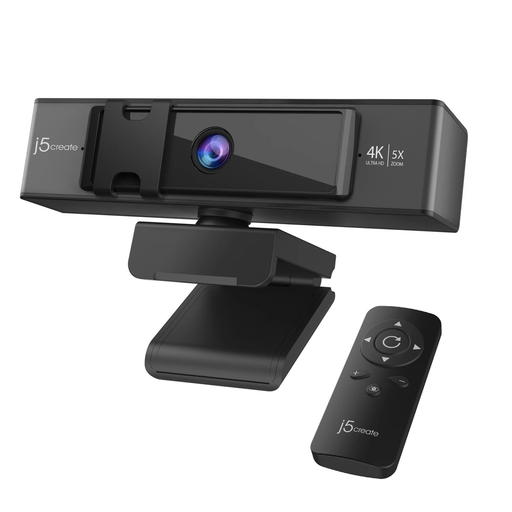
A separate webcam is worth considering when the laptop camera’s position makes meetings awkward, particularly with a raised or closed laptop. The product name specifies 4K and remote-controlled 5x digital zoom; confirm its connection and conferencing compatibility and any workplace device approval before buying.
No. The Health and Safety Executive says UK display screen equipment rules can apply to people working at home long term or routinely splitting work between home and office who use screens daily for continuous periods of an hour or more. Where they apply, an individual workstation assessment determines whether additional equipment is needed; it does not prescribe the same purchases for everyone.
No. The Health and Safety Executive says that when a display screen equipment workstation assessment identifies action needed, such as providing equipment, the worker cannot be charged for that equipment. Ask what the assessment covers before buying work equipment yourself.
Check your exact laptop model, operating system, port functions, supported external displays and charging requirements against the dock’s specifications. A USB-C-shaped connection alone does not establish the display or charging arrangement; Apple also says Mac external-display support varies by model and, for MacBook Pro, by chip and display configuration.
It may be an option if the proposed dock and your computer support the required DisplayLink software. DisplayLink documents software installation for several operating systems; check the exact device, driver availability and employer IT approval before choosing this route rather than assuming it works without software.
Add one to address a particular meeting need, such as an impractically placed laptop camera or calls in a shared space. Check the device’s connection, conferencing compatibility and workplace approval; neither accessory replaces suitable screen and input-device positioning for prolonged laptop work.