For ordinary slide work, start with the University of Hertfordshire’s general student baseline: Windows or macOS, at least 8GB of memory, a 256GB SSD and a screen of at least 14 inches. A smaller MacBook Air can still suit you if portability matters more than built-in screen space, while a Chromebook is worth considering only if browser-based PowerPoint and your course software cover the work you need to do. Check the exact laptop configuration, Office entitlement and display connection before buying.
Who needs which setup?
Students with course-software requirements
If assessed presentations involve desktop PowerPoint, shared Microsoft 365 files or specialist applications, check your department’s software requirements before choosing an operating system. Microsoft offers PowerPoint for Mac and web access on Chromebooks, but web access alone does not establish that every course workflow will work.
Students working at a room desk
If you edit slides for long sessions or use a monitor or projector, check both the laptop screen and its documented display output. The University of Hertfordshire recommends a screen of at least 14 inches for general student use; a separate display also needs a compatible connection.
Students doing browser-first slide work
If your presentations live in web apps and cloud files, a Chromebook may cover the task: Microsoft supports access to PowerPoint on the web. Confirm any offline work, specialist software and presentation requirements before relying on that route.
What matters when choosing?
Settle software compatibility first, then decide how you will edit and present slides in your room. Use the University of Hertfordshire’s general student specification as a starting point, not a guarantee that a particular course or configuration is covered.
| Concern |
What to check |
Who this matters to |
| Software and files |
Check course applications, desktop or web PowerPoint requirements, offline work and your Microsoft 365 entitlement. |
If my assessed slides rely on particular software or shared files, I need the whole workflow to work on my laptop. Around 42% of consumers put that compatibility need first. |
| Screen and display connection |
Check screen size and the laptop’s documented HDMI or USB-C display output against your monitor or projector. |
When I build slides at a room desk and present them on another screen, I need enough working space and a compatible connection. That is the primary concern for around 33% of consumers. |
| Proportionate specifications |
Compare the exact memory, SSD capacity and size with your coursework; the university’s general baseline is 8GB, 256GB and 14 inches. |
I want a laptop I can carry and use for ordinary slides without choosing extra specifications I have no reason to use. Around 25% of consumers place that balance first. |
Buying mistakes to avoid
-
Choosing a Chromebook on web access alone
Microsoft supports PowerPoint on the web on Chromebooks, but that does not establish whether your course’s specialist software or offline workflow will run.
Get the course software list and check how presentations must be edited and delivered before choosing ChromeOS.
-
Assuming PowerPoint comes with the laptop
A laptop’s operating system and its Office licence are separate considerations. A Dell Inspiron 14 configuration, for example, was listed with a trial rather than an included Office licence.
Check your university’s Microsoft 365 entitlement and the exact retailer bundle before arranging a separate licence.
-
Judging display support by connector shape
A USB-C socket alone does not tell you which display connection it supports. Apple’s MacBook Air specification lists Thunderbolt 4 ports and external-display support rather than built-in HDMI.
Match the laptop’s documented output to your display’s input and check adapter compatibility.
An HDMI-only display may require a compatible adapter or dock.
-
Treating a laptop-family name as a specification
Memory, storage, screen and ports can vary between configurations sold under the same family name.
Compare the full model or part number on the order with the listed specifications, keyboard layout, included software and warranty.
Relevant laptop lines to consider
Lenovo
The IdeaPad Slim 3 is a Windows-laptop line to consider if you want a conventional setup for slide work.
- Lenovo lists an IdeaPad Slim 3 Gen 8 configuration with a 14-inch FHD anti-glare display, 16GB memory and a 512GB SSD.
- Check the exact part number: one configuration’s screen, ports and memory do not describe every IdeaPad Slim 3.
Apple
MacBook Air is a macOS route for students who want a compact laptop and can use Microsoft 365 for Mac.
- Microsoft offers PowerPoint for Mac; Apple lists external-display support for the cited MacBook Air specification.
- The cited specification uses Thunderbolt 4 USB-C ports, so an HDMI display may need a compatible adapter or dock.
Dell
Inspiron 14 is another Windows route, particularly when a documented display connection matters.
- Dell documents an Inspiron 14 configuration with a 14-inch FHD display and HDMI 1.4.
- Confirm ports, memory and included software on the configuration you order rather than assuming they match that example.
Joybuy laptops for slide work
These Windows-laptop choices cover different screen sizes and listed memory and storage configurations for making slides in a student room. Check your course software, Office entitlement and any display connection against the exact model you choose.
 No image available
ASUS Vivobook 14 X1407QA-LY003W, Snapdragon X, 16GB, 512GB SSD
Consider this 14-inch model if you want a compact screen for room-based slide editing. Its listed Snapdragon X processor makes checking your course applications and any required desktop software especially important.
Confirm the Office licence or university entitlement and the display connection needed for your setup.
Joybuy
 No image available
ASUS Vivobook 15 X1504VA, Core 5 120U, 24GB, 1TB SSD
The 15.6-inch configuration is an option if you prefer more built-in screen space while editing slides. Its listed 24GB memory and 1TB SSD exceed the University of Hertfordshire’s general student baseline; check whether your own work calls for them.
Confirm the Office licence or university entitlement before relying on PowerPoint.
Joybuy
 No image available
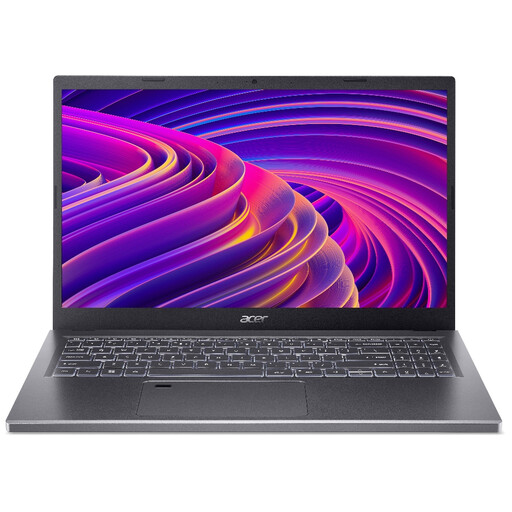
Acer Aspire 5 A515-48M, Ryzen 5 7530U, 16GB, 512GB SSD
This 15.6-inch configuration suits a student who wants to edit slides on the laptop’s larger built-in screen. It lists 16GB memory and a 512GB SSD.
Check the activation and licence terms for the advertised pre-installed Microsoft Office Home & Student 2021 before relying on it.
Joybuy
 No image available
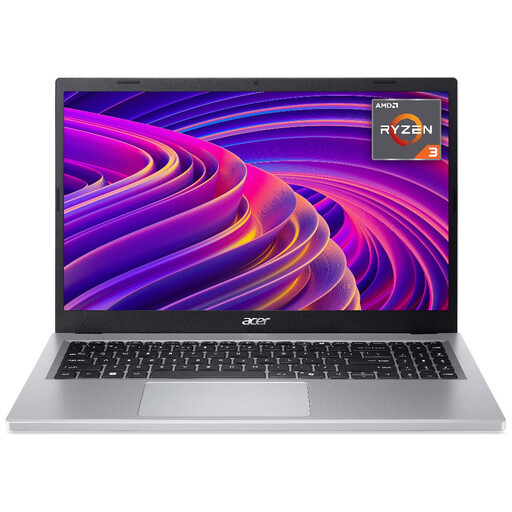
Acer Aspire Go 15 AG15-21P, Ryzen 3 7320U, 8GB, 256GB SSD
For ordinary slide work, this 15.6-inch configuration lists the 8GB memory and 256GB SSD in the University of Hertfordshire’s general student baseline. Check separately for any higher course requirements.
Confirm the exact model on the order, as the product wording also refers to Aspire 3. Check the activation and licence terms for the advertised pre-installed Microsoft Office Home & Student 2021.
Joybuy
 No image available
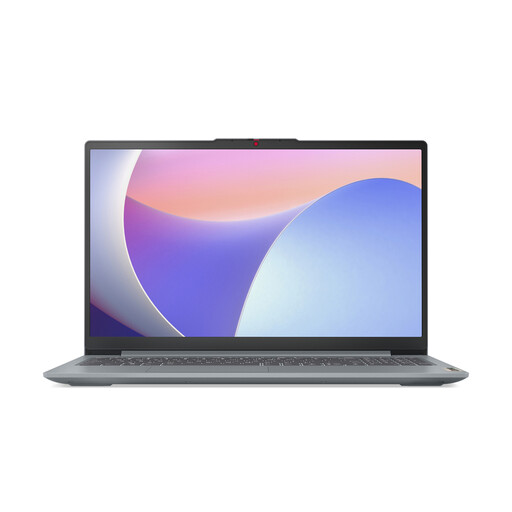
Lenovo IdeaPad Slim 3 15IAH8, 83ER00G4UK, Core i5, 8GB, 512GB SSD
This 15.6-inch configuration is an option for editing slides on a larger laptop screen. Its listed 8GB memory and 512GB SSD meet the University of Hertfordshire’s general memory and storage baseline.
If you plan to work away from a socket, clarify battery runtime for this exact configuration before buying. Also check your Office licence or university entitlement.
Joybuy
Questions about slide-deck laptops
Do I need a gaming laptop to make PowerPoint slides?
Not for ordinary student slide work. The University of Hertfordshire’s general guidance starts with Windows or macOS, at least 8GB memory, a 256GB SSD and a screen of at least 14 inches; check for higher requirements if your course uses specialist software or heavy media editing.
Can I make PowerPoint presentations on a Chromebook?
Yes, Microsoft supports PowerPoint access on a Chromebook through the web. Choose one only after confirming that your course’s software, offline tasks and presentation workflow can be handled that way.
Can a MacBook Air connect to a room monitor?
Yes, the cited Apple MacBook Air specification supports external displays through Thunderbolt 4 USB-C ports. For an HDMI monitor or projector, check the required adapter or dock against both devices.
Is PowerPoint available on a Mac, and does it come with the laptop?
Microsoft offers PowerPoint through Microsoft 365 for Mac, but availability does not mean a licence is included with a particular laptop. Check your university entitlement and the retailer’s exact software bundle.


