Shared-display slide makers
You regularly connect to a desk monitor, meeting-room display or projector. Check the display input and the laptop’s documented video output together so you know which cable, dock or adapter you will use.


Start with the display connection and your team’s presentation software, not the processor name. At an HDMI-equipped desk, a laptop with documented HDMI avoids relying on a video adapter; a USB-C or Thunderbolt laptop can also work if its display output and the desk’s dock or adapter are compatible. Check required PowerPoint features, templates and add-ins before choosing between Windows and macOS.
You regularly connect to a desk monitor, meeting-room display or projector. Check the display input and the laptop’s documented video output together so you know which cable, dock or adapter you will use.
You create or revise decks in PowerPoint while keeping source material or calls open. Check the application requirements alongside any fonts, templates, add-ins or macros your organisation uses.
You move between a shared desk and other workspaces, perhaps co-editing in Google Slides. Consider both the laptop screen you will use away from the desk and whether you need to prepare particular files for offline access.
Settle the display connection and required software before comparing screen size, memory and portability. A browser-based Slides workflow can run alongside either operating-system choice, so it is a software check rather than a separate type of laptop.
Consider it when: Your desk uses HDMI or your organisation requires a Windows-based PowerPoint workflow.
Trade-off: Native HDMI removes the need for an HDMI video adapter, but you still need to check the exact laptop’s ports and any dock charging requirements. Lenovo documents HDMI and USB-C display connections for its ThinkPad L13 Gen 5; that port arrangement should not be assumed for other models.
Consider it when: Your required presentation workflow works on macOS and the desk has a compatible USB-C or Thunderbolt connection, or you will bring an appropriate adapter.
Trade-off: Apple’s UK MacBook Air specifications list Thunderbolt 4/USB-C ports and external-display support, but not built-in HDMI. An HDMI-only desk therefore needs a compatible adapter or dock.
| Concern | What to check | Who this matters to |
|---|---|---|
| Desk connection | Match the monitor or projector input to the exact laptop’s HDMI or display-capable USB-C output. If using a dock, check its display and charging compatibility. | I need to connect to the shared display without sorting out an unfamiliar adapter just before presenting. Around 42% of consumers put dependable desk connection first. |
| Software and files | Confirm the required operating system, presentation app and organisation-specific fonts, templates, add-ins or macros. For offline Google Slides work, prepare the relevant files in advance. | My team needs to open, review and present the same deck without disrupting its required workflow. For around 33% of consumers, software and file compatibility is the primary concern. |
| Work away from the desk | Compare the built-in screen, memory, storage and carrying weight against the applications and files you use away from the external monitor. | I also edit slides while moving between workspaces, so the laptop itself needs to fit how I work between desk sessions. Flexible working comfort comes first for around 25% of consumers. |
A USB-C connector does not, by its shape alone, establish that a laptop can send video through it. The monitor input, cable and dock must also suit the connection you plan to use.
Check the exact laptop’s documented video output against the shared display. If you need a dock or adapter, check display and charging requirements together.
An HDMI-only desk may mean carrying a compatible adapter or dock with a laptop that has no built-in HDMI.
Microsoft lists 4 GB RAM as a Microsoft 365 system requirement, not as a measure of comfort when you also have browser tabs, calls and slide assets open.
Judge memory, storage and screen size against your usual workload, and check any required fonts, templates, add-ins or macros before purchase.
Google’s offline instructions require preparation while connected to the internet. Browser, storage and file settings matter before you lose the connection.
Set up offline access, make the relevant deck available offline and test that you can open it without a connection.
Replacing a laptop also means dealing with files and signed-in accounts on the old device. Oxfordshire County Council advises removing personal information before taking electrical equipment for recycling.
Back up what you need, sign out and erase the device using the manufacturer’s guidance. Check your local authority’s instructions for electrical recycling.
A reference point for buyers checking business-laptop connections at an HDMI or USB-C shared desk.
A reference point for a business-laptop configuration suited to checking everyday slide-work requirements.
A reference point when a shared desk calls for several types of physical connection.
A reference point for macOS users planning a USB-C or Thunderbolt display setup.
These Windows laptops offer different built-in screen sizes and configurations for making slide decks. Match any model you consider to your shared display and required software; its inclusion here does not establish dock or application compatibility.
 No image available
Consider this 14-inch Windows laptop if you move between desks and want to check its connection options against an HDMI-equipped workspace. The named configuration has a Snapdragon X processor, 16 GB RAM and a 512 GB SSD. Before buying, confirm that required PowerPoint add-ins, macros and other organisation-specific applications work with this processor, as well as how you will connect to the desk display.
 No image available
Consider this model if you also edit decks on the laptop’s built-in 15.6-inch screen. Its named configuration includes an Intel Core 5 120U processor, 24 GB memory and a 1 TB SSD. If your shared desk relies on USB-C video rather than HDMI, confirm the exact output and dock compatibility before choosing it.
 No image available
This gaming-positioned Windows laptop is an option to assess if you also need its named graphics configuration, rather than slide work alone. It has a 15.6-inch 144 Hz Full HD screen, 16 GB RAM and a 1 TB SSD. If you carry your laptop between desks frequently, check its weight alongside the connection you will use for presentations.
 No image available
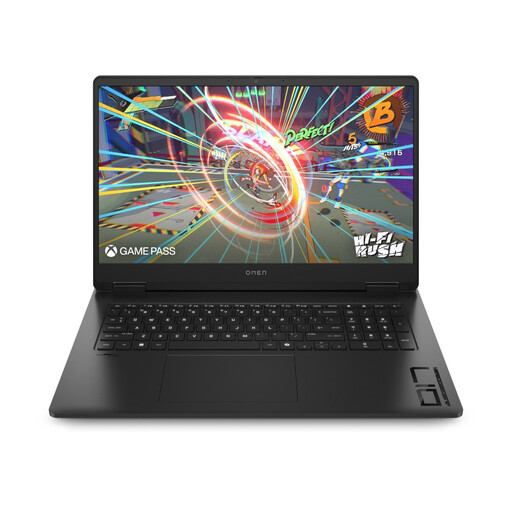
Consider this Windows 11 Home gaming model if a large built-in screen matters when you edit decks away from the shared monitor. Its name specifies a 17-inch Full HD screen, 16 GB RAM and a 1 TB SSD. Check its carrying weight if you change desks regularly, and match its display connection to your workspace.
 No image available
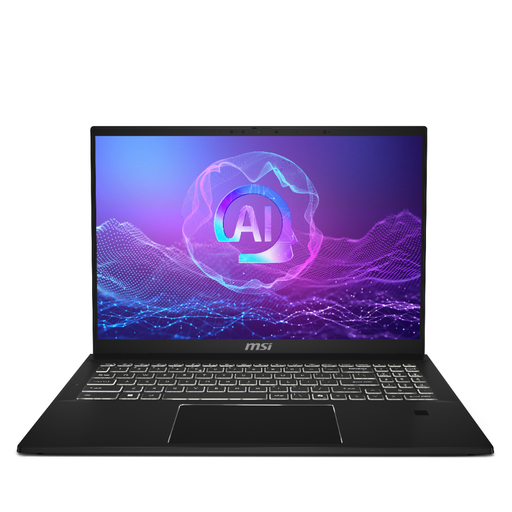
Consider this Windows laptop if you want to assess a 16-inch built-in screen and a 32 GB memory configuration for work across desks. Its name also specifies a QHD+ 165 Hz display and a 1 TB SSD. Confirm the exact HDMI or video-capable USB-C connection before relying on it with a shared monitor, projector or dock.
Check the monitor or projector input, then the exact laptop’s documented video output. Lenovo’s ThinkPad L13 Gen 5 documentation describes both HDMI and multi-purpose USB-C display connections, but a USB-C socket on another model does not by itself confirm video support. Check the cable or dock you would use too.
Meeting Microsoft 365’s listed 4 GB RAM requirement does not establish that your whole slide-making workflow will feel comfortable. Consider the browser tabs, calls, images and other applications you normally keep open when comparing configurations.
Yes, provided you meet Google Docs Editors Help’s documented multi-monitor conditions: use Google Chrome on a computer with at least one additional monitor attached. Try the presentation with your actual desk display and account before an important session.
You can prepare to work offline, but do it while you still have an internet connection. Google Docs Editors Help specifies Chrome or Edge, offline setup and available device storage; make the deck available offline and test that it opens without a connection before relying on it.