QLab-based cue writers
If you prepare sound cues in QLab, settle the Mac and macOS requirement before comparing memory or screen size. Figure 53 lists QLab 5 as compatible with macOS Big Sur or newer and Apple-silicon Macs.


Choose the software platform before the laptop: if your cue workflow requires QLab 5, look for a compatible Apple-silicon Mac; if it depends on Windows software or a managed Windows environment, choose a laptop that supports those tools. Then define what “two screens” means for your desk and confirm the exact model’s display connections and limits—two built-in screens, one external monitor and two external monitors are different setups.
If you prepare sound cues in QLab, settle the Mac and macOS requirement before comparing memory or screen size. Figure 53 lists QLab 5 as compatible with macOS Big Sur or newer and Apple-silicon Macs.
If your cue sheets and audio editing depend on a Windows DAW, plug-ins or workplace software, check those tools’ current compatibility requirements. For a desk setup, confirm separately how the chosen laptop connects to your intended displays.
If you write away from your desk and return to a monitor and audio peripherals for longer sessions, consider both the laptop you carry and the connections you need at the desk. Microsoft’s Windows display guidance covers arranging connected screens, but the laptop and dock still need suitable connections.
Start with the software you must run, then decide whether your workspace uses two built-in screens, the laptop screen plus a monitor, or two external monitors. That distinction determines which display limits and connections you need to check.
Choose this when: QLab 5 is part of your cue-writing or show-control workflow; Figure 53 lists compatibility with macOS Big Sur or newer and Apple-silicon Macs.
Trade-off: This commits you to a compatible Mac, and external-display capacity still depends on the selected configuration.
Choose this when: Your required DAW, plug-ins or managed workplace setup depend on Windows rather than QLab.
Trade-off: Choosing Windows does not resolve individual software compatibility or guarantee a particular external-monitor arrangement.
| Concern | What to check | Who this matters to |
|---|---|---|
| Software compatibility | Check the required cue software’s operating-system requirements and the current requirements for your DAW, plug-ins and audio interface. | If my cue workflow relies on QLab, I need to settle the platform before choosing hardware; around 42% of consumers put software compatibility first. |
| A usable two-screen setup | Specify how many external monitors you intend to connect, then confirm the exact configuration’s display limits and the required cable or dock connections. | I want my cue list and audio workspace visible together without discovering that my planned monitors cannot connect as intended; roughly 42% of consumers make display setup their primary concern. |
| Mobile and desk readiness | Compare the selected memory and SSD configuration, and check the listing’s included charging equipment. | When I move between writing locations and a desk, I need enough local capacity for my projects and the right equipment when I return; about 16% of consumers prioritise that practical setup. |
A port name alone does not establish how many monitors the selected laptop can drive or which resolutions and refresh rates its connections support. Apple’s MacBook Pro display capabilities differ by configuration, while Microsoft advises checking PC or dock connections when setting up Windows displays.
Write down your intended monitor count, resolution, refresh rate and connection method, then check the laptop maker’s specifications for the exact configuration.
Completing that arrangement may require a compatible dock or different cables.
Figure 53 lists QLab 5 compatibility with macOS Big Sur or newer and Apple-silicon Macs. Extra memory or an external display will not turn a Windows laptop into a compatible Mac.
List the cue, DAW, plug-in and audio-interface software you must use before deciding which operating system to buy.
Included accessories vary by listing. A Joybuy listing for a 14-inch MacBook Pro M5 with 24GB memory and 1TB storage specifies a USB-C charging cable but no power adapter; that detail should not be applied to other configurations.
Read the included-items section for the exact laptop you are ordering and check its charging requirements.
For that listing, you would need a separate compatible power supply if you do not already have one.
Apple-silicon Macs are relevant when QLab 5 is required, according to Figure 53’s compatibility guidance. MacBook Pro display capability must be checked by chip and configuration.
The Precision 5690 is a Windows workstation option for consumers specifying a laptop for an established Windows audio workflow.
The 16-inch ThinkPad P16v Gen 3 is another Windows workstation line to consider for cue editing with a desk display.
These choices cover different ways to write cues across two screens: an ASUS laptop with dual built-in displays for a Windows-based workflow, and an Apple-silicon MacBook Pro for consumers who need QLab and plan to check their external-monitor arrangement.
 No image available
Consider this dual-screen laptop if you want a cue list and audio workspace on built-in displays rather than relying on an external monitor; check that your required cue software suits your Windows workflow.
The listed variant has an Intel Core Ultra 7 255H processor, 16GB LPDDR5X memory and a 1TB SSD. Confirm its panel resolution before ordering, as the listing’s descriptions differ; its built-in screens do not establish support for two additional external monitors.
 No image available
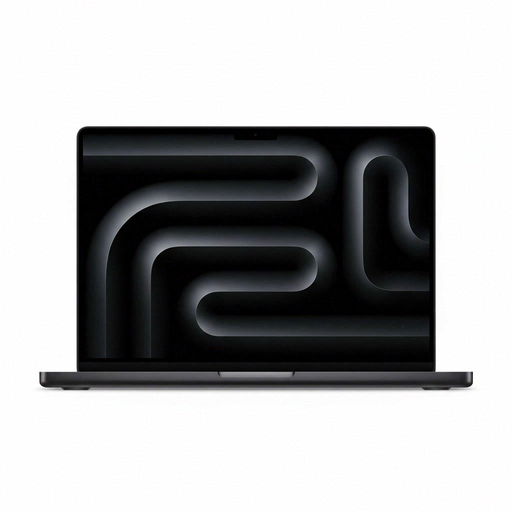
Consider this MacBook Pro if QLab 5 is part of your cue workflow; Figure 53 lists compatibility with Apple-silicon Macs running macOS Big Sur or newer.
This variant is listed with a 15-core CPU, 16-core GPU, 24GB memory and a 2TB SSD. Apple’s March 2026 announcement describes up to two high-resolution external displays for M5 Pro models; confirm the supported arrangement for this exact configuration and your monitors. The product listing says a compatible USB-C power adapter of at least 70 W is sold separately.
Yes, if QLab 5 is the application your workflow requires, choose a compatible Mac. Figure 53 lists QLab 5 compatibility with macOS Big Sur or newer and Apple-silicon Macs; do not assume a Windows laptop can run it natively.
A USB-C port alone is not enough to establish that. Decide whether you mean the built-in screen plus one monitor or two external monitors, then check the exact laptop’s display limit alongside the monitors’ resolution, refresh rate and cable or dock requirements.
Connect a supported monitor or dock, then use Settings > System > Display to identify and arrange the screens. Microsoft’s Windows guidance covers these display settings; confirm the laptop and connections support your intended arrangement before buying.
UK consumer rights apply to goods bought remotely as well as in person, according to GOV.UK’s consumer-rights guidance. Keep the order record and exact configuration details if you need to raise a fault or a mismatch with the seller.