Pitch-side fixture recorders
If you cannot count on a free socket throughout a match, focus on a workable charging plan as well as battery capacity. Check whether the laptop and your backup power source support compatible charging.


Choose a laptop whose charging options, ports and storage fit the equipment you will use at the venue, then assess its battery capacity against a full-fixture recording session. A manufacturer’s battery-life figure is not a promise of recording time: the OBS Project says recording demands vary with the encoder, resolution, frame rate and scene complexity. Check your camera, capture device, software and storage together before relying on the laptop away from a socket.
If you cannot count on a free socket throughout a match, focus on a workable charging plan as well as battery capacity. Check whether the laptop and your backup power source support compatible charging.
If a camera or capture device, external SSD and other accessories must stay connected, map out the connections before choosing a laptop. Port types and the compatibility of any hub matter alongside port count.
If you will review, edit or retain footage after recording, choose memory and storage for that workflow as well as the venue setup. The OBS Project notes that recording requirements change with the encoder, resolution, frame rate and scene complexity.
Start with the devices and recording settings you intend to use, then check how you will power and carry the complete kit. Battery capacity, ports and storage are useful specifications, but none establishes full-fixture recording suitability on its own.
| Concern | What to check | Who this matters to |
|---|---|---|
| Battery and charging | Compare battery capacity and the conditions behind stated battery life. Confirm USB-C Power Delivery support and a compatible power source if you plan to charge that way. | If sockets are occupied during a fixture, I need a charging plan that does not interrupt recording. Around 40% of consumers put time away from a socket first. |
| Ports and capture compatibility | List devices that must connect simultaneously, then check port protocols, operating-system support and any hub’s power requirements. | When my capture device and external drive must run together, I need the whole connection chain to work. Connection reliability is the primary concern for roughly 30% of consumers. |
| Recording and storage | Check your encoder, resolution, frame rate and software requirements; estimate space per fixture from your intended recording settings. | If I keep footage for later review, I need recording settings and available storage that suit the files I intend to save. Around 20% of consumers prioritise that recording-and-storage need. |
| Carrying and support | Check the exact laptop’s weight, charger and applicable support arrangements for repeated venue use. | If our organisation takes a shared kit to each fixture, I need it to be manageable to carry and support. Portability and support come first for roughly 10% of consumers. |
A web-browsing or video-streaming battery test does not establish runtime while capturing a fixture. The OBS Project says recording demands vary with the encoder, resolution, frame rate and scene complexity.
Before relying on battery-only operation, test a representative session with your intended camera, recording settings and connected storage. Plan how you would charge if that session runs longer than expected.
That contingency may mean carrying a compatible charger or power source.
Apple lists two Thunderbolt 4 USB-C ports for the current MacBook Air, and ASUS describes two for the Zenbook S 14 (UX5406) range. Charging, capture equipment and storage may need connections at the same time.
Draw a connection diagram and check each device, cable and hub against the exact laptop and operating system before buying.
A compatible hub, cable or powered dock may be needed to connect everything together.
Recording settings affect the workload, and SSD capacity differs between laptop configurations. Meeting a recording application’s basic requirements does not establish how much footage you can retain.
Set your intended format, estimate space used by a representative fixture and leave room for the files you need to keep. Check the storage capacity of the exact configuration.
Using an external SSD also adds a device and cable to the venue setup.
Electrical Safety First warns against overloading sockets, daisy-chaining extension leads and running a cable reel while it remains wound.
If an extension is needed, use a suitable UK fused lead, fully unwind any cable reel and position cables away from walkways. Do not overload the socket.
These laptop lines offer different starting points for a venue recording setup; check the exact configuration and your recording equipment rather than treating a brand name as a compatibility guarantee.
MacBook Air is worth considering if your recording and file-management tools work on macOS and your kit can use its USB-C connections.
Zenbook S 14 (UX5406) is a Windows option to assess if you want a compact laptop for recording and later file review.
ThinkPad E and X lines may suit an organisation seeking a travel-oriented Windows work laptop alongside its recording equipment.
Latitude is a commercial Windows laptop family to consider when an organisation also needs workplace support arrangements.
These Windows laptops offer different combinations of storage, display size and stated components for a fixture-recording kit. Compare each one with your capture devices and charging plan; the listed components alone do not establish recording runtime or compatibility.
 No image available
Consider this Windows model if a dual-screen layout fits how you monitor recording and manage files at the venue. Its named configuration has an Intel Core Ultra 7 255H, 16 GB LPDDR5X memory and a 1 TB SSD.
Check the exact display configuration, capture-device connections and charging setup before purchase; the component list does not establish fixture-length battery runtime.
 No image available
Consider this 15.6-inch model if local footage storage is a priority and its connections suit your capture kit. The named configuration includes 16 GB memory, a 1 TB SSD and GeForce RTX 5050 graphics.
Check compatible charging equipment and test your intended recording workload rather than inferring runtime from the listed components.
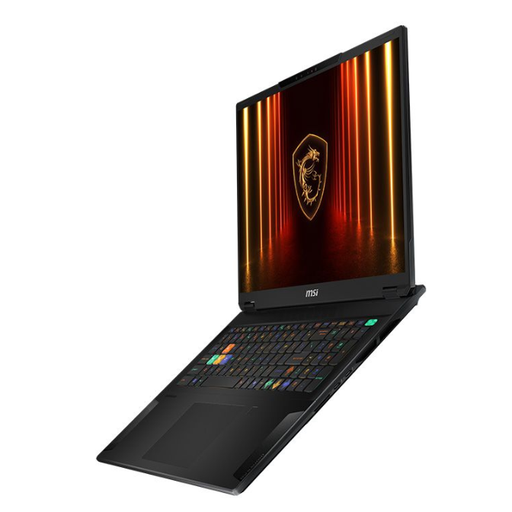 No image available
Consider this 18-inch model if you need room for retained footage and can accommodate a larger laptop in your venue kit. Its named configuration includes an Intel Core Ultra 9, 32 GB memory, a 2 TB SSD and GeForce RTX 4070 graphics.
Confirm how it will charge at the venue and whether its size works for repeated carrying. Test the chosen recording setup before relying on battery operation.
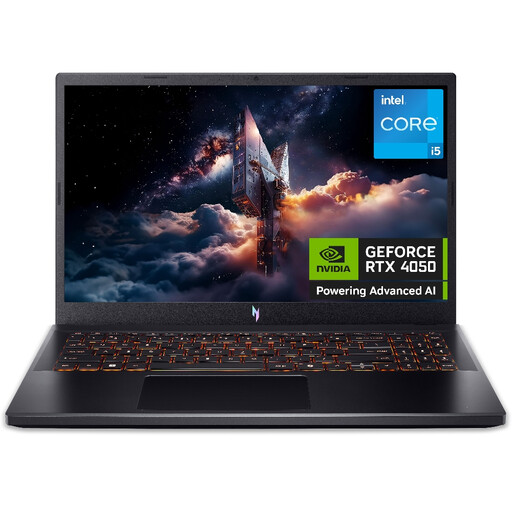 No image available
Consider this Windows model if its storage capacity fits the footage you plan to keep locally. The named configuration includes 16 GB memory, a 512 GB SSD and NVIDIA RTX 4050 graphics.
Confirm the exact processor and display configuration before buying. Also check charging compatibility and test the intended capture workflow.
 No image available
Consider this 16-inch Windows model if your workflow calls for its named memory and local storage configuration. It is listed with an Intel Core Ultra 9, 64 GB memory, a 2 TB SSD and GeForce RTX 5090 graphics.
Confirm battery capacity, charging options and compatibility with your capture equipment before choosing it for a venue with limited sockets.
Not necessarily: it describes performance under the manufacturer’s test conditions, not your capture session. The OBS Project says recording demands vary with the encoder, resolution, frame rate and scene complexity, so test your camera, settings and connected storage for a representative fixture length.
You can do so only if the laptop supports USB-C Power Delivery charging and the power bank supplies a compatible profile and sufficient power for that model. Apple lists USB-C Power Delivery charging for the current MacBook Air, but you should check the charging requirements of the exact laptop you choose.
No. Electrical Safety First advises against daisy-chaining extension leads and overloading sockets. If you need an extension, use a suitable UK fused lead, keep cables away from walkways and fully unwind any cable reel before use.
Use an appropriate electrical-equipment recycling or take-back route rather than putting the laptop in ordinary household rubbish. Before handing it over, remove or securely erase any stored fixture footage and personal files.