Small-desk rota planners
You need space for a mouse, paperwork or a phone alongside a readable rota. A 14-inch, 16:10 display is a starting point, but the laptop’s measured width and depth matter just as much as its screen size.


A 14-inch laptop with a 1920 × 1200 anti-glare display is a useful starting point when a staff rota must remain readable on a small desk. Measure the available space, then choose the exact configuration around your rota software, memory needs and any external monitor; a convertible or dual-screen design is worth considering only if its working setup fits the desk.
You need space for a mouse, paperwork or a phone alongside a readable rota. A 14-inch, 16:10 display is a starting point, but the laptop’s measured width and depth matter just as much as its screen size.
You keep rota files, email, browser tabs and staff messages open together. Check the memory, storage and operating system of the exact configuration against the applications your workplace uses.
You plan rotas at a small desk but sometimes need a larger view for reviews or meetings. Check the exact laptop’s display output, monitor connection and charging requirements before choosing a dock or cable.
Start with the usable desk area and a rota viewed at your normal zoom, then check workplace software and the connections your setup needs.
| Concern | What to check | Who this matters to |
|---|---|---|
| Desk fit and readable rotas | Measure usable desk width and depth, allowing room for a mouse. Compare chassis dimensions and view a rota at your usual zoom; a 1920 × 1200 display alone does not determine how many rows an app will show. | I need to read shifts without crowding out my mouse and paperwork. Around 42% of consumers put compact, readable rota space first. |
| Rota workflow | Confirm the rota platform’s operating-system and browser support, required add-ins and workplace account rules. Compare memory and storage with the applications and files you actually use. | If I keep a rota, messages and other work files open together, the laptop must run my workplace tools. Roughly 33% of consumers prioritise workflow compatibility and capacity. |
| Monitor and peripherals | Match the monitor input and other devices to the exact laptop’s HDMI or USB-C capabilities; check display output and charging separately. | I want a larger rota view at my desk without discovering that my monitor or dock cannot connect. About 25% of consumers put display and peripheral connections first. |
Two 14-inch laptops can have different screen shapes and physical footprints. Acer United Kingdom lists its Aspire Go 14 AG14-21P-R2TH at 319.8 × 225.5 mm; that is a sizing reference for that configuration, not every 14-inch model.
Measure the desk and compare the exact laptop’s dimensions. View a representative rota at a comfortable zoom before deciding whether its screen works for you.
If the rota remains difficult to read, using a separate monitor or stand may also require room on the desk.
The cited Acer Aspire Go, Lenovo IdeaPad Slim 3 and Lenovo ThinkBook 14 configurations have different memory and storage amounts. Ports can vary by configuration too: Dell lists USB-C display capability for specified Inspiron 14 processor options.
Use the precise part number to check memory, storage, display output and charging before ordering. Check whether an adapter or dock is needed for your existing equipment.
A rota platform may depend on a particular browser, add-in, account setup or employer-managed application. The operating-system name does not establish compatibility with that workflow.
Ask your employer or software supplier which versions and permissions are required, including any rules for accessing staff information.
The Aspire Go 14 line offers a compact Windows configuration to compare with your available desk space.
The cited IdeaPad Slim 3 14 and ThinkBook 14 configurations provide different specifications to assess against everyday rota work and workplace-managed tasks.
A cited Inspiron 14 configuration is a useful reference if an external display is part of the desk setup.
These 14-inch choices include conventional, convertible and dual-screen laptops alongside a Chromebook. Compare the space each setup needs and confirm that your workplace rota system supports the exact device.
 No image available
Consider this 14-inch model if a conventional laptop suits your rota-planning setup; confirm that your workplace applications support its Snapdragon X configuration.
Snapdragon X processor, 16 GB RAM and 512 GB SSD; Quiet Blue variant.
 No image available
Consider the convertible format if you would use it to review schedules away from a standard typing position. Check the space needed in your preferred mode and confirm the exact display configuration.
16 GB RAM, 1 TB SSD and Windows 11 Home.
 No image available
The dual-screen design may suit a rota alongside other work, provided the intended screen and keyboard arrangement fits your desk. Confirm the exact panel resolution before purchase.
14-inch dual OLED touch model with Intel Core Ultra 7 255H, 16 GB LPDDR5X RAM and a 1 TB SSD.
 No image available
Consider this configuration if rota planning sits alongside other work that calls for its listed memory and storage. Check the chassis dimensions and monitor connections against your desk setup.
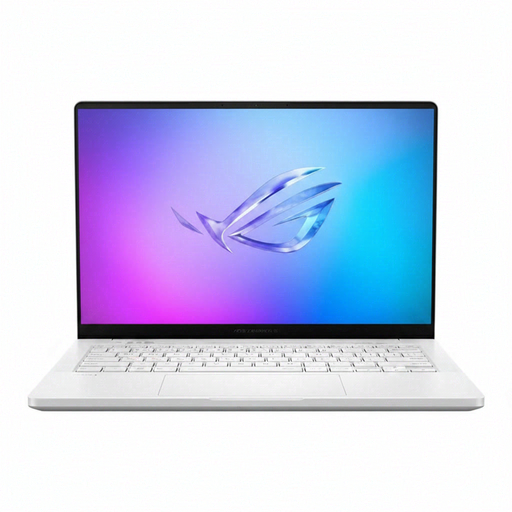
14-inch WQXGA+ model with AMD Ryzen AI 9 HX 370, 32 GB LPDDR5x-SDRAM, 2 TB SSD, NVIDIA GeForce RTX 5070 Ti and Windows 11 Home; German Grey variant.
 No image available
Consider this Chromebook for a browser-based rota workflow only after confirming that the platform, workplace account and required add-ins work on ChromeOS. Check its exact USB-C display capability if you use a monitor or dock.
14-inch WUXGA (1920 × 1200) model with Intel Core 5 120U, 8 GB RAM and a 512 GB SSD; Iron variant.
A 14-inch laptop can work on a small desk if your rota is readable at your normal zoom. Acer United Kingdom and Lenovo UK list 1920 × 1200 anti-glare displays on the cited 14-inch configurations, but you should check a representative rota; comparing several schedules side by side may call for an external monitor.
Neither is a universal requirement for rota planning. Lenovo UK lists both on a cited ThinkBook 14 configuration, but your rota software, workbook size and employer’s device-management rules should determine whether you need them.
Microsoft Support says Microsoft 365 is designed to work with current Chrome and Safari versions and the latest Microsoft Edge. Check the browser and account your workplace requires, along with any rota-specific add-ins or licence arrangements.
Check a retailer take-back option or your local authority’s electrical-equipment collection route rather than putting an old laptop in ordinary waste. GOV.UK’s guidance on waste electrical and electronic equipment describes recovery, reuse and recycling as aims of the UK rules.