Choose a laptop that works with your essential booking and spreadsheet tools, then plan how you will position its screen and input devices at the standing desk. For prolonged laptop use, the Health and Safety Executive advises a separate keyboard and mouse so the screen can be raised; a larger laptop screen alone does not solve that positioning problem. If you want an external monitor, check the exact model’s display support, ports and cables before choosing between macOS, Windows and ChromeOS.
Who is this for?
Standing-desk planners
Consumers comparing fares, accommodation and itineraries over longer sessions who need to position the screen separately from the keyboard and mouse. The Health and Safety Executive advises separate input devices for prolonged laptop use so the screen can be raised.
Portable trip researchers
Consumers moving between a standing desk and other places to compare booking pages, documents and travel files. Screen size, memory and storage are worth checking on the exact laptop configuration rather than assuming every variant in a product line is alike.
Windows-tool and monitor users
Consumers keeping an existing Windows workflow or connecting a monitor and USB accessories. ASUS lists HDMI, USB-A and Thunderbolt connections for its Zenbook 14 OLED UX3405 line, while Microsoft shows USB-C and USB-A on the Surface Laptop models described in its product information; connections still need checking for the chosen model.
What matters when choosing?
Start with the standing-desk arrangement and your essential software, then compare the portability and connections of specific configurations. A laptop’s port layout cannot replace suitable screen, keyboard and mouse positioning.
| Concern |
What to check |
Who this matters to |
| Standing-desk positioning |
Check that you can raise the screen and use a separate keyboard and mouse; confirm display connectivity if you plan to add a monitor. |
If I compare itineraries for long stretches while standing, I need the screen and input devices positioned independently. Around 42% of consumers put that workstation fit first. |
| Portable research |
Check the exact model’s screen size, installed memory and storage for the tabs, documents and travel files you expect to use. |
When I move between trip-planning locations, I want a laptop I can carry without giving up the workspace I need for booking pages and documents. Roughly 33% of consumers prioritise that balance. |
| Software and connections |
Confirm support for essential apps and match the laptop’s documented ports and display output to your monitor and accessories. |
If my spreadsheets, work tools or existing monitor dictate the setup, compatibility comes before a preferred laptop design. Around 25% of consumers make that their primary concern. |
Buying pitfalls
-
Choosing a larger screen without planning the input devices
Raising a laptop can also raise its built-in keyboard to an awkward position. For prolonged laptop use, the Health and Safety Executive advises a separate keyboard and mouse so the screen can be elevated.
Work out where the screen, keyboard and mouse will sit before choosing the laptop.
A laptop riser and separate input devices add items to the desk setup; a separate display may be useful if you need more viewing space.
-
Assuming a USB-C connector answers every monitor question
Display support and port layouts differ by model. Apple documents Thunderbolt 4 ports and support for up to two external displays on the M5 MacBook Air; ASUS lists a different port mix for the Zenbook 14 OLED UX3405 line.
Check the exact laptop’s display specifications against your monitor’s inputs and the cable or dock you intend to use.
The connection you choose may require a compatible cable, adapter or dock.
-
Treating a product-line specification as every variant’s specification
Lenovo lists different Yoga Slim 7i configurations, and Microsoft presents Surface Laptop in several sizes. A feature shown for a product family does not identify the configuration you are buying.
Match the retailer’s model or part number to the manufacturer’s specifications, including memory, storage, keyboard layout and ports.
-
Choosing an operating system before checking essential tools
The usefulness of macOS, Windows or ChromeOS depends on the booking services, spreadsheets, work software and peripherals you need to use.
List those essentials and confirm their current compatibility with the operating system and exact device before buying.
If a required application cannot run on your chosen device, using another compatible device may become part of your workflow.
Relevant brands to consider
Apple
The M5 MacBook Air is a macOS option for consumers considering a compact laptop and an external-display setup.
- Apple lists a 13.6-inch display, two Thunderbolt 4 ports and support for up to two external displays on the M5 MacBook Air.
- It has no built-in HDMI or USB-A port. Check cable or dock needs and whether your essential tools work on macOS.
Lenovo
The Yoga Slim 7i Aura Edition Gen 10 offers a Windows route for consumers considering a 14-inch OLED configuration.
- Lenovo lists a UK configuration with a 14-inch 1920 × 1200 OLED display, 16GB memory and a 512GB SSD.
- Check external-display support for the exact configuration before choosing a monitor or dock.
ASUS
The Zenbook 14 OLED UX3405 line is relevant when built-in connections for a monitor and USB accessories matter.
- ASUS lists two Thunderbolt 4 ports, USB-A and HDMI 2.1 for the UX3405 line.
- Confirm the processor, memory, display and ports of the exact retailer variant rather than relying on product-family details.
Microsoft
Surface Laptop offers Windows models in several screen sizes for consumers weighing portability against built-in viewing space.
- Microsoft describes 13-inch, 13.8-inch and 15-inch Surface Laptop models and shows USB-C and USB-A connections on the models presented.
- Check the exact generation and configuration for display output, ports and software compatibility.
Laptops for holiday research and desk use
These laptops cover Windows, macOS and ChromeOS choices for comparing holiday costs. Choose by the tools you use and the desk connections you need; each laptop still needs an appropriate screen and input-device arrangement for prolonged standing-desk sessions.
 No image available
ASUS Vivobook 14 X1407QA-LY003W, Quiet Blue
Consider this 14-inch laptop if you want a Windows option for booking pages and travel documents.
The listed configuration has a Snapdragon X processor, 16GB RAM and a 512GB SSD.
Confirm that your essential applications and intended monitor connection work with this exact configuration.
View on Joybuy
 No image available
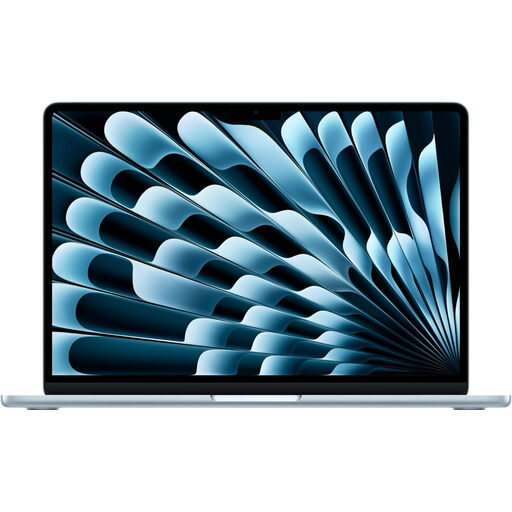
Apple 13-inch MacBook Air M5, 16GB, 1TB SSD, Sky Blue
Consider this model if your booking and spreadsheet tools work on macOS and you plan to use a portable laptop at the desk.
This variant lists 16GB memory and a 1TB SSD. Apple specifies two Thunderbolt 4 ports and support for up to two external displays for the M5 MacBook Air.
Check your monitor, cable or dock requirements: the M5 MacBook Air has no built-in HDMI or USB-A port.
View on Joybuy
 No image available
HP OmniBook Ultra Flip 14-fh0006na, 16GB, 1TB SSD
Consider this 2-in-1 if you want a Windows 11 Home laptop for comparing booking pages and keeping travel files.
The product name specifies 16GB RAM and a 1TB SSD.
Check the exact ports and display output before planning a monitor connection; the product information gives conflicting port details.
View on Joybuy
 No image available
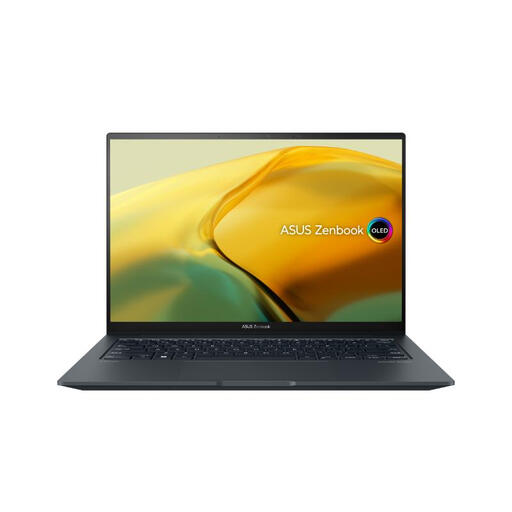
ASUS ZenBook UX3404VC-M3130W, 14.5-inch OLED
Consider this Windows 11 Home model if you prefer a 14.5-inch touchscreen for viewing booking pages.
The product name lists an Intel Core i9 processor, 16GB RAM, a 1TB SSD and RTX 3050 graphics.
Check this exact model’s ports and external-display support before choosing a standing-desk monitor setup.
View on Joybuy
 No image available
Acer Chromebook Plus 514 CB514-5H, 8GB, 512GB SSD
Consider this ChromeOS option if your holiday research and essential tools work on a Chromebook.
The product name lists a 14-inch 1920 × 1200 WUXGA display, an Intel Core 5 120U processor, 8GB RAM and a 512GB SSD.
It is not a substitute for Windows or macOS desktop software you must run. Check your required apps and monitor setup before buying.
View on Joybuy
Common questions
Is a laptop alone enough for a standing-desk setup?
Not for prolonged use if you cannot position the screen and input devices appropriately. The Health and Safety Executive advises a separate keyboard and mouse so a laptop screen can be raised on a riser or similar; plan those items alongside the laptop.
Do I need an external monitor to compare holiday costs?
Not necessarily: a raised laptop screen may meet your viewing needs if you use separate input devices for prolonged sessions. A separate monitor is worth considering when you want booking pages and a spreadsheet visible together; check the laptop’s documented display support and your available desk space.
Can an M5 MacBook Air connect to two external displays?
Yes, Apple’s UK specifications state support for up to two external displays on the M5 MacBook Air. Check the resolutions and refresh rates you need, plus the compatibility of your cables and any dock, before settling on a particular monitor arrangement.


