What matters when buying
For consumers choosing a laptop for translated-subtitle editing at a shared desk, work out the desk connection first, then judge the footage workload, how often the laptop moves and what you need from its own screen.
| Concern |
What to check |
Who this matters to |
| Desk setup and external display |
Check the exact laptop’s monitor outputs and whether your intended dock provides the connections and charging the setup needs. |
I need subtitle text, video and reference material arranged for a long desk session without relying on the laptop’s fixed screen-and-keyboard position. Around 31% of consumers put the shared-desk setup first. |
| Memory and media storage |
Check your editor’s requirements against source resolution and project storage; Adobe recommends 16GB for HD and 32GB or more for 4K media in Premiere Elements. |
My source footage and open applications determine whether a modest text-led setup is enough or I need more room for media work. About 31% of consumers make footage-handling capacity their primary concern. |
| Portability and reconnection |
Compare the laptop’s carrying weight and ports, then check how it will reconnect to the shared desk. |
I regularly take the laptop away and need to reconnect my peripherals when I return. Roughly 23% of consumers prioritise that move-between-desks routine. |
| Built-in screen for mobile review |
Check resolution, screen finish and text scaling in your subtitle editor, particularly when no external monitor is available. |
When I review subtitles away from the desk monitor, I need to read the timeline and text comfortably on the laptop itself. Around 15% of consumers put the built-in screen first. |
Joybuy laptop choices for subtitle editing
These laptops offer different combinations of built-in screen size, memory and storage for subtitle work. Choose among them by checking your software and footage requirements first, then the connections needed at your shared desk.
 No image available
Lenovo LOQ Essential 15ARP11, Ryzen 7 170, 16GB RAM, 1TB SSD, RTX 5050
Consider this 16GB configuration for HD-media subtitle work if it meets your editor’s requirements; Adobe’s 16GB HD recommendation is specific to Premiere Elements.
The listed 15.6-inch 144Hz Full HD screen and GeForce RTX 5050 do not establish what your external monitor or dock can run. Check those connections and whether 16GB is enough for your footage.
View on Joybuy
 No image available
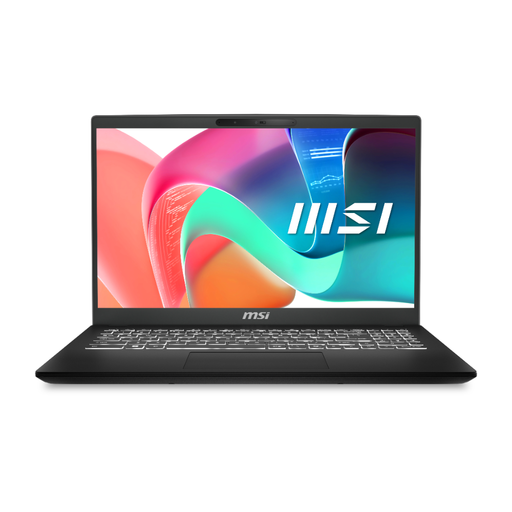
MSI Modern C2RMG-282UK, 9S7-15H431-282, Core 5, 16GB RAM, 512GB SSD
For text-led or HD subtitle projects, assess this 16GB, 512GB configuration against your software and the space needed for source files.
Its listed screen is 15-inch Full HD. Check the exact Core 5 processor and how the laptop will connect to your shared-desk monitor and dock.
View on Joybuy
 No image available
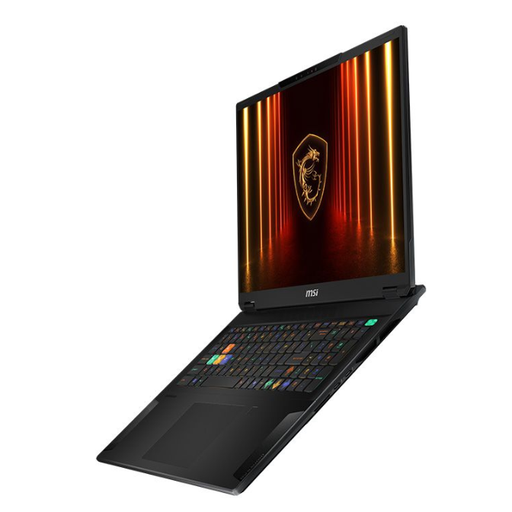
MSI Stealth 18 AI Studio A1VGG-001UK, Core Ultra 9, 32GB RAM, 2TB SSD, RTX 4070
Assess this 32GB configuration if your subtitle work also involves 4K media; Adobe recommends 32GB or more for 4K in Premiere Elements.
The 18-inch format and 2TB SSD are part of this variant. Check whether you want to move a laptop of this size between desks and whether its display connections fit your setup.
View on Joybuy
 No image available
ASUS Vivobook 14 X1407QA-LY003W, Snapdragon X, 16GB RAM, 512GB SSD, Quiet Blue
This 14-inch configuration is worth assessing if you move away from the shared desk and your subtitle application works with its Snapdragon-based Windows setup.
Check required plugins and client tools before buying, and confirm that your monitor and dock will work with the exact laptop.
View on Joybuy
 No image available
Microsoft Surface Laptop 7 15-inch, Snapdragon X Elite, 16GB RAM, 256GB SSD, Maya
Consider the 15-inch PixelSense touchscreen if you review subtitles away from a monitor, provided your editor and plugins work with this Snapdragon configuration.
Assess whether the listed 256GB SSD accommodates your projects and media, and check external-display and dock requirements for the shared desk.
View on Joybuy
Common questions
Is a laptop alone enough for prolonged subtitle work at a shared desk?
No laptop specification addresses the whole workstation. The Health and Safety Executive advises a separate keyboard and mouse for prolonged laptop use so the screen can be raised; an external display can also help when subtitle text, video and reference material need to stay visible.
Does buying a laptop meet UK display-screen-equipment requirements?
Not by itself. The Health and Safety Executive says the UK Display Screen Equipment Regulations apply to workers who use display screen equipment daily for continuous periods of an hour or more, and workstation assessment considers equipment, furniture and working conditions as well as the device.
Is 16GB of RAM enough for subtitle editing?
It is an application-specific reference for HD media, not a universal answer. Adobe recommends 16GB of RAM or unified memory for HD media and 32GB or more for 4K media in Premiere Elements; check your own subtitle editor, footage and other open applications.
Can one dock handle the monitor, peripherals and charging?
It can if the exact laptop and dock support your intended connections and power requirements. Dell specifies up to 96W power delivery to non-Dell systems for its SD25TB4 dock, but the laptop’s port, display limits and charging needs still determine whether a particular setup will work.


