For translating, timing and previewing subtitles, start with a laptop that has 16GB of memory and SSD storage, then choose its screen size around the space available on your desk and in your bag. Consider a higher-memory creator laptop if you also edit demanding video projects; Adobe recommends 32GB or more for 4K media in Premiere Elements, but that requirement does not apply to every subtitle editor. Check your course software, plug-ins and display connections before choosing a model.
Who needs which setup?
Subtitle-first students
If you mainly translate, proofread and adjust timings, prioritise your required subtitle software and a laptop you can move between your room and campus. Aegisub describes its editor as cross-platform, but that does not establish compatibility with every course tool or plug-in.
Students who edit video as well as subtitles
If your projects also involve HD or 4K footage, assess memory and SSD capacity against the video application you will use. Adobe’s Premiere Elements guidance recommends 16GB of memory for HD media and 32GB or more for 4K media.
Students working across several panels
If you keep subtitle text, timings, reference material and a preview open together, check whether the built-in screen works at your usual display scaling. An external monitor is another option if your desk space and laptop connections allow it.
What matters when choosing?
Identify the software your course requires before deciding how much screen space or video-editing capacity to buy.
| Concern | Buying checks | Who this matters to |
|---|
| Software compatibility |
Check the exact subtitle editor, version and required plug-ins; test representative files, fonts and video formats where possible. |
If my course requires particular tools or delivery files, I need those to work before screen size becomes the deciding factor. Around 40% of consumers put software compatibility first. |
| Screen and workspace |
Try the subtitle grid and video preview at your usual scaling; check display-output connections if you plan to use a monitor. |
When I work with timings, reference text and a preview together, I need a layout that fits both my screen and my desk. Workspace is the primary concern for around 30% of consumers. |
| Video-editing capacity |
Match configured memory and SSD capacity to your video application and whether you edit HD, 4K or multi-track footage. |
If I regularly edit source footage as well as subtitles, media projects drive my choice more than a compact footprint. Around 30% of consumers make video-editing capacity their main concern. |
Buying pitfalls
-
Using the operating system minimum as a buying target
Microsoft lists 4GB of memory and 64GB of storage as Windows 11 minimums. Those figures establish operating-system eligibility, not how your subtitle and video applications will run together.
Check the requirements of your actual applications. A 16GB-memory laptop with SSD storage is a more useful starting point for this subtitle-editing task; scale further for the video work you expect to do.
-
Buying creator-laptop hardware for text-led work
Dedicated graphics and large-memory configurations address more demanding media workflows; basic translation, proofreading and subtitle timing do not by themselves establish a need for them.
List your heaviest expected project before choosing a configuration. For 4K editing in Premiere Elements, Adobe recommends 32GB of memory or more; check your own application’s requirements for graphics.
A larger laptop and charger can also take up more of a narrow desk and be less convenient to carry.
-
Overlooking the room’s charging setup
Charging cables, plugs and socket arrangements matter in a shared or compact room. Devon and Somerset Fire and Rescue Service advises students not to overload plug sockets.
Check the charger and cable for damage, avoid overloaded extension leads and follow your accommodation’s electrical rules.
Brands to consider
Apple
MacBook Air is a compact macOS option for subtitle-first work if your required applications and plug-ins run on it.
- Apple’s UK MacBook Air specification lists 16GB unified memory and SSD storage.
- Check whether the built-in screen and available connections suit your working layout.
Lenovo
Yoga Pro includes Windows creator-laptop configurations to consider when subtitle work extends into video editing.
- A specified Yoga Pro 7i configuration lists 32GB memory, a 1TB SSD and RTX 4060 graphics.
- Those specifications belong to that configuration, not every Yoga Pro laptop; check the exact model offered.
ASUS
ASUS positions its ProArt P16 line for demanding creative workflows, which may be relevant if video production is a regular part of your projects.
- ASUS lists ProArt P16 variants with 16-inch displays and configurations offering RTX graphics.
- Specifications vary by configuration, and a larger creator laptop can occupy more desk and bag space than subtitle-first work requires.
Joybuy laptops for different workflows
These laptops span compact subtitle-first study setups, larger built-in screens and configurations for students who also undertake video projects. Check the exact software workflow and the space available in your room before choosing.
 No image available
Lenovo Legion Pro 7 16IAX10H, 83F5000UUK
Consider this configuration if subtitle work accompanies substantial video projects and a 16-inch laptop fits your desk and bag.
16-inch display; Intel Core Ultra 9; 64GB RAM; 2TB SSD; NVIDIA GeForce RTX 5090; Windows 11 Home.
Confirm that your subtitle editor, plug-ins and course files work with the required Windows setup.
View on Joybuy
 No image available
ASUS Vivobook 15 X1504VA, Core 5 120U, 24GB RAM
Consider the 15.6-inch screen if you want more built-in workspace for subtitles and preview without choosing an 18-inch laptop.
Intel Core 5 120U; 24GB RAM; 1TB SSD; Cool Silver.
Check your editing layout at your preferred display scaling and confirm software compatibility.
View on Joybuy
 No image available
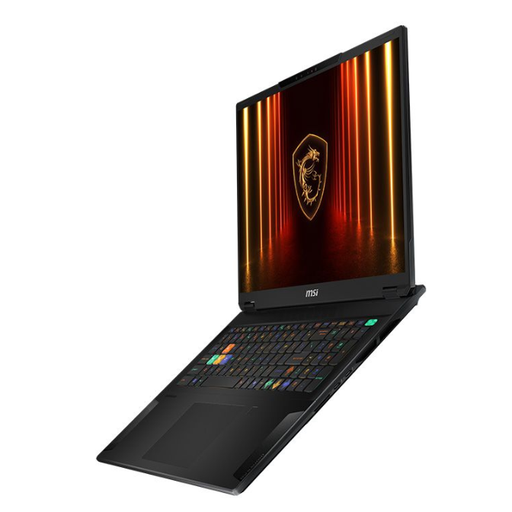
MSI Stealth 18 AI Studio A1VGG-001UK
The 18-inch format is worth considering if you need a large integrated screen for media work and can accommodate its footprint.
Intel Core Ultra 9; 32GB RAM; 2TB SSD; NVIDIA GeForce RTX 4070.
Check desk and bag fit as well as compatibility with the subtitle and video applications you use.
View on Joybuy
 No image available
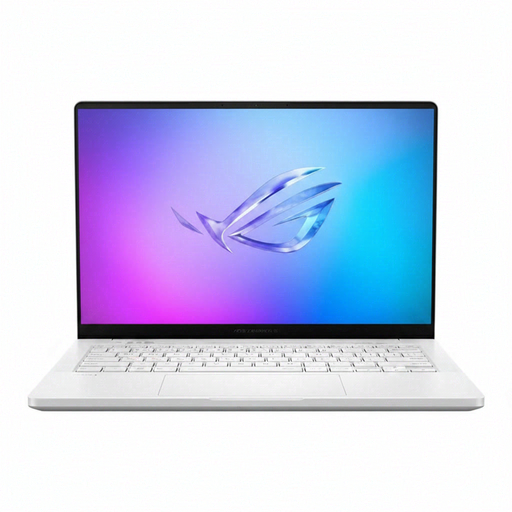
ASUS ROG Zephyrus G14 GA403WR-QS088W
This 14-inch configuration offers a smaller screen footprint for students whose projects also call for video-editing hardware.
AMD Ryzen AI 9 HX 370; WQXGA+ display; 32GB LPDDR5x-SDRAM; 2TB SSD; NVIDIA GeForce RTX 5070 Ti; Windows 11 Home.
Check the keyboard layout, display connections and compatibility with your required software.
View on Joybuy
 No image available
ASUS Vivobook 14 X1407QA-LY003W, Snapdragon X
Consider this 14-inch model for a compact subtitle-and-study setup, provided your essential tools work on its Snapdragon-based Windows configuration.
16GB RAM; 512GB SSD; Quiet Blue.
Check the exact subtitle editor, plug-ins and media workflow for Windows on ARM compatibility before buying.
View on Joybuy
Frequently asked questions
Do I need Windows to edit translated subtitles?
No single operating system is required for every subtitle workflow: Aegisub describes its editor as cross-platform. Check the named application, plug-ins, fonts, video formats and any course or client requirements before choosing Windows, macOS or Linux.
Is 16GB of memory enough for subtitle editing?
For text-led subtitle work with video preview, 16GB is a practical starting point, subject to your software’s requirements. If you also edit video in Premiere Elements, Adobe recommends 16GB for HD media and 32GB or more for 4K media.
Can I cancel an online laptop purchase if it does not suit my workflow?
For most online goods purchases in the UK, GOV.UK says customers may cancel up to 14 days after delivery without giving a reason. Check the seller’s cancellation process and any applicable exception before ordering; a change-of-mind cancellation is distinct from remedies for a faulty or misdescribed laptop.
Does a laptop in student accommodation need annual PAT testing?
The Health and Safety Executive says the relevant regulations do not make annual inspection or testing of portable electrical appliances a legal requirement. Your accommodation may have its own rules, so check those separately and inspect the charger and cable for visible damage before use.


