Choose a laptop for the footage and editing software you use, as well as the two-screen layout you need. For Adobe Premiere, Adobe recommends 16 GB of memory for HD media and 32 GB or more for 4K and higher; subtitle work alone does not determine the specification. Before buying, establish whether your two screens are the laptop display plus one monitor, two external monitors, or two displays built into the laptop.
Who needs which setup?
Subtitle editors using a laptop and one monitor
Keep the subtitle list or script visible alongside video playback. If your editing is mainly HD, use your application’s requirements to judge memory needs, and confirm that the laptop can extend its desktop to your monitor. Adobe’s Premiere guidance distinguishes HD from 4K memory requirements; Microsoft explains how to arrange connected displays in Windows.
Editors working with 4K multilingual video
If translation and subtitle timing sit alongside 4K footage, multiple tracks or exports, assess the video-editing workload rather than buying for text work alone. Adobe recommends more memory for 4K-and-higher Premiere projects than for HD media.
Editors moving between locations
If you edit away from a permanent desk and reconnect to a monitor later, check both the laptop’s carrying size and the connections your desk setup requires. Compare the selected configuration, not just its product-family name.
What to check before choosing
Settle the screen arrangement first, then match memory and other specifications to your editing application and footage.
| Concern | What to check | Who this matters to |
|---|
| Two-screen connections |
Check whether you need one external monitor or two, then match the exact laptop’s display-output capability and ports to your monitors and dock. |
I need the subtitle list and video visible together without relying on a mirrored screen. Around 46% of consumers put a dependable extended workspace first. |
| Editing workload |
Check your software’s requirements against your footage; Adobe recommends 16 GB of memory for HD Premiere work and 32 GB or more for 4K and higher. |
When I work with 4K footage or heavier timelines, I need the editing application to take priority over a lighter configuration. Around 36% of consumers put editing workload first. |
| Working between locations |
Compare the selected laptop’s size, charger and ports with the equipment you will reconnect at your desk. |
I carry the laptop between workspaces but still need it to fit my editing setup when I return to a monitor. Roughly 18% of consumers make portability their primary concern. |
Mistakes to avoid
-
Assuming a USB-C port will run the planned monitors
A connector’s shape does not establish how many displays the laptop can drive or at which resolutions and refresh rates. Check the exact laptop configuration alongside the monitor and dock specifications.
Match the documented display outputs, ports and cables to your intended extended layout before ordering. If possible, try that layout while a return option is available.
The setup may also require a compatible dock, cable or adapter.
-
Choosing a 16 GB variant for regular 4K Premiere work
Adobe recommends 16 GB of memory for HD media but 32 GB or more for 4K and higher in Premiere. Different configurations sold under one laptop-family name need not have the same memory or graphics.
Check the memory, GPU and storage of the exact variant you intend to buy rather than relying on specifications advertised for the wider range.
-
Checking video specifications but not subtitle software
Video-editing hardware does not establish whether your subtitle application, plug-ins, fonts or collaborators’ files will work with a particular operating system.
Confirm the versions and file formats you use before choosing between Windows and macOS.
-
Treating a manufacturer warranty as the only remedy
A warranty is separate from statutory consumer rights. Citizens Advice notes that seeking a remedy without using a warranty may be easier in some circumstances.
Keep the listing and selected configuration details, and check the seller’s return process separately from the manufacturer’s warranty terms.
Relevant brands to consider
Apple
MacBook Pro offers a macOS route for editors whose subtitle and video tools run on that platform.
- Apple lists media engines and configurable unified memory for MacBook Pro.
- External-display capability varies by chip. Check the exact configuration, software, plug-ins and monitor accessories before changing platforms.
ASUS
The ProArt P16 is a Windows creator-laptop line aimed at video and visual-production workflows.
- ASUS lists configurations with Ryzen AI processors and GeForce RTX 50-series laptop graphics.
- Check the GPU, memory, display and ports on the selected P16 variant; the range description does not identify every configuration.
Dell
Dell Pro Max 16 provides a Windows mobile-workstation route for editors considering a configurable production laptop.
- Dell’s UK configuration information includes a 32 GB DDR5 memory selection.
- Confirm the memory, graphics and display outputs of the configuration being ordered rather than treating the workstation name as its specification.
Lenovo
ThinkPad P-series mobile workstations, including the P16 Gen 2, offer a large Windows-laptop route.
- Lenovo lists an RTX A1000 laptop GPU for a cited ThinkPad P16 Gen 2 configuration.
- Check the chosen variant’s memory, graphics, ports and external-display capability against your editing setup.
Joybuy laptops for these workflows
These laptops cover different ways of keeping subtitle work and video visible, from a dual-display laptop to configurations suited to more demanding footage. Match each one to your software and the screens you plan to use.
 No image available
ASUS ProArt P16 H7606WW-SE006W, RTX 5080, 64 GB/2 TB
Consider this configuration if subtitle work accompanies regular 4K or multi-track editing. Its listed specifications include a 16-inch 4K OLED touchscreen, Ryzen AI 9 HX 370, GeForce RTX 5080 with 16 GB graphics memory, 64 GB RAM and a 2 TB SSD.
Check that its outputs and any dock support your exact monitor arrangement, and that your subtitle software runs on Windows 11 Home.
Joybuy
 No image available
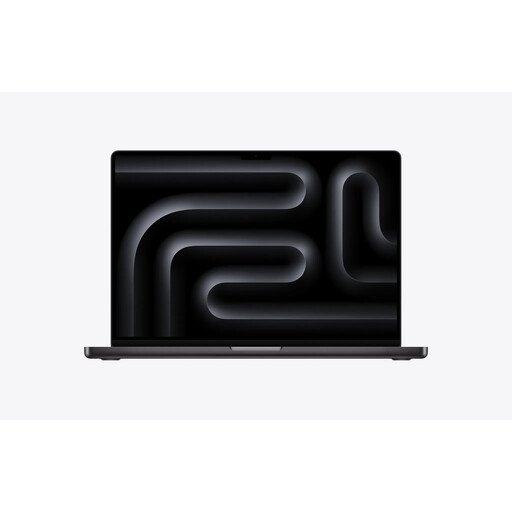
Apple MacBook Pro 16.2-inch (M5 Max), 48 GB/2 TB, Space Black
Consider this M5 Max configuration for a macOS editing workflow that needs substantial memory and local storage. The listed variant has a 16.2-inch display, 18-core CPU, 40-core GPU, 48 GB unified memory and a 2 TB SSD.
Confirm your subtitle tools and fonts work on macOS, and check the supported resolutions and refresh rates for your intended external displays and dock.
Joybuy
 No image available
Lenovo Legion Pro 7 16IAX10H 83F5000UUK, RTX 5090, 64 GB/2 TB
Consider this Windows configuration when subtitle editing is part of a heavier video workflow. Its listed specifications include a 16-inch display, Intel Core Ultra 9, GeForce RTX 5090, 64 GB RAM and a 2 TB SSD.
Check the laptop’s external-display outputs and any dock against your planned screens; the graphics model alone does not establish that setup.
Joybuy
No image available
Apple MacBook Pro 14.2-inch (M5 Pro), 24 GB/2 TB, Silver
Consider this smaller MacBook Pro if your subtitle and editing tools run on macOS and you want a 14.2-inch built-in display. The listed M5 Pro variant has an 18-core CPU, 20-core GPU, 24 GB unified memory and a 2 TB SSD.
Its 24 GB memory is below Adobe’s recommendation of 32 GB or more for 4K-and-higher Premiere work. Check that the chip, ports and any dock support your planned screens.
Joybuy
 No image available
ASUS Zenbook DUO UX8406CA-QL135W, dual 14-inch OLED, 16 GB/1 TB
Consider this laptop if you want two work areas on the device itself rather than relying on a separate monitor. Its listed variant has dual 14-inch OLED touch displays, an Intel Core Ultra 7 255H, 16 GB RAM and a 1 TB SSD.
Confirm the exact display resolution before choosing it, and check external-monitor support if your workspace will include another screen. Adobe’s 32 GB-or-more recommendation for 4K Premiere work is higher than this variant’s listed memory.
Joybuy
Frequently asked questions
Do I need support for two external monitors?
Only if both additional screens are external. A laptop display plus one monitor requires support for one external display; two external monitors require you to check the exact laptop, ports, dock and intended resolutions. Windows can arrange connected displays, but its settings cannot add display-output capability to the hardware.
How much memory do I need for subtitle editing?
Base the choice on the editing application and footage, not subtitle text alone. Adobe recommends 16 GB of memory for HD media in Premiere and 32 GB or more for 4K and higher; other subtitle applications may have different requirements.
Should footage and editing applications share one SSD?
They can share storage if its capacity suits your projects, but plan separately for large media files and cache. Adobe’s Premiere guidance recommends a fast internal SSD for the application and cache, with an additional high-speed drive for media.
What should I check about UK returns and warranties?
Save the seller’s listing and your selected configuration, then check the seller’s return procedure and the manufacturer’s warranty separately. GOV.UK guidance describes a limited cancellation right for online orders, while rights concerning faulty goods are distinct from a manufacturer warranty; the applicable remedy depends on the circumstances.


