Choose a laptop as your primary device if your course requires desktop applications, sustained typing or complex file work; check your department’s requirements before choosing a model. A stylus tablet makes more sense for handwriting and annotating readings when you already have dependable access to a suitable computer. Using both is worthwhile when each has a distinct, regular role, provided the extra carrying and charging suit your routine.
Who each setup suits
Students with software-heavy coursework
If assignments depend on specialist applications, extensive typing or managing files across several windows, start with the course’s computer requirements. University College London advises regular access to a laptop or desktop, while Loughborough University cautions that the software available on tablets can be limited.
Students who handwrite and annotate readings
If a suitable computer already covers assessed work, a tablet may fill a different need: handwriting lecture notes and marking up documents. Check the exact tablet-and-pen pairing before treating it as part of your study setup; Apple and Samsung describe model-specific pen options.
Students extending an existing setup
If you already own a working laptop or tablet, identify the task it cannot conveniently handle before adding another device. Heriot-Watt University advises matching technology to the requirements of the discipline; an accessory or a replacement device should serve that requirement rather than duplicate your current setup.
What to check before choosing
Start with the work your course requires you to submit, then consider how you prefer to read and take notes. The concerns below separate consumers by the need they would put first; your own priorities may be different.
| Concern |
What to check |
Who this matters to |
| Coursework compatibility |
Confirm required applications, operating system and assessment tools with your department. Check that the exact device can run them through a workflow you can use. |
If my assignments need specialist software, I need a device that can complete and submit the work, not just display the reading. About 36% of consumers would put coursework compatibility first. |
| Handwriting and reading |
Check the exact tablet-and-stylus pairing, pen inclusion and charging, and whether your note app can export files in a usable format. |
When lectures involve handwritten notes and marked-up PDFs, I want those materials to remain usable for later study. For about 29% of consumers, handwriting and reading would be the primary need. |
| Using two devices |
Decide which tasks belong on each device, then check file access and the daily carrying and charging routine. |
I may want a tablet for readings in lectures while keeping a laptop for written work, but only if switching between them is manageable. Roughly 21% of consumers would prioritise that division of tasks. |
| Condition and support |
For a refurbished device, check its stated condition, exact model and included accessories. Review the seller’s terms and the manufacturer’s model-specific repair information. |
If I choose a refurbished device, I need to know what condition and support to expect before relying on it for study. About 14% of consumers would make condition and support their main concern. |
Common buying mistakes
-
Assuming any tablet can replace a laptop
A tablet may cover notes and reading without running an application required for coursework. Loughborough University warns that software availability on tablets can be limited.
Get your course’s application and assessment requirements first. Use a tablet as your sole device only if it can meet every required workflow, or you have dependable access to a suitable computer.
-
Choosing a pen by brand alone
Pen support and features can differ between models from the same manufacturer. Apple and Microsoft publish compatibility information for specific devices, while Samsung advises checking the particular Galaxy Tab.
Match the exact tablet model and generation to a compatible pen, then confirm whether it is included and how it charges.
An incompatible pen can leave you needing a different accessory for handwriting.
-
Overlooking the accessories a setup needs
A tablet chosen for handwriting or typing may need a compatible pen or keyboard to perform the task you have in mind. A keyboard does not, by itself, make desktop applications available on a tablet.
Decide which tasks the tablet must handle before checking the exact accessory pairing and what comes with the device.
Using two devices also means carrying and charging both.
-
Treating refurbished condition as new-device condition
A refurbished listing’s condition and included accessories matter when you will depend on the device for coursework. The manufacturer’s repair options may also vary by model.
Keep the listing’s condition description, confirm the exact model and accessories, and read the seller’s terms and applicable repair information before ordering.
Relevant brands to consider
Apple
An iPad and Apple Pencil can serve as a handwriting and document-markup companion when another computer covers required coursework.
- Apple describes note-taking and document-markup functions for Apple Pencil.
- Apple Pencil compatibility and features vary by the exact iPad and Pencil models; an iPad alone should not be assumed to run course-specific desktop software.
Samsung
Selected Galaxy Tab models offer an S Pen-oriented route for handwritten notes and screen annotation.
- Samsung describes writing and annotation functions for supported Galaxy Tab and S Pen pairings.
- Check pen compatibility and inclusion for the exact model. Samsung’s repair, warranty and self-repair information is also product-specific.
Microsoft Surface
A pen-capable Surface configuration may suit students seeking a Windows laptop-and-tablet-style workflow, if the exact model meets their course requirements.
- Microsoft provides model-by-model information on supported Surface Pen features and arrangements.
- A Surface name does not establish pen support: Microsoft lists some Surface Laptop models without inking support. Check the device, keyboard and pen combination separately.
Laptops for the primary-device route
These Joybuy laptops are options to examine when a laptop will handle your typing and coursework. Their different formats and operating-system conditions make checking your course’s required applications especially important; none should be treated as a substitute for a stylus tablet without confirming the handwriting setup you need.
 No image available
ASUS Vivobook 14 X1407QA-LY003W, Snapdragon X, 16GB, 512GB SSD
Consider this laptop for typed coursework if the applications your course requires work on this Snapdragon configuration. The named variant has 16GB RAM and a 512GB SSD; check application compatibility before relying on it as your primary study device.
View on Joybuy
 No image available
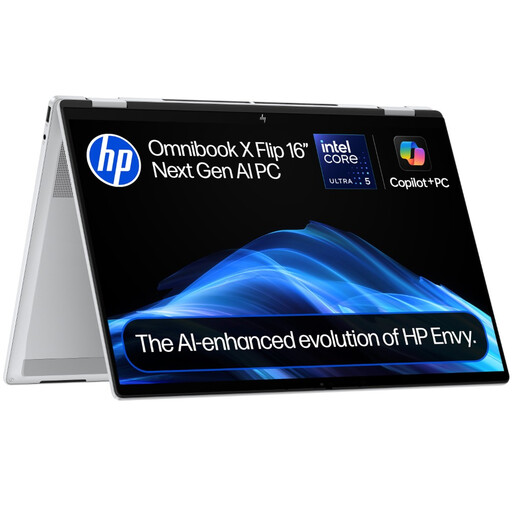
HP OmniBook X Flip 16-as0004na, 16-inch touchscreen, 16GB, 512GB SSD
Consider the convertible format if you want a laptop for typing alongside a touchscreen for handling study materials. This Windows 11 Home variant lists an Intel Core Ultra 5 226V, 16GB RAM and a 512GB SSD. Check required course applications and the exact pen compatibility and bundle before planning to handwrite notes on it.
View on Joybuy
 No image available
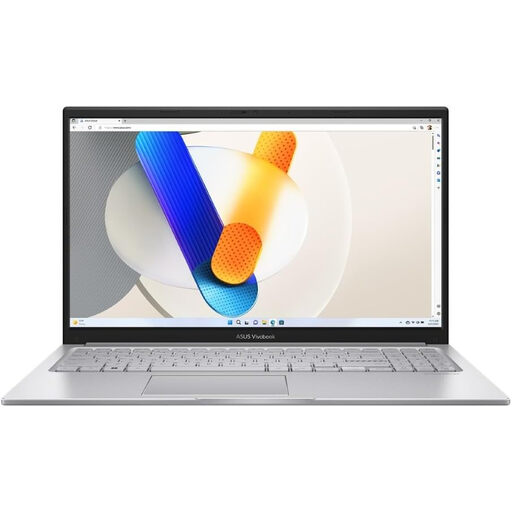
ASUS Vivobook 15 X1504VA, Intel Core 5 120U, 24GB, 1TB SSD
This conventional laptop format may suit students expecting to type assignments and keep course files on one device. The named configuration has a 15.6-inch display, 24GB RAM and a 1TB SSD. Confirm the applications and operating system your department requires before choosing it.
View on Joybuy
 No image available
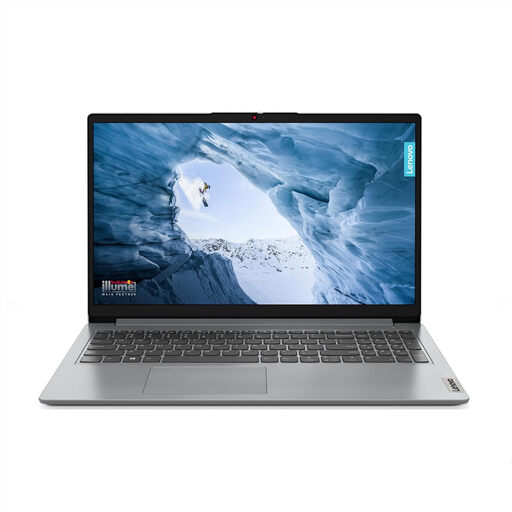
Lenovo IdeaPad 1, 15-inch, Ryzen 3 7320U, 8GB, 128GB SSD
Consider this laptop for typed work only after checking that its setup fits your course’s application and file needs. It lists Windows 11 Home in S Mode, 8GB RAM and a 128GB SSD. Confirm the required installation workflow and whether that storage capacity is sufficient for your coursework.
View on Joybuy
 No image available
Acer Chromebook Plus 514 CB514-5H, 14-inch WUXGA, 8GB, 512GB SSD
Consider this Chromebook if your course’s applications and assessment workflow work on ChromeOS. The named variant lists an Intel Core 5 120U, 8GB RAM and a 512GB SSD. Its product information says traditional Windows and macOS desktop-native software is incompatible, so check every required application before making it your only study computer.
View on Joybuy
Questions about study setups
Can a tablet replace a laptop at university?
Only if it supports every application, assessment and submission workflow your course requires, or you have dependable access to a suitable computer for the tasks it cannot handle. Loughborough University notes that software availability on tablets can be limited, so confirm your department’s requirements before choosing a tablet as your sole device.
How do I choose a stylus that works with my tablet?
Match the exact tablet model and generation to the manufacturer’s pen compatibility information. Apple, Samsung and Microsoft describe model-specific support; also check whether the pen is included and how the supported pairing charges and stores it.
Is a keyboard case enough for writing essays on a tablet?
A keyboard can help with typing, but it does not establish that the tablet runs your course’s required desktop applications or handles its file and submission workflow. Check those requirements separately before treating a keyboard-equipped tablet as your primary coursework device.
What should I check about repair support?
Check the exact model’s warranty and repair information, rather than assuming support is identical across a brand’s devices. Samsung says its warranty periods differ by product type and its self-repair programme applies to selected products; its stated warranty exclusions also matter if you plan to arrange a repair yourself.


