What should you check before buying?
Start with the laptop’s output and the TV’s input, then decide whether you need a full external display or only occasional wireless sharing.
| Priority | What to check | Your needs |
|---|
| Wired ports |
Check for laptop HDMI output and a free TV HDMI input. Without laptop HDMI, confirm that its exact USB-C, Thunderbolt or other display port supports video, then match the adapter to it. |
I want to connect the laptop as an external display, and I can keep it close enough to the TV for a cable. |
| Wireless compatibility |
Confirm the same sharing technology at both ends: Miracast for a compatible Windows display, Google Cast for Chrome casting, or an AirPlay-compatible receiver for a Mac. Check the connection requirements for that route. |
Cable-free sharing matters more to me than keeping the laptop connected to the TV throughout a session. |
| What appears on screen |
Decide between an external-display connection and sending selected content. Google Help describes casting a Chrome tab or screen; Apple Support describes Mac mirroring, extension and window or app sharing. |
For shared viewing, I may want to show just a browser tab or window rather than my whole desktop. |
| Playback requirements |
For protected media, check the service and the laptop-to-TV display path. For 4K/HDR, check the content, TV and each device or accessory in the route; Google Help also specifies suitable content and a high-speed internet connection for 4K/HDR streaming. |
I want to know whether my intended video or display mode will work before choosing an accessory for it. |
Relevant brand references
These brands illustrate different connection technologies; a brand name is not a substitute for checking the particular laptop, receiver and TV.
Apple
Apple Support describes HDMI cable and adapter connections for Macs, alongside AirPlay options for sharing with a compatible TV or receiver.
- Mac sharing controls can mirror or extend the desktop, or share a window or app.
- Apple lists an HDMI cable as required and sold separately for Apple TV 4K; 4K/HDR streaming also needs a compatible TV.
Google
Google Help describes casting a Chrome tab or computer screen to a compatible Google Cast receiver, including Google TV Streamer.
- Chrome offers a route for sending a selected tab instead of the whole screen.
- Google calls for a strong Wi-Fi connection on the computer and streaming device; check where whole-screen audio will play for your intended setup.
Amazon Fire TV
Amazon Customer Service UK describes native Fire TV mirroring for devices that support Miracast.
- An existing compatible Fire TV receiver may provide a mirroring route for a Miracast-capable device.
- Amazon explicitly excludes macOS and iOS from its native Fire TV screen-mirroring feature.
Belkin
Belkin’s AVC013 is a specific USB-C-to-HDMI adapter example for checking adapter specifications against the intended laptop and display.
- Belkin states model-specific output and protected-content specifications for the AVC013.
- Those specifications do not establish what a different adapter—or an incompatible laptop port or TV—can provide.
Joybuy connection options
These options cover a direct HDMI cable, a USB-C hub with HDMI outputs and a wireless HDMI display device. Choose by the connection your laptop and TV can actually use.
 No image available
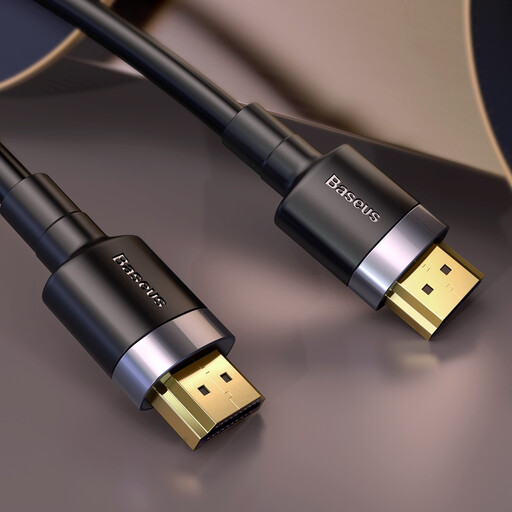
Baseus Cafule 4KHDMI 3m black HDMI cable
A wired option when the laptop has HDMI output and the TV has a free HDMI input. Its stated length is 3 m; check the complete display path for your intended output and any protected video.
View on Joybuy
 No image available
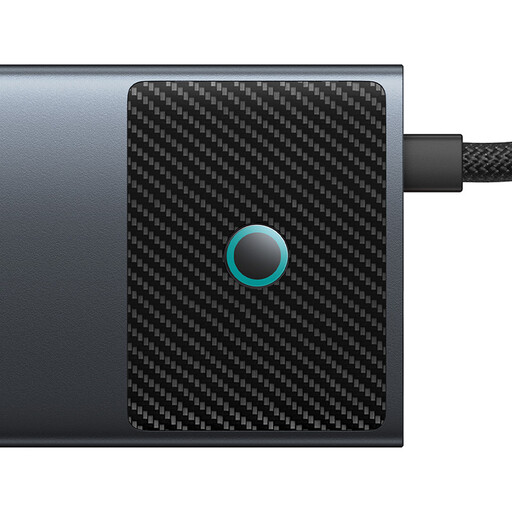
Baseus Metal Gleam Series II 10-in-1 USB-C hub, Cosmic Black
A multiport route to an HDMI TV for a laptop whose USB-C port supports DP Alt Mode video output. The title lists two HDMI outputs with different 4K refresh-rate claims; confirm the exact output mode and dual-display behaviour needed for your setup before buying.
View on Joybuy
 No image available
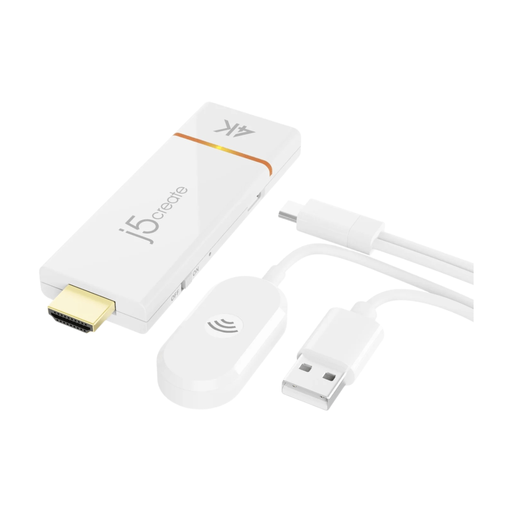
j5create JVAW56 ScreenCast HDMI Wireless Display, White
A wireless-sharing option for an HDMI display. Before choosing it for a particular laptop, confirm its wireless protocol, compatible sending devices, network requirements and power requirements.
View on Joybuy
Common questions
Can one HDMI cable connect my laptop to the TV?
Yes, if the laptop has HDMI output and the TV has an available HDMI input. Connect them and select that input on the TV; check the laptop, TV and cable specifications if you need a particular display mode.
Will any USB-C-to-HDMI adapter work with my laptop?
No. Confirm that the laptop’s exact USB-C port supports video output, then check the adapter against the resolution, refresh rate and content you intend to use. Apple Support advises checking adapter specifications for Mac HDMI connections.
Can a Windows laptop mirror wirelessly to a TV?
Yes, when the laptop and the TV or attached receiver support Miracast. Microsoft Support describes selecting a Miracast-capable wireless display through Windows+K; connect a compatible receiver to the TV first if the TV needs one.
Can a MacBook use Fire TV’s built-in screen mirroring?
Not through Fire TV’s native mirroring feature: Amazon Customer Service UK lists macOS as unsupported for that feature. For Mac screen sharing, check an AirPlay-compatible TV or receiver, or use a suitable wired HDMI connection or adapter.
Why might protected video fail through an adapter?
Protected playback can require a compatible display path. Apple Support says HDCP-encrypted playback on its supported Mac external-display path requires an HDCP-compatible display; check the content service, laptop, adapter and TV input for the particular setup.


