Small-desk subtitle editors
You need room for notes, a keyboard or a pointing device as well as the laptop. A compact screen helps preserve desk space, but you still need to see subtitle text and the video reference clearly.


For mostly text-led subtitle editing, start with a compact 13- or 14-inch laptop and confirm that its operating system supports your editor, fonts, plug-ins and export workflow; a 16GB configuration is worth comparing, but it does not guarantee performance. If you regularly edit video or run several creative applications alongside translation tools, check your software’s memory and graphics requirements before deciding whether to move to 32GB, and allow desk space for the input devices or display you use.
You need room for notes, a keyboard or a pointing device as well as the laptop. A compact screen helps preserve desk space, but you still need to see subtitle text and the video reference clearly.
You preview footage, adjust timing and export video while working with translated text. Your choice needs to account for the video editor and source files, not just the size of subtitle documents.
You move between dialogue, terminology and timing throughout the day. Screen arrangement, reflections and space for comfortable input devices deserve attention alongside processor and memory specifications.
Identify the software and video workload first, then check whether the screen, connections and complete desk arrangement fit the way you work.
| Concern | What to check | Who this matters to |
|---|---|---|
| Preview and multitasking | Check the named editor’s processor, memory and graphics requirements against your footage, effects and export tasks. Adobe recommends 32GB RAM or more for Premiere on Windows or Intel-based Macs; its guidance for Apple M2 video editing specifies at least 16GB unified memory. | If video preview or exports interrupt subtitle revisions, I need a configuration that fits the editing application as well as my translation tools. Around 31% of consumers put video-linked performance first. |
| Desk arrangement | Measure usable desk width and depth with the laptop, cables and input devices in place. Check the chosen model’s external-display support and required connections. | When the desk must also hold notes or a separate keyboard, I want the laptop and its connections to leave working room. For around 31% of consumers, desk space is the primary concern. |
| Text and screen layout | Compare screen size, resolution, aspect ratio and surface finish on the exact configuration. The Health and Safety Executive advises arranging screens and lighting to reduce reflections and glare during display-screen work. | Reading two languages and checking line breaks for long periods makes legible text and a workable layout my priority. Around 23% of consumers chiefly care about screen readability. |
| Files and peripherals | Check SSD capacity against active video and project files, then count the ports needed for your monitor, storage and input devices. Confirm the specifications of the exact model. | If I keep source footage locally and connect existing devices, I need enough storage and suitable ports without crowding the desk with adapters. Storage and connections come first for around 15% of consumers. |
Text files may be modest, but simultaneous video playback, editing software and translation resources form a different workload. Adobe’s Premiere memory guidance is specific to the systems and video-editing work it describes, rather than a promise about every subtitle editor.
Check your actual application and footage. Compare 16GB configurations for lighter work and consider 32GB where the software and regular video workload call for it, particularly if memory cannot be upgraded later.
A larger built-in screen takes space that may be needed for a keyboard, notes or a pointing device. A smaller laptop can also complicate the arrangement if it cannot connect to the display and peripherals you intend to use.
Measure the whole setup before choosing a size, and check display support and ports on the exact configuration.
A hub, adapter or separate input device may add cables to a desk with little spare room.
Memory, storage and connections can differ within a laptop family. Lenovo lists a Yoga Slim 7 Gen 11 configuration with 32GB soldered memory, while ASUS lists a Zenbook 14 UX3480 configuration with 16GB onboard memory as its maximum.
Use the full model and configuration details to check memory, storage, display and ports before deciding whether a particular listing suits your workflow.
Display features tell you something about the screen, not how a particular editor will handle your footage and exports. Adobe assesses processor, memory and graphics requirements separately in its Premiere guidance.
Check the software requirements and exact hardware first; assess screen readability as a separate part of the decision.
These product lines offer different compact-laptop configurations; the suitability of any individual model depends on its exact specification and your software.
MacBook Air is a macOS option to consider once your subtitle editor, fonts, plug-ins and delivery workflow are confirmed for macOS.
Yoga Slim 7 offers a compact Windows route for buyers comparing 14-inch configurations, including one listed with 32GB memory and a 1TB SSD.
Zenbook 14 lines are worth comparing if you want a compact Windows laptop and need to match display and port options to an existing desk setup.
These listings span compact 13- and 14-inch choices for a restricted desk, a dual-screen design that needs careful space planning, and a larger 15.6-inch option for buyers who can accommodate it. Compare each configuration with your subtitle software and video workload rather than treating screen size or graphics branding alone as a verdict.
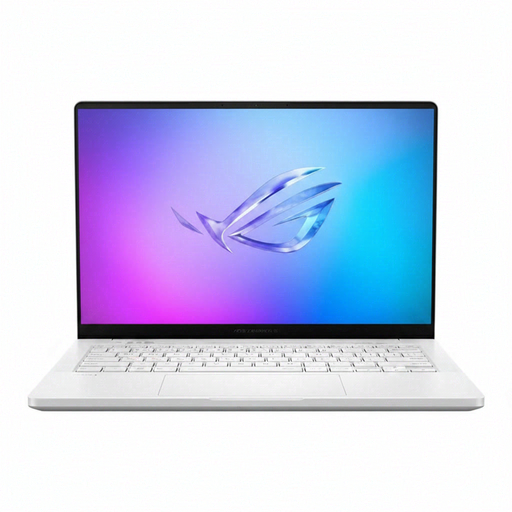 No image available
Consider this 14-inch configuration if subtitle work regularly includes video editing and you need to compare a dedicated graphics option with your software’s requirements.
The listing names an AMD Ryzen AI 9 HX 370 processor, 32GB LPDDR5x memory, a 2TB SSD, NVIDIA GeForce RTX 5070 Ti graphics and a WQXGA+ display. Confirm the ports, keyboard layout and software compatibility needed for your setup.
 No image available
The dual-screen layout may appeal if you want separate space for video and translated text, provided the opened-out laptop and keyboard fit your desk.
The listing names an Intel Core Ultra 7 255H processor, 16GB LPDDR5X memory and a 1TB SSD. Check the exact screen resolution before buying, as the supplied specifications give conflicting values, and confirm your editor’s compatibility.
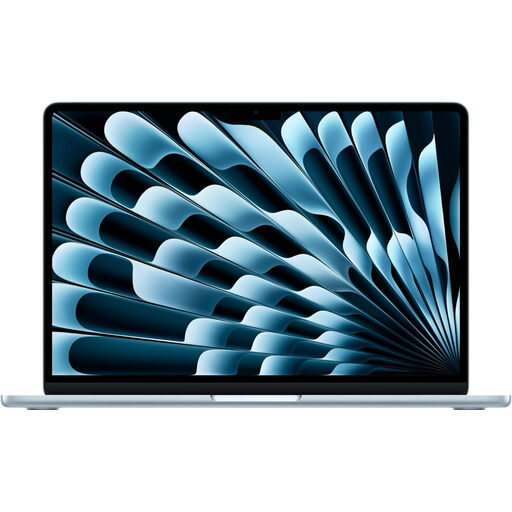 No image available
This compact macOS configuration is a candidate if your subtitle editor, fonts, plug-ins and export process work on macOS and you keep more project media locally.
The listing specifies an M5 chip with a 10-core CPU and 10-core GPU, 16GB unified memory and a 1TB SSD. Apple lists external-display support for the MacBook Air line; check the connections required by your particular monitor and peripherals.
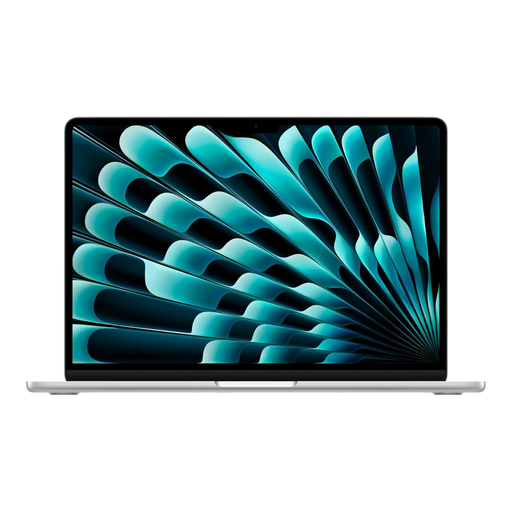 No image available
Consider this compact macOS variant for text-led work if its software compatibility is confirmed and 512GB accommodates your active files.
The listing specifies an M5 chip with a 10-core CPU and 8-core GPU, 16GB unified memory and a 512GB SSD. Compare the stated storage capacity with the space your source footage and exports require.
 No image available
This larger Windows option is worth checking if your desk can accommodate a 15.6-inch laptop and your video editor calls for dedicated graphics.
The listing names an AMD Ryzen 7 170 processor, 16GB RAM, a 1TB SSD, GeForce RTX 5050 graphics and a 144Hz FHD display. Its size needs a desk-space check, while the 16GB memory should be assessed against your particular video workload.
It can be a sensible configuration to compare for text-led work and lighter video reference, but check your actual applications and files. Adobe recommends 32GB RAM or more for Premiere on Windows or Intel-based Macs and specifies at least 16GB unified memory for video editing on Apple M2 systems; that guidance does not establish how another editor or laptop will perform.
Not necessarily: a 13- or 14-inch laptop can preserve room on a small desk, with an external display as an option for longer sessions. Check the built-in screen layout, monitor connections and space for a keyboard or pointing device before choosing either arrangement.
Confirm that the operating system supports your exact subtitle editor, fonts, language input, plug-ins, video codecs, project files and required export formats. Hardware features on a MacBook Air or Windows laptop do not establish compatibility with a particular subtitle workflow.
Arrange the screen, lighting and available desk space so that you can read and use your equipment comfortably. The Health and Safety Executive’s UK display-screen guidance covers reflections, glare and workstation practices; its Display Screen Equipment Regulations apply to workers using display-screen equipment daily for continuous periods of an hour or more, rather than approving a particular laptop model.
Check the full model and configuration, including memory, SSD capacity, display, ports, keyboard layout and included charger. Also confirm the warranty provider and terms, repair route and applicable return terms for that listing; a product-family specification may describe a different variant.