Occasional personal-letter translator
You want to read, translate and correct a letter using a browser or word processor, without choosing a laptop around demanding creative or gaming software.


For an occasional family-letter translation, choose a laptop that makes the original easy to read and corrections comfortable to type; specialist gaming or AI hardware is not needed for the browser and document tasks described here. A Chromebook suits a browser-led workflow, while a Windows laptop makes sense if you rely on Windows applications or local files; choose a Mac if it also fits the wider work you do in macOS. Check whether the letter is editable text or a scan before deciding on a translation workflow.
You want to read, translate and correct a letter using a browser or word processor, without choosing a laptop around demanding creative or gaming software.
Your letter might arrive as a photograph, scanned PDF or office document. You need to inspect the original as well as the translated text; Google Translate Help notes that text on scanned PDF pages is not translated in its document output.
Your family document might be used in a UK asylum-related process. GOV.UK guidance for that process calls for an English translation of reliable quality, with the translator’s credentials and an affirmation of accuracy. The laptop is a tool for preparing or reviewing the document, not a substitute for those requirements.
Start with the letter’s file type and the software you already use. Then choose a screen and keyboard you can work with while checking names, dates and wording against the original.
Choose it when: You expect to translate and review a personal letter mainly in a browser or Google Docs.
Check before buying: Any desktop application, peripheral or local-file workflow you depend on must work with ChromeOS.
Choose it when: You already use Windows programs or want to manage and edit the letter in a familiar desktop-file workflow.
Check before buying: Compare the exact configuration and Windows installation rather than assuming every model in a range is alike.
Choose it when: You already prefer macOS and will use the laptop for other work beyond translating this letter.
Check before buying: Make sure your existing files, accessories and preferred applications fit your intended macOS workflow.
| Concern | What to check | Who this matters to |
|---|---|---|
| Reading and correcting the letter | Try a sample letter at a comfortable zoom level and test the keyboard. Check whether the original contains selectable text or scanned page images. | If I need to compare names and dates against the original, I want enough room to read both versions and type corrections without strain. Around 40% of consumers would put readable review and correction first. |
| File and software compatibility | Identify the incoming file type and the app needed to edit it; check any printer, scanner or storage device you plan to use. | When my letter or editing work depends on particular files and applications, keeping that workflow usable matters more than choosing an operating system by name. Around 30% of consumers would make compatibility their primary concern. |
| Proportionate features and setup | Decide whether browser translation and ordinary document work cover your needs. For a Chromebook, check the exact model’s automatic-update end date. | For a letter I translate only occasionally, I would rather choose a straightforward everyday machine than features meant for unrelated tasks. Around 20% of consumers would put a simple, proportionate setup first. |
| Privacy and formal use | Decide whether uploading the letter is appropriate. For a UK asylum-related submission, check the receiving organisation’s translation requirements. | If the letter contains sensitive family information or may become part of a formal submission, I need to think about how it is handled and translated before choosing a tool. Around 10% of consumers would make those limits their primary concern. |
Google’s computer-browser document translation and Google Docs translation workflows do not establish a need for specialist gaming or AI hardware to work on a family letter.
Decide whether you will also run demanding software. For the letter itself, prioritise a readable display, comfortable typing and a compatible document workflow.
A scanned PDF can contain images of pages rather than selectable words. Google Translate Help says text on scanned PDF pages is not translated in its document output.
Open the actual letter if possible. If its words cannot be selected, allow for transcription or optical character recognition (OCR), followed by careful checking against the original.
For documents relied on in a UK asylum-related process, GOV.UK guidance calls for a reliable English translation and says the translator’s credentials and affirmation of accuracy should be provided.
Use machine translation to help understand or draft text where appropriate, but check the receiving organisation’s requirements before submitting a translation for formal use.
Google publishes automatic-update information for ChromeOS devices, and the relevant date depends on the model.
Check the exact Chromebook model’s update end date, particularly if you are considering an older or used device.
Lenovo positions its IdeaPad range for everyday work, study and general use, including Slim and 2-in-1 designs.
Acer’s Chromebook range includes clamshell and convertible designs relevant to a browser- or Google Docs-led workflow.
Dell positions Inspiron laptops and 2-in-1s for everyday personal and work tasks, with different screen sizes across the range.
MacBook Air is a macOS option for someone who already prefers that ecosystem and needs a laptop for wider everyday work.
These Windows laptops and Chromebook are options for reading, typing and reviewing a family letter. Choose between them by your file workflow, preferred operating system and the screen size you find comfortable.
 Image unavailable
A 14-inch Windows-route laptop to consider if you will review and edit letters away from a larger desk setup.
The listed configuration has a Snapdragon X processor, 16GB RAM and a 512GB SSD. If you rely on a particular desktop application or accessory, check compatibility with this configuration.
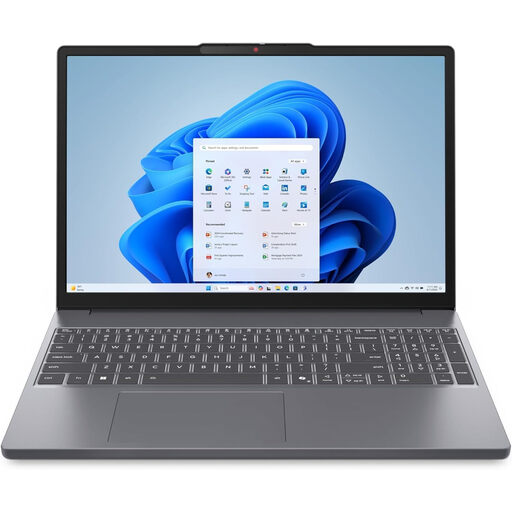 Image unavailable
Consider this Windows laptop if you want a 15.3-inch screen for checking the original letter against your draft.
The listed configuration has a WUXGA display, AMD Ryzen 5 7535HS processor, 24GB DDR5 RAM, 512GB PCIe SSD and Windows 11 Home. Check the display in person if viewing angles matter to you.
 Image unavailable
Its listed 15.6-inch Full HD screen makes this a model to consider if you prefer more display space while reviewing a letter.
The configuration lists an Intel Core 5 120U processor, 24GB memory and a 1TB SSD. Check the keyboard layout and feel if you expect to type lengthy corrections.
 Image unavailable
This Chromebook is an option if you plan to work mainly in a browser or Google Docs and your other required tools work with ChromeOS.
The listed configuration has a 14-inch WUXGA (1920 × 1200) display, Intel Core i3-1315U processor, 8GB RAM and a 256GB SSD. Check this exact model’s automatic-update end date before choosing it.
 Image unavailable
Its listed 15.6-inch Full HD display is worth considering if you want a larger view of the source letter and your edits.
The configuration lists an Intel N150 processor, 8GB DDR4 RAM, a 128GB SSD and Windows 11 Home. Confirm whether the supplied Windows installation is in S Mode before relying on a particular app-installation workflow.
Yes, if your letter and editing workflow work in a browser or Google Docs. Google Translate Help lists .docx, .pdf, .pptx and .xlsx as supported computer-browser document formats; check any other applications, files and peripherals you need against the particular Chromebook.
Not through its document output for text on scanned PDF pages, according to Google Translate Help. You may need to transcribe the letter or use optical character recognition, then review the resulting text against the scan before translating it.
Google Translate Help lists a 10 MB document limit and a 300-page limit for PDFs, alongside support for .docx, .pdf, .pptx and .xlsx files. Check the actual letter’s format and size before building your workflow around an upload.
Do not assume machine output meets the requirements. GOV.UK guidance for documents relied on in an asylum application calls for English documents or an English translation of reliable quality, with the translator’s credentials and affirmation of accuracy provided. Ask the receiving organisation about the requirements for your submission.