What matters when choosing?
Start with the letter’s format and the software you intend to use. Then choose a screen and keyboard that let you check names, dates and uncertain wording against the original.
| Concern |
What to check |
Who this matters to |
| Digital-document workflow |
Check the operating system and whether your chosen version of Word or computer-based web service handles the letter’s format. |
If my letter is already typed, I want to edit a translated copy without losing the original. Around 44% of consumers put that digital-document workflow first. |
| Scan and OCR preparation |
Check that you can inspect the source image and correct extracted text before translation; prepare a sharp, upright scan. |
With a photographed or scanned letter, I need to catch misread handwriting before it changes the translation. For around 33% of consumers, checking extracted text is the primary concern. |
| Reading and review comfort |
Compare the exact display size and resolution, keyboard layout and weight for your desk setup. |
I expect to compare the letter and translation closely, so room to read and comfortable typing matter most. Around 23% of consumers prioritise that review experience. |
Joybuy laptops for document work
These Windows-oriented and larger-screen laptop choices are relevant if you want to read, edit and review a family letter at a home-office desk. Check the software you intend to use before choosing a model; gaming hardware does not, by itself, improve a translation.
 No image available
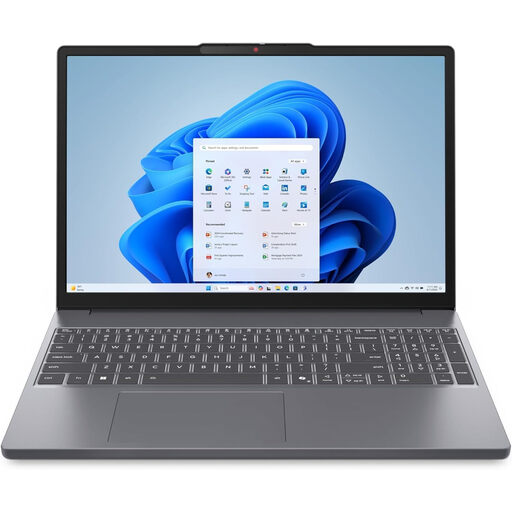
Lenovo IdeaPad Slim 3 83K7009MUK, 15.3-inch
Consider this model if you want a Windows laptop for reading and editing documents at a desk. It is listed with a 15.3-inch WUXGA display, AMD Ryzen 5 7535HS, 24GB DDR5 RAM, a 512GB PCIe SSD and Windows 11 Home. Confirm the Word edition and licence you would need for translation.
View on Joybuy
 No image available
Lenovo LOQ Essential 15ARP11, 15.6-inch
This is a desk-based option if you also have a separate use for a gaming laptop; its gaming graphics are not necessary for translating a letter. The listed configuration has a 15.6-inch 144Hz FHD display, AMD Ryzen 7 170, 16GB RAM, a 1TB SSD and GeForce RTX 5050 graphics. Confirm your intended operating system and Word edition before relying on a Word workflow.
View on Joybuy
 No image available
ASUS Vivobook 15 X1504VA, 15.6-inch
Consider its 15.6-inch format if you plan to review the source letter and translation at a desk. The listed model has an Intel Core 5 120U, 24GB RAM and a 1TB SSD. Check the keyboard layout, operating system and any Word licence needed for your chosen workflow.
View on Joybuy
 No image available
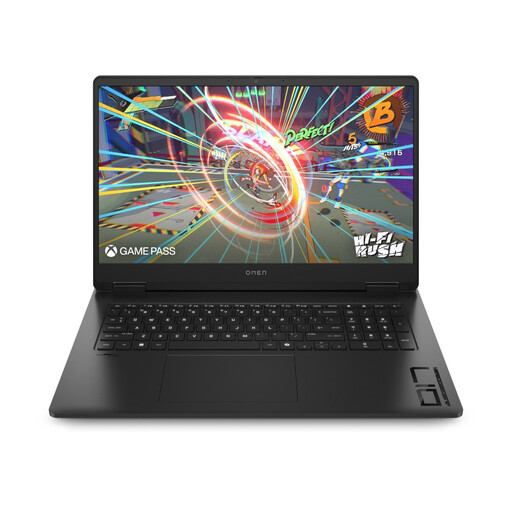
HP OMEN 17-db1000na, 17-inch
Its 17-inch format is worth considering if you mainly work at a desk and want more screen space for reviewing text. The listed configuration has a Full HD display, AMD Ryzen AI 7 350, 16GB RAM, a 1TB SSD, RTX 5060 graphics and Windows 11 Home. Its gaming hardware is not needed for this letter task; check the keyboard and Word licence separately.
View on Joybuy
 No image available
Microsoft Surface Laptop 7, 15-inch Copilot+ PC
Consider this 15-inch touchscreen model if you want its form factor for reading and reviewing documents. It is listed with a Snapdragon X Elite processor, 16GB RAM, a 256GB SSD and a PixelSense touchscreen. Check compatibility for every application you plan to use on this Snapdragon configuration, along with the Word edition and licence.
View on Joybuy
Common questions
Do I need an AI laptop to translate one family letter?
No AI-branded hardware is required by the Word and computer-based document workflows described by Microsoft Support and Google Translate Help. Choose a laptop for the software and broader home-office work you will actually do, rather than treating an AI label as evidence of translation accuracy.
Can I translate a scanned PDF directly?
Check whether its text is selectable before relying on document translation. Google Translate Help says text in images and scanned PDF pages may appear in the output without being translated; for an image-based letter, extract the text first and compare it with the original.
Will OCR keep the letter’s original layout?
Not necessarily. Google Drive Help says conversion may retain some formatting, but elements including tables, columns, footnotes and endnotes are unlikely to be detected. Keep the source scan and review the extracted text as a draft.
What should I do with family files before passing on an old laptop?
Back up the files you need and sanitise the laptop’s storage before it leaves your control. The National Cyber Security Centre explains that sanitisation reduces the likelihood of stored data being retrieved; deleting visible files alone should not be treated as the same process.


