What to check before buying
For a laptop desk with two external displays, confirm that the computer can drive two independent images through the intended connection; then check whether a dock’s ports and charging suit the desk.
Direct monitor connections
Choose this when: your exact laptop supports two independent external displays at the intended resolution and refresh rate, and its outputs match the monitors.
Trade-off: you may have more cables to reconnect; a passive splitter duplicates a signal rather than creating another independent desktop, as Microsoft Support explains.
USB-C DisplayPort Alt Mode or Thunderbolt dock
Choose this when: the laptop’s specified host port and display limits support the dock’s intended two-screen configuration.
Trade-off: a USB-C-shaped socket alone does not confirm video support; check the dock’s display mode, cable requirements and host charging output.
USB-A DisplayLink dock
Choose this when: an older laptop lacks suitable native video connections and the specific DisplayLink dock supports its operating system and screen arrangement.
Trade-off: this is driver-based USB graphics, not native video added by a passive adapter; USB-A docking also requires separate laptop power.
Display adapters and cables
Choose this when: a documented video output on the laptop needs to match a monitor’s input.
Trade-off: an adapter cannot add DisplayPort Alt Mode to a data-only USB-C port or turn a passive splitter into two independent displays.
| Concern |
What to check when buying |
Who this matters to |
| Two independent screens |
Check the exact laptop’s external-display support at the intended resolution and refresh rate, plus the connection’s extended-display mode. |
If I need two separate work screens, I want to confirm the laptop can extend to both rather than mirror one image. Around 33% of consumers put that independent-screen outcome first. |
| Older or port-limited laptop |
Identify each port’s documented video capability; for USB-A, check the dock’s DisplayLink support and operating-system compatibility. |
If my laptop lacks a suitable video-capable USB-C port, I need a connection route that works with its actual ports and software. Around 27% of consumers prioritise older-laptop compatibility. |
| Fewer desk connections |
Count the display and peripheral connections you need, then compare the dock’s host charging output with the laptop’s requirements. |
For a fixed desk, I want displays and peripherals to stay connected between work sessions; charging matters too if I expect one cable to serve the laptop. Around 20% of consumers prioritise tidier reconnection. |
| Operating-system and software fit |
Check the exact computer and operating-system version, the dock’s video technology, and whether required software and permissions are allowed. |
If I use macOS or a managed laptop, I need a display arrangement that works with its system limits and permitted software. Around 20% of consumers prioritise operating-system and driver fit. |
Joybuy products for laptop displays and connections
The products below include portable laptop displays and USB-C docking or adapter options. Check your laptop’s supported display count and video outputs before relying on any of them for two independent external screens.
 No image available
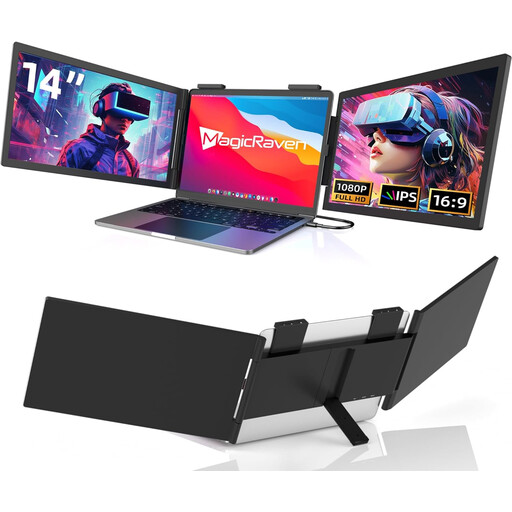
14-inch Dual-Screen Portable Monitor, FHD 1080p, 60Hz
A portable laptop display option for consumers considering additional screen space; confirm the laptop’s display support and required connections before relying on it for a two-external-screen setup.
The product title lists FHD 1080p, 60Hz, USB-C connectivity and dual built-in speakers, and describes compatibility with 14–16-inch laptops.
Joybuy
 No image available
Targus USB-C Universal Dual HDMI 4K Docking Station
For a USB-C laptop whose host port supports the dock’s video requirements; check the computer’s display limits and the dock’s extended-display configuration before connecting two screens.
The product description lists USB-C Alt Mode, dual HDMI displays, USB-A ports, SD and Micro SD card readers, Gigabit Ethernet and 100W Power Delivery pass-through.
Joybuy
 No image available
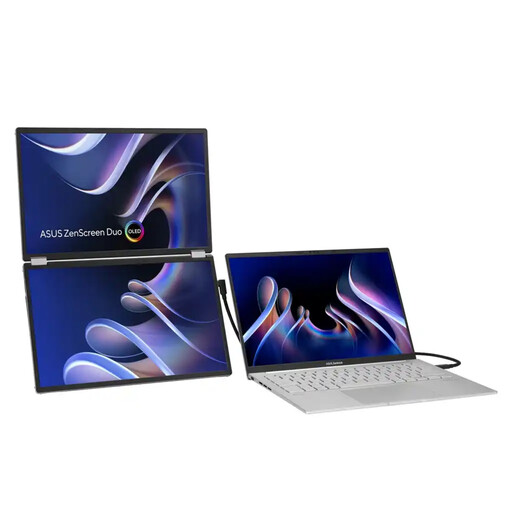
ASUS ZenScreen Duo OLED MQ149CD 360° Foldable Portable Monitor
A portable dual-panel display option; check the laptop’s supported display arrangement and whether its connections suit the way you plan to use the screens.
The product information lists two 14-inch OLED panels at 1920 × 1200, with USB-C and mini-HDMI connections.
Joybuy
 No image available
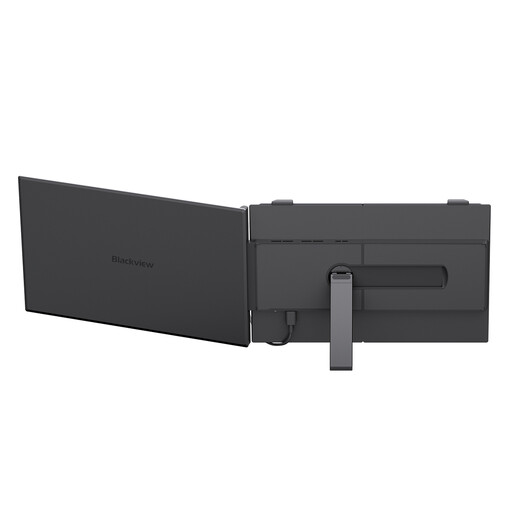
Blackview SCM6 Laptop Screen Extender
This adds one display, so it is not by itself a two-external-screen solution. Check the laptop’s connections and supported display count before combining it with another screen.
The product description lists one 14-inch FHD IPS display and three USB-C ports.
Joybuy
 No image available
V7 V7UC-U3CRJ45HDVG-BLK USB-C Adapter
Consider this for matching a compatible USB-C Alt Mode laptop output to a display input; it provides single-display output only, so it does not supply two external screens by itself.
The product description lists HDMI, VGA, Gigabit Ethernet, USB-A, dual USB 3.0 ports and 100W Power Delivery pass-through.
Joybuy
Frequently asked questions
What should I check on my laptop before ordering a two-monitor dock?
Check the exact model’s supported number of external displays at your intended resolution and refresh rate, each prospective host port’s capabilities, the operating system and the laptop’s charging input. Then compare those details with the dock’s host and display configurations and both monitors’ inputs.
Does any USB-C port work with an HDMI or dual-monitor dock?
No. A native-video dock needs a host port that supports the video protocol it uses, such as DisplayPort Alt Mode or an appropriate Thunderbolt connection. A DisplayLink dock sends driver-based video over USB data, so the connector shape alone does not establish compatibility.
Will a USB-A DisplayLink dock charge my older laptop?
Not through a standard USB-A docking connection: DisplayLink Support says the laptop needs its own power supply in that arrangement. Check the dock’s specific host connection rather than applying this to USB-C charging docks.
How do I set up separate desktops after connecting monitors in Windows?
After checking the cables, use Windows display settings to detect and arrange the monitors, then select an extended display mode. Microsoft Support advises checking how many displays the graphics adapter supports if a screen is not detected; a simple splitter cannot create another independent signal.
Will a two-output MST dock give a Mac two extended displays?
Not necessarily: Plugable’s technical guidance says macOS does not support MST for independent extended displays. Check Apple Support’s display guidance for your exact Mac model and assess any alternative, including the software and permission requirements of a DisplayLink setup.


