Desk-based long-form writers
You want to keep a draft, interview notes and source material in view at your main workspace, with monitors arranged as separate work areas.


Decide whether you need two external monitors or simply two screens in total before choosing a laptop. For two external monitors, check the exact laptop’s display limit and video ports alongside any dock: its sockets alone do not establish what the laptop can drive. A Windows laptop with a compatible dock suits a fixed desk, while Apple specifies two-external-display support for the current M5 MacBook Air; either setup still needs to match your monitors and cables.
You want to keep a draft, interview notes and source material in view at your main workspace, with monitors arranged as separate work areas.
You take the laptop to meetings or other writing locations, then reconnect it to screens at your desk. Carrying weight and a repeatable display arrangement both matter.
You prefer macOS and need the exact Mac model’s specification to confirm how many external displays it supports, rather than relying on the presence of USB-C ports.
Start by defining your screen layout, then check the laptop’s display capability before choosing a dock or cables. If you work away from the desk, consider how easily you can restore that layout when you return.
| Concern | What to check | Who this matters to |
|---|---|---|
| Two external displays | Check the exact model’s external-display limit with its built-in screen active, plus its video-port and dock specifications. | I need separate space for my draft and source material without finding that one monitor can only mirror the other. Around 40% of consumers put confirmed support for two extended external displays first. |
| Moving between desks | Check carrying weight, desk connections and how the operating system handles display arrangement after reconnection. | If I take the laptop to interviews, I want to reconnect at my desk without repeatedly rearranging my work. For around 30% of consumers, that portable-to-desk routine is the primary concern. |
| Platform and desk connections | Check the operating system you need and confirm that the exact laptop, dock, monitor inputs and cables work together. | I want to keep my macOS workflow or connect my desk equipment with fewer cables, without assuming every USB-C connection carries video. That platform-and-connection fit comes first for around 30% of consumers. |
The host connection matters too: Lenovo documents different external-display behaviour across host ports, and HP says USB-C dock functionality requires DisplayPort Alt Mode on the host PC.
Match the exact laptop and dock models to their compatibility information, including your intended monitor connections and display settings.
Apple specifies support for two external displays on the current M5 MacBook Air, but that model-specific specification should not be applied to an earlier MacBook Air.
Check the technical specifications for the exact model and chip, including whether the stated display count applies while its built-in screen is in use.
Dell specifies up to 130 W power delivery for Dell systems and up to 96 W for non-Dell systems on its WD25TB4 dock. Check the limit that applies to the laptop you intend to connect.
Compare that limit with the laptop’s charging requirements before planning a single-cable desk.
If the dock cannot provide the charging arrangement you need, you may have to keep the laptop’s charger connected separately.
Detected screens can still be set to duplicate rather than extend the desktop, or appear in an inconvenient order. Microsoft Support describes display identification, detection and arrangement controls in Windows.
Connect your intended screens, select extended mode, arrange them to match the desk and try reconnecting the laptop before settling on the setup.
ThinkPad laptops and Lenovo docks are relevant to a Windows writing desk built around USB-C or Thunderbolt connections.
Latitude laptops and Dell Pro docks are relevant to a Windows desk where monitors, charging and peripherals connect through a dock.
MacBook Air is relevant if you want macOS and plan to use external screens for drafting and reference material.
HP business laptops and docks are relevant when you want a documented connection setup for a fixed desk.
These laptops cover two different ways to give an interview draft and reference material more screen space: the ASUS has two built-in displays, while the M5 MacBook Air models are relevant to a macOS desk using two external monitors. If two external monitors are essential, check the ASUS model’s external-display support separately; for any chosen laptop, confirm the intended dock, cables and monitor connections.
 Image unavailable
Its two built-in screens offer separate areas for a draft and notes without relying on two external monitors.
The listed configuration has an Intel Core Ultra 7 255H, 16 GB LPDDR5X RAM and a 1 TB SSD. Confirm the exact panel resolution and external-display capability before buying if either matters to your setup.
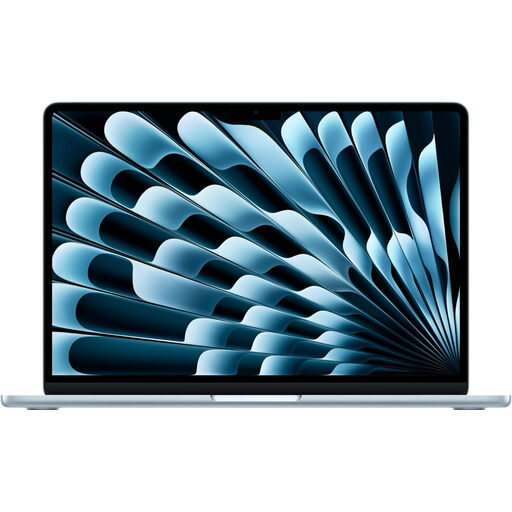 Image unavailable
For a macOS writing desk, Apple’s UK M5 MacBook Air specification supports up to two external displays alongside the built-in screen.
This 13-inch configuration lists a 10-core CPU, 10-core GPU, 16 GB memory and a 1 TB SSD. Confirm how your intended monitors, cables and any dock will connect.
Image unavailable
This is a 15-inch macOS option for writing at the laptop or at a two-external-monitor desk; Apple’s UK M5 specification supports the latter while the built-in display remains active.
The listed configuration has a 10-core CPU, 10-core GPU, 16 GB memory and a 1 TB SSD. Check the planned monitor, cable and dock connections before buying.
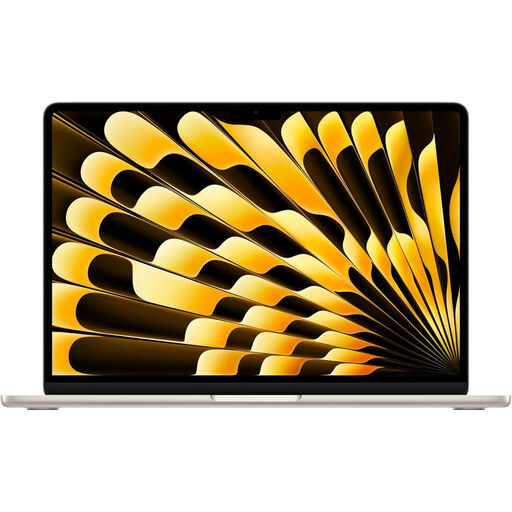 Image unavailable
This 15-inch macOS configuration suits a desk planned around external writing and reference screens; Apple’s UK M5 specification supports up to two external displays with the built-in screen active.
It lists a 10-core CPU, 10-core GPU, 16 GB memory and a 512 GB SSD. Confirm that your intended monitors, cables and any dock suit the exact setup.
No. Check the exact laptop’s external-display limit and each relevant port’s video capability. HP says USB-C dock functionality requires DisplayPort Alt Mode on the host PC, while Lenovo documents dock behaviour that varies by host connection.
Select an extended desktop rather than duplicate displays. After connecting the monitors, use Windows display settings to identify and arrange them; Microsoft Support also describes detection controls if a connected screen does not appear.
Yes: Apple’s UK specification for the current M5 MacBook Air states support for up to two external displays while retaining the built-in display. Check the exact Mac model and chip before applying that limit to a different MacBook Air.
Check that its power arrangement suits the exact laptop and that its connections match your planned screens. For electrical equipment supplied in Great Britain, the Office for Product Safety & Standards states that the Electrical Equipment (Safety) Regulations 2016 set requirements before products can be placed on the GB market; that general rule does not establish whether a particular dock will support your laptop or monitors.