What to check before buying
Start with the laptop’s display capability, then check the two-screen mode, the peripherals you need and how the laptop will be powered.
Native USB-C or Thunderbolt dock
Consider it when: your laptop supports the dock’s video protocol and the two-display arrangement you want.
Trade-off: USB-C connector shape alone does not establish video support, and a dock cannot exceed the laptop’s display limit. Apple Support and Plugable explain that macOS does not use MST for independent extended displays.
USB-A dock with USB graphics
Consider it when: native video connections do not provide a suitable route and the dock supports your operating system and screens.
Trade-off: compatible software and setup may be required; check performance and any application limitations for your use.
Direct monitor connections
Consider them when: documented laptop outputs support both external displays and match the monitors’ inputs.
Trade-off: this keeps separate display cables and may mean keeping a separate laptop charger connected.
Display adapter
Consider it when: a compatible native video output needs to connect to a different monitor input.
Trade-off: an adapter changes the connection, not the laptop’s display capability; Microsoft Support notes that a splitter duplicates a signal rather than creating two independent screens.
USB hub plus separate display connections
Consider it when: your display connections already work and you mainly want to organise peripherals.
Trade-off: the hub expands peripheral connections but does not replace the separate display route.
| Concern |
What to check when buying |
Who this matters to |
| Two independent screens |
Exact laptop model and operating system, video-capable ports, supported display count and whether the built-in screen stays active. |
If a two-screen desk is the main goal, I would confirm that both displays can run independently before buying; about 33% of consumers put this compatibility question first. |
| Resolution and refresh rate |
Both monitors’ intended modes and the dock’s simultaneous output mode for your laptop and operating system. |
If both screens need to meet a particular display mode at the same time, I would check the combined configuration rather than each output alone; about 27% of consumers prioritise simultaneous display quality. |
| Peripheral connections |
Count the devices you use and check the required data connections and port capabilities. |
If you want keyboard, mouse and other desk devices to stay connected, I would match the port mix to those devices; about 20% of consumers put peripheral organisation first. |
| Laptop charging |
Check host charging for the connection you will use, the power delivered to the laptop and the required power supply. |
If you would rather not reconnect a separate charger during work or study, I would check the dock’s host-charging conditions; about 20% of consumers prioritise charging. |
Joybuy product options
These options are USB-C hubs and multiport docks for peripheral connections and USB-C display setups. Check your laptop’s video support and intended two-screen mode separately; a list of display ports alone does not confirm compatibility.
 No image available
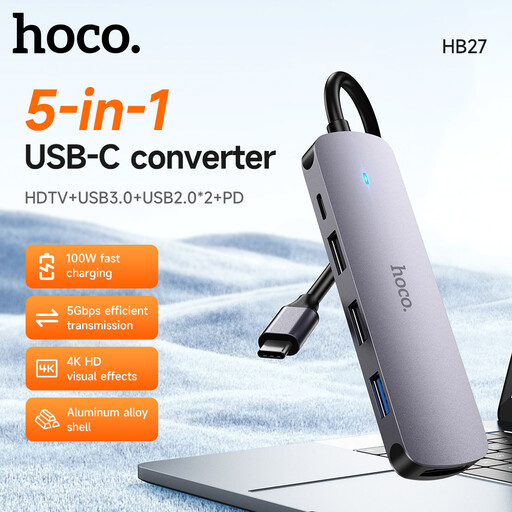
HOCO HB27 USB-C Hub, Metal Gray
For a desk where you plan to use a hub alongside separate display connections; check the laptop’s display route independently.
USB-C hub; Metal Gray.
Joybuy
 No image available
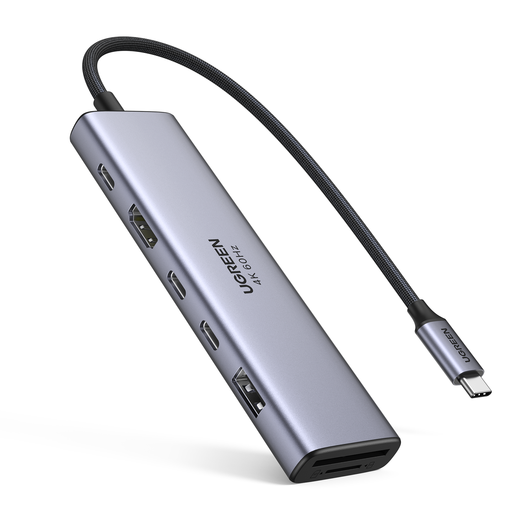
UGREEN 7 in1 USB-C Multi-Function Docking Station
For adding USB-C dock connections alongside a separately confirmed display route; check the laptop’s two-screen support before relying on any display output.
The product name lists HDMI, 2x USB-C 3.2, 1x USB-A 3.2, SD/TF and PD.
Joybuy
 No image available
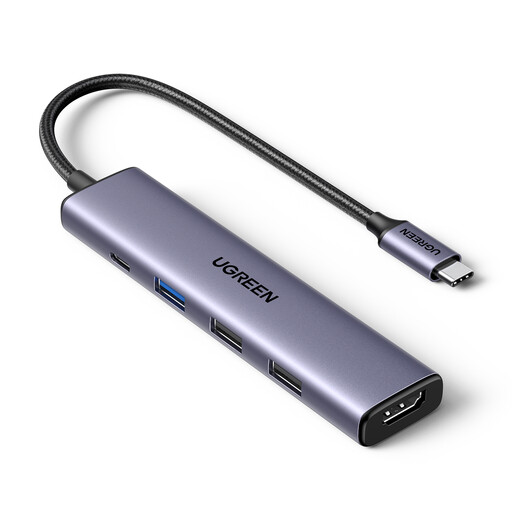
UGREEN Revodok USB-C Hub, 5-in-1
For expanding connections when your display setup is handled through a compatible route; confirm the laptop’s own video support.
The product name lists 100W PD, 4K HDMI and 3 USB-A data ports. Check that the laptop supports the intended display mode.
Joybuy
 No image available
USB-C Multiport Adapter, 2 HDMI + DisplayPort
For a USB-C setup with multiple listed video connections; check the laptop and adapter’s supported simultaneous display mode rather than assuming all outputs work independently.
The product name lists 2 HDMI, DisplayPort, USB 3.0 and USB 2.0 ports, RJ45, PD, SD/TF and audio.
Joybuy
 No image available
Targus USB-C Universal Dual HDMI 4K Docking Station
For a USB-C desk setup where the laptop supports the required video mode; check host compatibility before choosing this dock.
The product description identifies USB-C Alt Mode, dual HDMI and 100W Power Delivery pass-through. USB-C Alt Mode support is required for the stated display route.
Joybuy
Frequently asked questions
How do I make the screens show different content after connecting them?
In Windows, select Extend with Windows key + P, then use Settings > System > Display to identify and arrange the screens. Microsoft Support provides these display setup steps; on a Mac, configure extension or mirroring in Displays settings.
Can I use two external displays and keep my MacBook screen open?
Check the exact Mac model and display arrangement. For the base M3 MacBook Air and MacBook Pro configuration described by Apple Support, two external displays require the lid to be closed, external input devices, power and the specified minimum macOS version; reopening the lid disconnects the secondary external display.
What must I approve before using DisplayLink on a work or study Mac?
DisplayLink requires Screen Recording permission on macOS. Synaptics says this permission is needed for the driver to work; if the Mac is managed, check that you can install the software and obtain the permission before choosing this setup.
Could DisplayLink affect protected streaming or course videos?
Yes, on macOS, some protected content may be affected while DisplayLink screens are connected. Synaptics documents that protected video may appear black while audio continues, so consider this limitation if protected video is part of your intended use.
What ongoing maintenance does a USB graphics setup need?
Use the manufacturer-specified host connection and keep the applicable driver current. Synaptics recommends driver updates for security and bug fixes; Plugable identifies cable quality, USB bandwidth and display settings as factors that can affect DisplayLink performance.


