Decide whether your two-screen workspace means the laptop display plus one monitor or two external monitors before choosing a laptop. For two external monitors, check the exact laptop, dock and monitor combination; choose around the browsers you must test, with macOS needed for desktop Safari testing and a Windows setup suited to Windows-based Chrome or Edge work. Responsive previews help with layout checks, but critical checkout flows still need testing in the target browsers and devices.
Who needs this setup?
Dual-display checkout testers
If you keep a checkout open beside developer tools, logs or test data, define which screens you will use and check the laptop-and-dock configuration against that layout. A USB-C-shaped port alone does not establish its display capability.
Safari checkout testers
If desktop Safari behaviour is in your test plan, you need access to macOS. Apple provides Safari Responsive Design Mode and Web Inspector, and its M5 MacBook Air specifications support up to two external displays; responsive presets remain approximations of device behaviour.
Mobile and responsive-flow testers
Chrome DevTools can help you inspect layouts and try network or CPU throttling while the checkout remains visible on another screen. Chrome for Developers describes Device Mode as an approximation, so validate critical flows in the actual target browsers and devices.
What matters when choosing?
Settle the screen layout and required browsers first. Then compare the exact laptop configuration with the dock, monitors and workload you plan to use.
| Concern |
What to check |
Who this matters to |
| Display and dock compatibility |
Distinguish one external monitor from two. Check the exact laptop’s display support against the dock, monitor resolutions and refresh rates. |
I need the checkout and test tools visible together, so the whole display setup must work as planned. Around 46% of consumers put confirmed display compatibility first. |
| Browser coverage |
List the browsers and operating systems in the test plan, including whether desktop Safari is required. Keep real-device validation separate from responsive previews. |
If Safari behaviour is in scope, I need a way to test it rather than relying on a resized Chrome window. Around 36% of consumers make browser coverage their primary concern. |
| Portable multitasking |
Compare the stated memory and storage configurations with your planned tools; consider carrying needs and dock charging requirements. |
I move between work locations but still need my browser and test tools open when I dock at a desk. Around 18% of consumers place portable multitasking first. |
Mistakes to avoid
-
Assuming every USB-C port can drive your monitors
Lenovo states that its USB-C and Thunderbolt docks need a host laptop supporting the relevant USB-C Alt-Mode, DisplayLink or Thunderbolt protocol. The connector’s shape is not enough to establish compatibility.
Check the exact laptop model’s port specification against the dock’s host requirements before ordering.
An incompatible combination may require a different dock, cable set or monitor adapter.
-
Choosing a dock by its maximum display claim
Dell and Lenovo describe dock display capabilities subject to the connected laptop and supported protocols. A dock’s stated maximum does not establish what your laptop and monitors can run together.
Match the dock’s display modes and power requirements to the exact laptop and monitors you intend to connect.
-
Approving a checkout from responsive previews alone
Chrome for Developers describes Device Mode as an approximation, while Apple’s responsive presets do not reproduce every device-specific behaviour.
Use previews for quick layout work, then test critical checkout flows in the actual browsers and devices required by your test plan.
-
Leaving “two screens” undefined
A laptop panel plus one monitor is a different hardware requirement from two external monitors. That distinction changes which display support you need to confirm.
Write down the intended arrangement and each monitor’s resolution and refresh rate before comparing laptops or docks.
Relevant brands to consider
Apple
Relevant when desktop Safari on macOS is part of checkout testing.
- Apple’s M5 MacBook Air specifications support up to two external displays, and Safari offers Responsive Design Mode and Web Inspector.
- Check the required monitor and dock arrangement; responsive presets are not a substitute for validation on target devices.
Lenovo
Relevant to a Windows desk setup built around a business laptop and compatible dock.
- Lenovo UK lists 16GB-memory ThinkBook 14 Gen 9 configurations.
- Lenovo says its USB-C and Thunderbolt docks require a supported host protocol; confirm the exact laptop configuration and display outputs.
Dell
Relevant when considering a fixed Windows workspace with a vendor-specified Thunderbolt dock.
- Dell UK lists dual-display 4K at 60Hz among the modes for its Pro Thunderbolt 4 Smart Dock.
- The usable display mode depends on the connected system; check laptop compatibility and power requirements.
Acer
Relevant to a portable Windows setup that connects to displays at a desk.
- Acer lists two Thunderbolt 4 Type-C ports on its Swift Air 14.
- Confirm the required monitor resolutions, refresh rates and dock arrangement for the exact laptop configuration.
Joybuy laptop choices
These laptops cover macOS options for Safari testing and Windows-oriented options for a two-screen workspace. Match any choice to your required browser coverage and confirm its exact external-display arrangement before buying.
 No image available
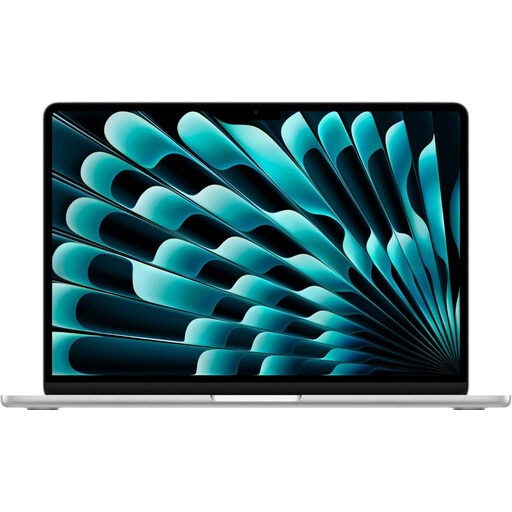
Apple 15-inch MacBook Air (2026), M5, 16GB, 1TB SSD, Silver
Consider this MacBook Air when desktop Safari testing is required and you want its 15-inch built-in display. Apple’s M5 MacBook Air specifications support up to two external displays; confirm your monitors’ resolutions, refresh rates and any dock arrangement.
This configuration has a 10-core CPU, 10-core GPU, 16GB memory and a 1TB SSD.
View on Joybuy
 No image available
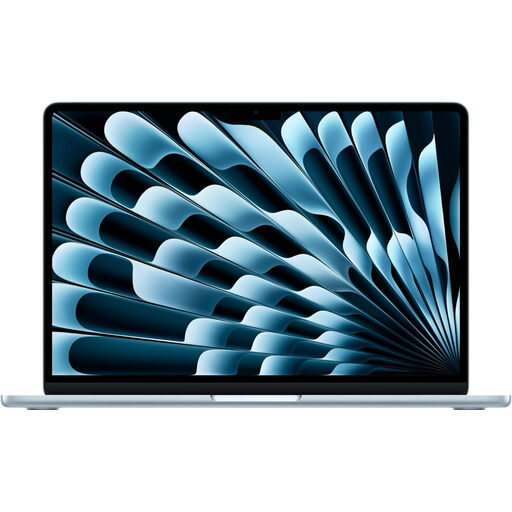
Apple 13-inch MacBook Air (2026), M5, 16GB, 1TB SSD, Sky Blue
Consider the 13-inch model if desktop Safari testing is required and you prefer this built-in screen size. Apple’s M5 MacBook Air specifications support up to two external displays, subject to checking the intended monitors and dock arrangement.
This configuration has a 10-core CPU, 10-core GPU, 16GB memory and a 1TB SSD.
View on Joybuy
 No image available
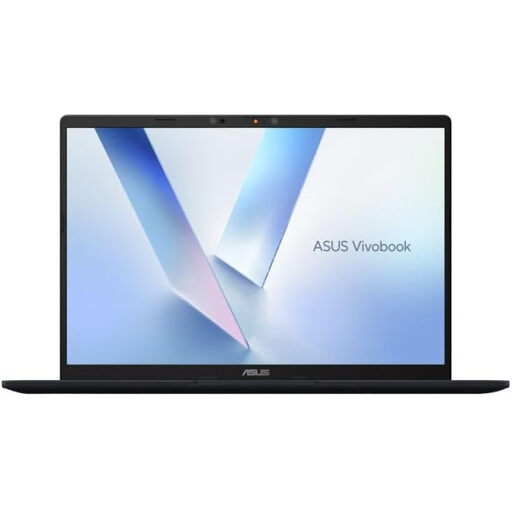
ASUS Vivobook 14 X1407QA-LY003W Copilot+ PC, Quiet Blue
Consider this 14-inch option for a portable checkout-testing setup, but confirm the required browsers and exact simultaneous display arrangement before choosing a dock.
The named configuration has a Snapdragon X processor, 16GB RAM and a 512GB SSD.
View on Joybuy
 No image available
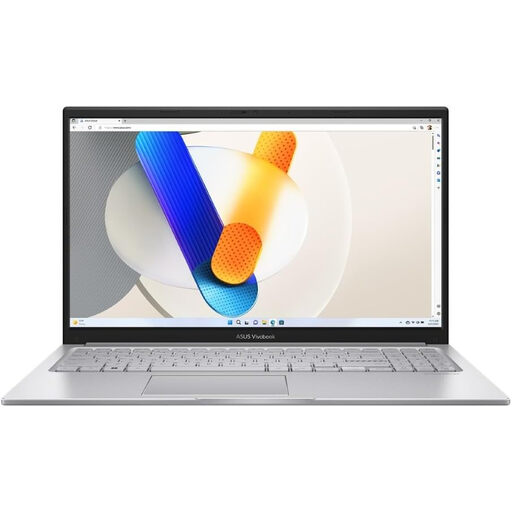
ASUS Vivobook 15 X1504VA, Core 5 120U, 24GB, 1TB SSD, Cool Silver
Consider this configuration if you want a 15.6-inch built-in screen alongside your planned testing workspace. Check the exact external-display support and whether the ports meet your monitor or dock requirements.
The named configuration has an Intel Core 5 120U processor, 24GB memory and a 1TB SSD.
View on Joybuy
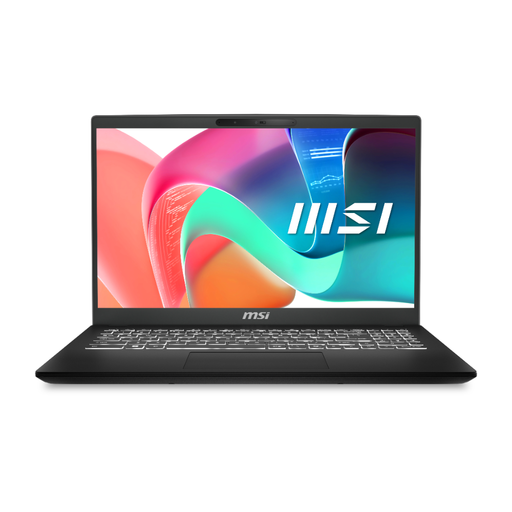 No image available
MSI Modern Laptop C2RMG-282UK, 9S7-15H431-282
Consider this model for a laptop-based checkout-testing workspace, then check its exact USB-C display protocol and supported monitor arrangement before selecting a dock.
The named configuration has a 15-inch FHD display, Intel Core 5 processor, 16GB DDR IV RAM and a 512GB SSD.
View on Joybuy
Common questions
Does two-screen testing require support for two external monitors?
No: the laptop’s built-in screen plus one monitor needs one external display connection. If you want two external monitors, confirm that the exact laptop, dock and monitors support that arrangement at the required resolutions and refresh rates.
Can Chrome DevTools Device Mode approve a mobile checkout?
No. Chrome for Developers describes Device Mode as an approximation rather than testing on a mobile device. Use it for quick layout and performance-condition checks, then validate critical checkout flows in the real target browsers and devices.
When does a MacBook make sense for checkout testing?
Choose access to a MacBook or another Mac when desktop Safari on macOS is a required test target. Apple’s Safari tools help with inspection and responsive checks, but device-specific flows still need validation in the relevant real environment.
What if Windows does not detect the second monitor?
Check the monitor, cable and dock connections first. Microsoft Support advises using Windows display settings to detect connected screens; once detected, arrange them to match their positions on your desk.


