Desk-based lesson planners
Teachers who want sources, timelines or images visible while writing a lesson plan or slides on another screen. Confirming the display connection matters more to this setup than choosing by processor name alone.


Choose a laptop for two-screen history lesson planning by confirming the intended screen arrangement and the exact laptop-to-display connection before purchase. A compatible direct cable keeps a laptop-and-monitor desk simpler; if you need two external monitors or one desk connection for displays and peripherals, check the dock’s documented configuration for the specific laptop. Ask school IT about accounts and required software before choosing a device for school work.
Teachers who want sources, timelines or images visible while writing a lesson plan or slides on another screen. Confirming the display connection matters more to this setup than choosing by processor name alone.
Teachers who carry one laptop between locations and reconnect it to a monitor or dock at each desk. Check the ports, cable and charging arrangement for both workspaces.
Teachers who need access to school accounts, networks or stored work. The Department for Education advises schools to match staff devices to educational and technical needs, so involve the school digital lead or IT team before buying a personal laptop for that work.
Choose when: You need two active screens in total and can confirm a direct video connection between the laptop and monitor.
Trade-off: There is no dock to configure, but the port and cable still affect the display arrangement. Microsoft recommends a direct connection where possible.
Choose when: You need two external monitors or want to reconnect displays, peripherals and charging at a desk.
Trade-off: The dock’s display claims depend on the host laptop and connection. Check its documented configuration for the screens you intend to use.
| Concern | What to check | Who this matters to |
|---|---|---|
| Reliable screen connection | Decide whether you mean one external monitor or two. Check the exact laptop’s video output against the monitor input, cable and any dock configuration. | I need sources visible while writing my lesson plan, so the second screen must connect as intended; around 50% of consumers put reliable screen connectivity first. |
| School-system compatibility | Ask school IT which operating system, account, security and software requirements apply, and who will support the device. | If I use school accounts and planning tools, I need a laptop the school can support; around 30% of consumers prioritise school-system compatibility. |
| Portability and reconnection | Check carrying weight, available ports and whether a dock can supply the charging and display connections your laptop needs. | When I move between school and home, I want to reconnect without rebuilding my desk setup; roughly 20% of consumers put portability and desk flexibility first. |
The connector shape alone does not establish display capability. Lenovo says its compatible docks require a host connection supporting the relevant USB-C Alt Mode, DisplayLink or Thunderbolt protocol.
Check the exact laptop’s port specification and the display arrangement you intend to connect before choosing a laptop or dock.
An incompatible connection may leave you needing a different cable, adapter or dock.
Microsoft notes that connected devices and lower-standard connectors can affect the resolution or refresh rate a docked setup achieves.
Check the documented resolution and refresh rate for the laptop, dock, cables and monitors together. Use a direct cable if it meets your screen needs.
Department for Education guidance calls for schools to consider staff device needs alongside security and technical requirements.
Ask the school digital lead or IT team about accounts, required software and support before buying a device that will access school systems.
Two screens still need suitable placement, lighting and desk space. The Health and Safety Executive says employers must assess workstations for staff who use display screen equipment daily, as normal work, for continuous periods of an hour or more.
Arrange the screens, chair and input devices together, and use your employer’s workstation assessment process where it applies.
These brands have relevant laptop or docking information; a brand name alone does not establish compatibility for a particular model.
Relevant if you are considering a Dell laptop with a Dell USB-C or Thunderbolt desk dock.
Relevant if you are considering a ThinkPad and want a published reference for laptop-and-dock display configurations.
Relevant if you are considering an EliteBook for everyday planning work.
These laptops are choices to consider for a desk with a laptop screen and an external monitor; the ASUS Zenbook DUO also has two built-in screens. Confirm the connection for your intended monitor and your school’s software requirements before choosing a configuration.
 No image available
The dual built-in screens give lesson planners two work areas without requiring a separate monitor.
 No image available
This 14-inch laptop is a choice for planning at different desks if its display connection works with your monitor.
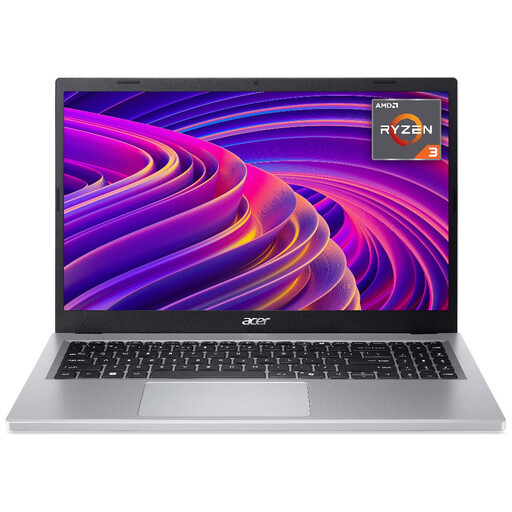 No image available
This laptop offers a 15.6-inch built-in screen for planning; check its connection before pairing it with an external monitor.
 No image available
For a laptop-and-monitor planning desk, check how this model connects to your external screen and school software before choosing it.
No: a USB-C socket alone does not confirm video output. Lenovo says compatible docks require the host port to support a relevant display protocol, such as USB-C Alt Mode, DisplayLink or Thunderbolt; check the exact laptop and intended connection.
For a laptop display plus one external monitor, a compatible direct cable is usually the simpler arrangement. A dock is useful to consider for two external monitors or a desk with several peripherals, but check the documented laptop-and-dock display configuration rather than relying on the dock’s maximum claim.
Ask which account, software, security and support requirements apply to a personally purchased device used for school work. Department for Education guidance calls for staff device decisions to fit the school’s educational and technical needs.
The number of screens is not the deciding condition: the Health and Safety Executive says employers must assess workstations when staff use display screen equipment daily as part of normal work for continuous periods of an hour or more. Screen placement, lighting and the wider desk setup should be considered together.