Who needs this setup?

Two-screen fixture recorders

If you want the live feed on one screen and recording controls, scores or analysis on another, decide whether the laptop display counts as one of your two screens. Check the exact laptop and connection arrangement against both displays; Microsoft Support advises checking cables and dock connections when setting up multiple monitors.

Capture-card and OBS users

If a camera or HDMI feed will enter the laptop through a capture card, check its operating-system support and input formats alongside your recording settings. OBS Project documents capture cards as video sources and notes that scene rendering still uses GPU resources even when hardware encoding is available.

Portable sports-content creators

If you move between venues and review or edit footage afterwards, consider how much recording space you need before transferring files. Compare the storage and graphics configuration of the exact model with what you are willing to carry, rather than assuming every variant in a creator or workstation range is alike.

What matters when choosing?

Define the two-screen arrangement and list your video sources before comparing processors or graphics options. Those decisions determine which display connections, capture-device support and recording settings you need to check.

Concern What to check Who this matters to
Independent displays Confirm whether you need two external monitors or one monitor plus the laptop screen. Check the exact laptop, dock and cables at your intended resolution and refresh rate. I need separate space for the fixture and my recording controls, without discovering that the displays only mirror each other. Around 42% of consumers would put independent display operation first.
Recording and capture List your simultaneous sources, then check the intended OBS encoder and any capture card’s operating-system support, input resolution and frame rate. When several feeds and overlays are running, I care most about whether the planned recording remains usable. Roughly 33% of consumers would prioritise recording and capture compatibility.
Portability and storage Estimate how long files must stay on the laptop and compare the exact configuration’s SSD capacity with your travel and editing needs. If I take the laptop between fixtures and review footage later, carrying it and retaining files locally matter most to me. About 25% of consumers would make portable production their primary concern.

Mistakes to avoid

  • Assuming two video-shaped ports mean two independent screens

    The laptop, dock, cables and monitors form one display chain. A connection can limit resolution or refresh rate even when both screens connect physically.

    Check the manufacturer’s display specification for the exact laptop against your monitors and planned dock or adapters. Microsoft Support also advises checking cable and dock connections when configuring multiple monitors.

    The chosen connections may call for a compatible dock, adapter or different cables.

  • Expecting a hardware encoder to prevent every recording problem

    OBS Project recommends hardware encoding to reduce the impact of encoding, but OBS still needs GPU resources to composite and render a scene. A demanding mix of sources can therefore cause overload.

    Test the intended source count, resolution, frame rate, overlays and recording settings before a fixture. If OBS reports overload, simplify the scene or lower output settings.

  • Buying a capture card before checking compatibility

    A capture card must expose a usable source to the chosen operating system and recording software. OBS Project says Windows Video Capture Device sources use DirectShow-compatible output; an unsupported resolution or frame rate may stop a source displaying.

    Check the card maker’s operating-system support and input formats, then test the card with the intended laptop and recording software.

    An incompatible card may require a different capture device or adapter.

  • Confusing private recording with permission to share a broadcast

    Recording your own camera footage and recording a live sports broadcast are different situations. In the UK, the private time-shifting exception in section 70 of the Copyright, Designs and Patents Act 1988 is limited to recordings made in domestic premises for private and domestic use so a programme can be viewed or heard at a more convenient time; it does not grant general permission to redistribute it.

    If your source is a live broadcast, check whether you need TV Licence coverage to watch or record it, and obtain rights-holder permission before sharing or using the recording beyond private time-shifting.

Relevant brands to consider

ASUS

The ProArt P16 H7606 range is a Windows creator-laptop option for buyers planning recording and editing work.

  • ASUS UK describes configurations with RTX 50-series laptop graphics and video encoder and decoder capabilities for creator workflows.
  • These are range-level manufacturer claims. Check the GPU, encoder and external-display capability of the exact configuration you intend to buy.

Apple

A MacBook Pro with M5 Pro is relevant if your recording and editing workflow uses macOS and you need two external displays.

  • Apple says the M5 Pro MacBook Pro can drive up to two high-resolution external displays and lists hardware-accelerated H.264, HEVC, ProRes and ProRes RAW media engines.
  • The display claim depends on the chip and configuration. Check your capture card’s macOS support and the full monitor connection arrangement separately.

Lenovo

The ThinkPad P16v Gen 2 offers a Windows mobile-workstation route for buyers also using professional software.

  • Lenovo UK lists a 21KX000NUK configuration with a Core Ultra 7 processor, NVIDIA RTX 1000 Ada Laptop GPU, 32 GB memory and a 1 TB SSD.
  • That configuration does not establish what a chosen dock and monitor combination can display. Confirm the display outputs and capture-device compatibility for your setup.

Joybuy products for a macOS setup

These M5 Pro MacBook Pro configurations are choices for a macOS recording workflow with local storage for footage. Apple states that M5 Pro supports up to two high-resolution external displays; check your intended monitors, dock and capture device against the complete setup.
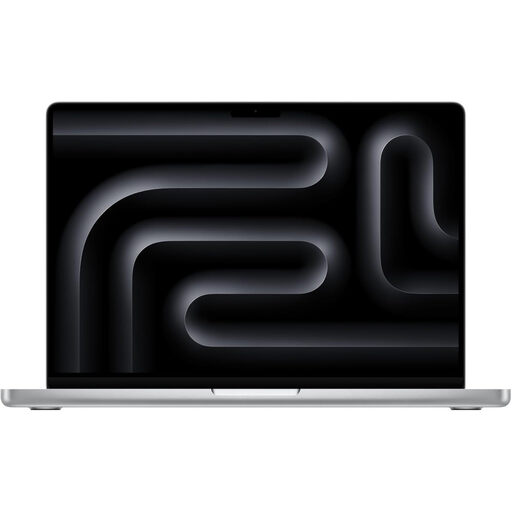
Silver Apple MacBook Pro 14.2-inch with M5 Pro, 18-core CPU and 20-core GPU

Apple MacBook Pro 14.2-inch M5 Pro, 18-core CPU, 20-core GPU, 24 GB/2 TB, Silver

For a macOS-based fixture-recording setup where you want footage stored locally and two external displays, subject to checking the complete display chain.

This configuration has 24 GB memory and a 2 TB SSD. Confirm that your capture card supports macOS and the input format and frame rate you plan to record.

Joybuy
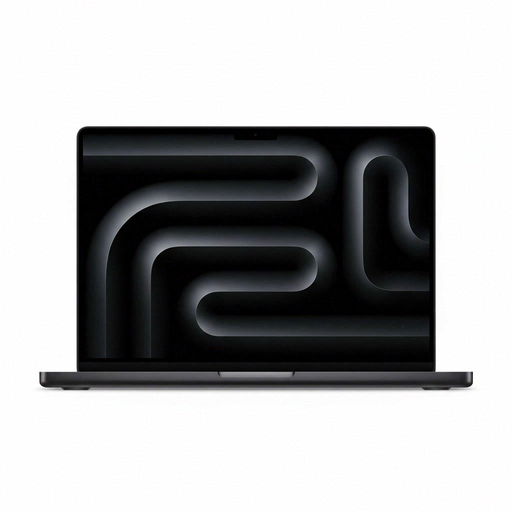
Space Black Apple MacBook Pro 14.2-inch with M5 Pro, 15-core CPU and 16-core GPU

Apple MacBook Pro 14.2-inch M5 Pro, 15-core CPU, 16-core GPU, 24 GB/2 TB, Space Black

For a macOS-based fixture-recording setup where you want footage stored locally and two external displays, subject to checking the complete display chain.

This configuration has 24 GB memory and a 2 TB SSD. Confirm that your capture card supports macOS and the input format and frame rate you plan to record.

Joybuy

Frequently asked questions

Will any laptop with two USB-C ports run two independent screens?

No: the number of ports alone does not establish the supported display arrangement. Check the exact laptop configuration, connection route, dock and intended resolution and refresh rate; Microsoft Support advises checking cables and dock connections when setting up multiple monitors.

What should I check before using a capture card with OBS on Windows?

Check that the card provides DirectShow-compatible output for an OBS Video Capture Device source. OBS Project also advises matching the device’s supported input resolution and frame rate to your source, since an unsupported combination may prevent it from displaying.

Do I need a TV Licence to record a live sports broadcast on a laptop?

In the UK, you need to be covered by a TV Licence if you watch or record a programme as it is shown live on a TV channel, TV service or streaming service, according to TV Licensing. That broadcast rule does not automatically apply when you record your own camera footage of a fixture.

Can I keep a recording of a sports broadcast for private viewing later?

UK copyright law provides a limited time-shifting exception: section 70 of the Copyright, Designs and Patents Act 1988 covers a recording made in domestic premises for private and domestic use solely to view or hear a programme at a more convenient time. It does not provide general permission to publish, redistribute or show the recording publicly, and TV Licence requirements for recording a live broadcast still apply.