What matters when choosing?
Start with the number and location of the screens you need, then check the connection and testing workload. If Safari or native Windows testing is required, include that operating-system requirement before settling on a laptop.
| Concern |
What to check |
Who this matters to |
| Independent displays |
Confirm the exact laptop configuration’s external-display limit and the resolution and refresh rate supported for your intended arrangement. |
If I need a browser and reference material visible independently, mirrored screens will not give me the workspace I want. Around 50% of consumers put a workable extended-display arrangement first. |
| Docking between desks |
Check video output through the chosen laptop port, the dock’s display modes and whether its charging capability suits the laptop. |
Moving between work locations makes repeated connections a practical concern; I want the desk equipment to reconnect without changing my display plan. For around 30% of consumers, convenient docking is the primary need. |
| Local test workload |
Choose processor and memory configurations against your normal local worker count and required browsers. |
When I run browsers in parallel, getting the screens connected is only part of the job; the laptop also has to suit my usual local runs. Local automation comes first for around 20% of consumers. |
Relevant brands to consider
These laptop and accessory lines offer different routes to a two-screen workspace. Display claims for a dock still need to be checked against the exact host laptop.
Lenovo
ThinkPad laptops and Lenovo docks are relevant to a Windows desk setup where model-specific display documentation matters.
- Lenovo specifies HDMI and two Thunderbolt 4 ports for the ThinkPad T14 Gen 6 Intel, with external-display support that varies by processor series.
- Check the processor variant rather than applying one T14 Gen 6 display limit to every configuration; dock capability also depends on the host.
Dell
Dell Pro laptops and docks offer a manufacturer-matched starting point for a Windows desk setup.
- Dell lists configurable processors for the Pro 14 Premium and specifies dual 4K displays at 60 Hz for its Pro Thunderbolt 4 Dock WD25TB4.
- The dock’s stated mode does not establish the selected laptop’s video output or display limit; check both configurations together.
HP
EliteBook configurations and HP hubs or docks are options for a laptop that moves between portable and desk use.
- HP specifies dual 4K display outputs for its Universal USB-C Multiport Hub and up to three external displays for its USB-C 100W G6 Dock under supported configurations.
- Those accessory specifications require a compatible laptop video connection and an arrangement within the laptop’s own display limit.
Apple
MacBook Air is relevant when macOS and Safari form part of the web-testing workflow.
- Apple specifies support for up to two external displays alongside the built-in display on MacBook Air models with M4.
- Check the exact Mac model and supported display modes; a hub cannot increase its display maximum, and macOS does not replace native Windows testing.
Joybuy product choices
This dual-built-in-screen laptop is a choice for testing across two screens without setting up a separate monitor. If your plan also includes external monitors, check their supported number and display modes for the exact configuration.
 No image available
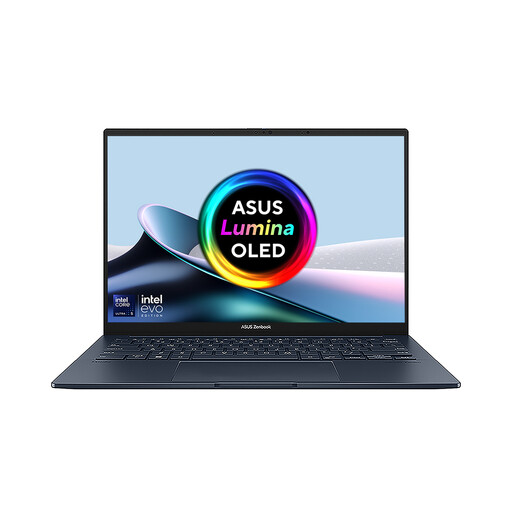
ASUS Zenbook DUO UX8406CA-QL135W, dual 14-inch OLED touchscreens
Consider this layout if you want two built-in screens for web-testing work rather than carrying a separate monitor.
This variant is listed with an Intel Core Ultra 7 255H processor, 16 GB LPDDR5X memory and a 1 TB SSD. The built-in panel resolution is listed inconsistently, so confirm it for this variant before buying. If you intend to add monitors, confirm the supported external-display count and modes separately.
View on Joybuy
Frequently asked questions
Do I need support for two external monitors?
Only if you want two external monitors in addition to the laptop screen. For the laptop screen plus one monitor, check support for one external display; for a three-screen arrangement, check the exact model’s external-display limit. Lenovo documents different limits within ThinkPad T14 Gen 6 Intel configurations, while Apple specifies up to two external displays for MacBook Air with M4.
Can a USB-C hub make any laptop run two external monitors?
No. The laptop needs compatible video output and support for the intended number of displays, regardless of how many sockets the hub provides. Apple states that a supported hub or daisy chain does not increase a Mac’s maximum display count.
How do I arrange an extended workspace in Windows?
Connect the displays and use Windows display settings to identify and arrange them to match their positions on your desk. Microsoft Support explains that settings can be adjusted for each connected display; if one is missing, check its connection and the dock as well as the laptop’s supported display arrangement.
What if a laptop or dock cannot do what its listing described?
For a UK purchase, GOV.UK says a retailer must offer a full refund if an item is faulty, not as described or does not do what it is supposed to do. Keep the listing and the display specifications you relied on; this remedy is distinct from a change-of-mind return.


