Two-external-monitor desk reviewers
If the laptop sits beside two independent monitors, check its supported external-display configuration as well as dock compatibility. The number of sockets on a dock does not establish what the laptop can drive.


Choose the screen arrangement before the laptop: using its built-in display alongside one monitor calls for a compatible video connection, while two independent external monitors require checking the exact laptop’s display limit, monitor requirements and any dock. A dock can make a fixed desk easier to connect but cannot override the laptop’s display limit; a laptop with two built-in screens is another way to keep a draft and reference material visible without an external monitor.
If the laptop sits beside two independent monitors, check its supported external-display configuration as well as dock compatibility. The number of sockets on a dock does not establish what the laptop can drive.
If the laptop screen and one external monitor provide enough room for a draft and its comments, focus on a compatible video connection and a laptop you can move between workspaces.
For an employer-managed laptop, confirm the required operating system and management options alongside the exact model’s display capability. A business-range name alone does not settle either requirement.
Decide whether your two screens are the laptop panel and one monitor, two external monitors alongside the laptop, or two built-in panels. That choice determines which display connections and limits matter.
| Concern | What to check | Who this matters to |
|---|---|---|
| Independent displays | For two external monitors, check the exact laptop’s supported display count at the intended resolutions and refresh rates, plus any dock’s video modes. | I need a draft, comments and sources on separate screens at my desk, not the same picture mirrored twice; around 36% of consumers put independent external displays first. |
| Document readability | Compare screen size, resolution and text scaling, then check that the displays can be arranged to match the desk. | When I move between a report and its comments, I want legible text and a sensible window layout; roughly 29% of consumers prioritise a readable workspace. |
| Portable second screen | Check the laptop’s size and weight and whether its documented video connection suits the monitor you plan to use. | I review drafts at different desks and usually need just the laptop panel plus one monitor; around 21% of consumers make that portable setup their primary concern. |
| Managed-device fit | Confirm the employer’s required operating system, applications and management options for the exact configuration. | If this is a work-managed laptop, it must meet organisational requirements as well as connect to my screens; about 14% of consumers put managed-device fit first. |
Microsoft Support explains that a splitter duplicates one video signal rather than creating two independent displays. A dock’s outputs also remain subject to the connected laptop’s display limit.
Write down whether you need one or two external monitors, then check the exact laptop’s limit and any dock’s supported video mode.
Correcting an incompatible dock, adapter or cable may mean replacing that accessory; replacing it cannot overcome a laptop display limit.
The connector’s shape does not tell you which display arrangement the exact laptop supports.
Check the model’s technical specification for video output through the relevant port and for its maximum external-display configuration.
A compatible adapter may be needed for the monitor connection you intend to use.
Ports, displays and operating-system options can vary within a business-laptop range, so a family description may not describe the unit you order.
Keep the exact model or part number to hand when checking its specification and any manufacturer dock-compatibility information.
MacBook Air is a macOS option if your report-reviewing applications and files work in that environment.
ThinkPad business configurations are relevant when a Windows work device and a documented docking setup are priorities.
Dell Pro laptops and Thunderbolt docks are options to examine for a fixed Windows desk.
EliteBook configurations are relevant when selecting a business Windows laptop for document work.
These laptops represent two ways to review a draft across two screens: using a laptop with an external monitor, or using two screens built into the laptop. Check the display arrangement you need before choosing between them.
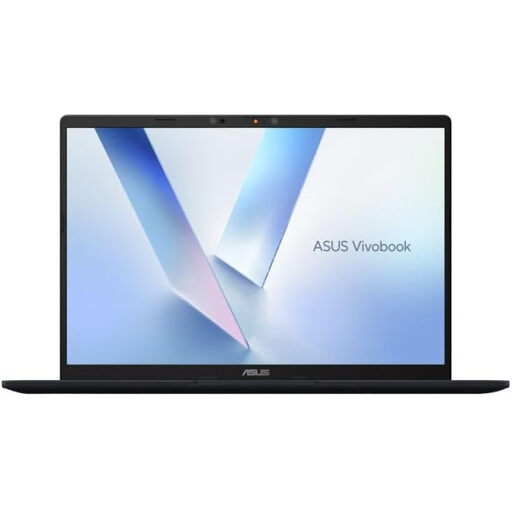 No image available
Consider this for reviewing a draft on the laptop screen alongside one external monitor. Confirm that the exact configuration and your monitor have a compatible video connection, then check the supported simultaneous-display arrangement before buying.
The named configuration has a Snapdragon X processor, 16GB RAM and a 512GB SSD.
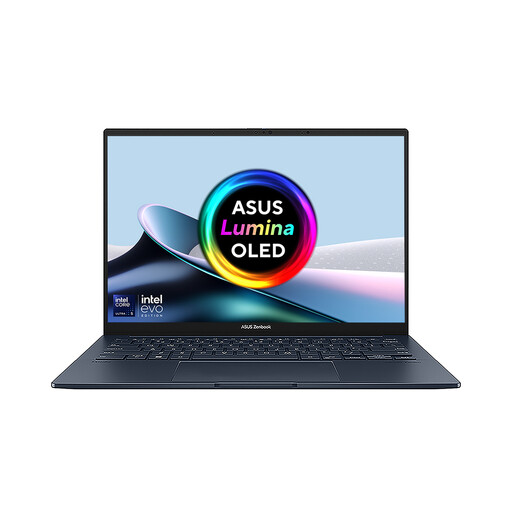 No image available
Its two built-in screens suit a draft-and-reference arrangement without an external monitor. Confirm the exact panel resolution if it matters to your reading setup, and check external-display support separately if you also intend to attach monitors.
The named configuration has two 14-inch OLED touchscreens, an Intel Core Ultra 7 255H processor, 16 GB LPDDR5X RAM and a 1 TB SSD.
Not necessarily: check the exact laptop’s supported external-display count at your monitors’ resolutions and refresh rates. Microsoft Support notes that a splitter duplicates a signal rather than creating two independent displays.
Connect the monitor and select Extend rather than Duplicate, then arrange the detected screens in Windows display settings to match their positions on your desk. Microsoft Support also identifies Windows key + P as a way to check the display mode.
No dock is needed solely because you use two screens: a compatible direct connection can serve a laptop panel plus one external monitor. A dock may be useful at a fixed desk with two external monitors and peripherals, but its stated video modes must work within the exact laptop’s display limit.