Proposal writers at a fixed desk
If you draft beside source documents on external monitors, establish how many displays the laptop must drive and whether you will reconnect them directly or through a dock.


Decide whether two screens means the laptop plus one monitor or two external monitors alongside the laptop: the second setup needs an explicitly supported external-display arrangement. Choose Windows if essential workplace software requires it; consider an M5 MacBook Air if those tools work on macOS and its documented support for up to two external displays meets your needs. Check the exact ports, monitor resolutions and any dock as one connected setup.
If you draft beside source documents on external monitors, establish how many displays the laptop must drive and whether you will reconnect them directly or through a dock.
If you draft away from your desk and return to a monitor later, assess the built-in screen and the connection you will use when you dock again.
If your employer requires particular software, document templates, peripherals or device management, confirm those requirements before choosing an operating system. Check display connections on the exact laptop configuration too.
Start with the number of screens you will use simultaneously, then confirm your required software. Only then decide whether a larger built-in display or a simpler desk connection matters more to you.
| Concern | What to check | Who this matters to |
|---|---|---|
| External displays | Define whether you need one or two external monitors. Check the exact model’s simultaneous display limit, supported resolutions and video-capable ports against your screens. | If I need my proposal and reference material visible across the intended screens, I cannot choose by port shape alone. Around 36% of consumers put display compatibility first. |
| Writing away from the desk | Compare the built-in screen, keyboard and memory configuration you would use without a monitor; assess keyboard comfort in person where possible. | When I draft between meetings, the laptop itself must work for reading and revising a long document. For roughly 29% of consumers, comfortable portable writing is the primary need. |
| Workplace software | Confirm required applications, add-ins, macros, VPN, peripherals and employer device-management rules before choosing macOS or Windows. | If my organisation’s proposal templates or tools require a particular platform, extra screen space will not solve an application mismatch. Around 21% of consumers prioritise workflow compatibility. |
| Desk connections | For a dock, check the laptop’s Thunderbolt or USB-C video capability, dock compatibility and the required monitor count and resolution. | At a desk I use regularly, I want to reconnect my screens and accessories without rebuilding the setup each time. Desk simplicity comes first for roughly 14% of consumers. |
A data-only USB-C port cannot provide the native video connection needed by a USB-C monitor or compatible video dock. Dell Support advises checking whether the port supports video.
Match the exact laptop’s documented Thunderbolt or USB-C DisplayPort capability to the monitor and dock inputs before ordering.
An incompatible connection may mean replacing the intended cable, adapter or dock.
Lenovo notes that some ThinkPad T14 Gen 5 Intel features depend on configuration. Dell’s published multi-display figures for the Latitude 5550 should not be applied to a Latitude 5450.
Use the exact model or configuration to check its ports, graphics and simultaneous external-display limit.
A dock’s name alone does not establish how many screens the complete setup can run. The laptop port, graphics hardware, dock and monitor resolutions all affect the connection.
Check the required screen arrangement against the laptop and dock documentation, including each monitor’s input and intended resolution.
A dock can also require suitable cables or separate power equipment.
The M5 MacBook Air is a macOS option when your proposal software works on macOS and you need a documented two-external-monitor arrangement.
The ThinkPad T14 Gen 5 Intel is a Windows business-laptop line worth checking if you want HDMI and Thunderbolt connection options.
Latitude models offer Windows business-laptop configurations for buyers considering a desk setup, but display claims must be checked model by model.
These laptops offer different starting points for proposal writing: two M5 MacBook Air configurations with Apple’s documented external-display support, and two other laptops whose exact monitor arrangements should be checked before purchase.
 No image available
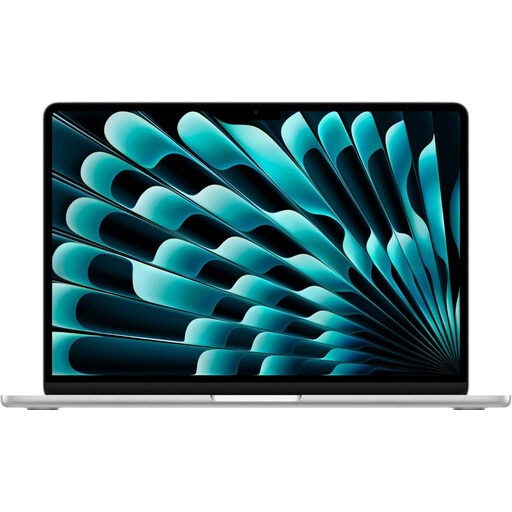
Consider this configuration if macOS fits your proposal workflow and you want a 15-inch-class built-in screen when away from the desk.
Apple UK documents support for up to two external displays alongside the built-in display for the M5 MacBook Air. Check your monitors’ required resolutions, suitable USB-C cables or adapters, and workplace software compatibility.
 No image available
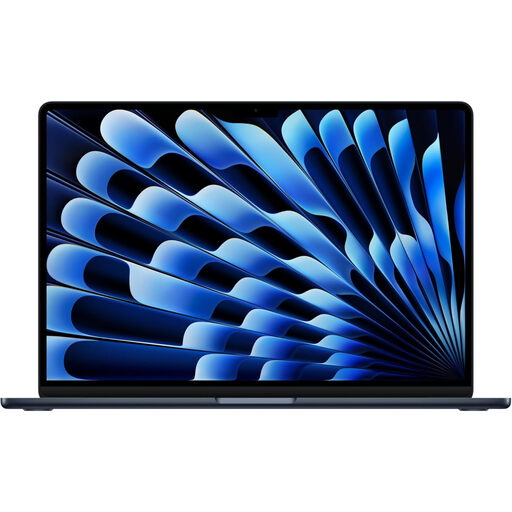
Consider the 13-inch-class configuration if you draft away from your monitors and macOS works with your required tools.
Apple UK documents up to two external displays alongside the built-in display for the M5 MacBook Air. Confirm the intended monitor resolutions, USB-C connections and any workplace add-ins or peripherals.
 No image available
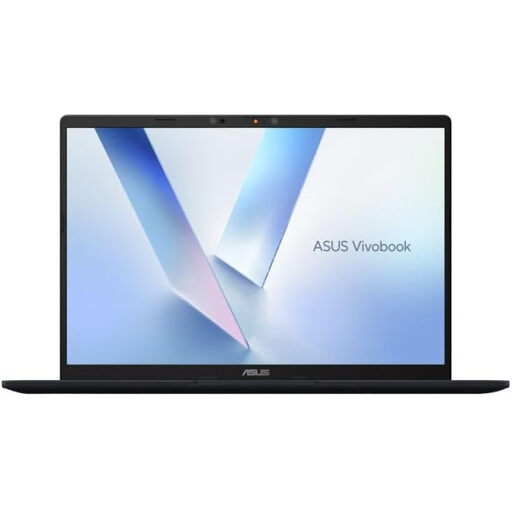
Consider this 14-inch model if its screen size suits writing away from a desk, but confirm its connection to your intended monitor arrangement first.
Check the exact configuration’s video outputs and simultaneous external-display limit. Because this model has a Snapdragon X processor, also confirm that required workplace applications and peripherals work with it.
 No image available
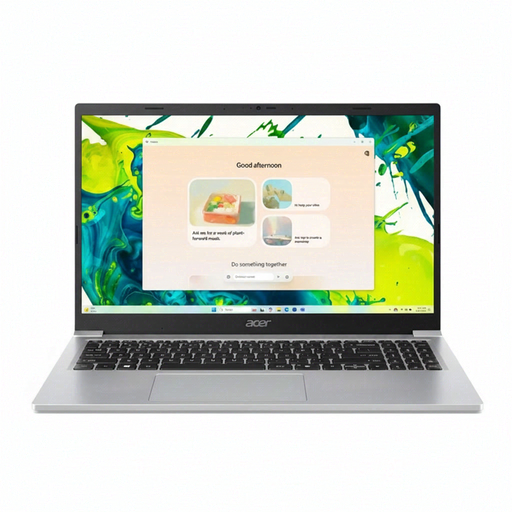
Consider this Windows 11 Home model if you want its stated 15.6-inch display for drafting away from a desk.
Before planning a two-screen setup, check its exact video outputs and your monitor’s input. If you need two external monitors, confirm simultaneous display support; also check that your required applications work with the supplied Windows configuration.
Only if your two-screen plan actually involves two external monitors in addition to the laptop display. For the laptop display plus one monitor, confirm one working video connection; for two external monitors, check that the exact laptop supports both simultaneously at your intended resolutions.
No: a USB-C port can be data-only. Dell Support advises checking for video support; confirm USB-C DisplayPort capability for a corresponding native-video connection, or Thunderbolt support if you intend to use a Thunderbolt dock.
After connecting them, open Settings, then System and Display to identify and arrange the screens. Microsoft Support explains that you can adjust settings for each connected display; make sure the laptop supports the physical connections you need before relying on those controls.