Choose the screen layout before the laptop. Using the laptop display alongside one monitor is a different requirement from running two external monitors; for the latter, check the exact laptop and connection setup against manufacturer documentation. A laptop with two built-in screens offers another way to keep a reading list beside your edits, but it does not establish support for additional external monitors.
Who each setup suits
Editors working at a fixed desk
If you want two external monitors for source material, notes and your finished list, decide whether the laptop screen must stay active too. Lenovo publishes display-output configurations for specified ThinkPad systems and docks; use the documentation for the exact combination you intend to connect.
Readers moving between workspaces
If you need a reference pane beside an editing pane at home, in a library or at work, the laptop display plus one external monitor may meet your needs without a desk dock. Check that the laptop port carries video and that the monitor has a compatible connection.
Editors using macOS tools
If your reading-list or writing tools require macOS, check display support for the precise Mac model rather than relying on the MacBook Air name. Apple says the number of displays a Mac can use depends on its model and the displays’ resolution and refresh rate.
What to check before buying
Start by deciding whether your two screens will be built into the laptop, comprise the laptop and one monitor, or require two external monitors. Then check the connections and working layout that arrangement needs.
| Concern |
What to check |
Who this matters to |
| Confirmed screen layout |
For external monitors, check the exact model’s supported display count, resolution and refresh rate with the intended dock or direct connections. |
If I need two external screens for references and edits, I want to know they will both work in my planned layout. Roughly 40% of consumers put confirmed display capacity first. |
| Easy connections between locations |
Check that the chosen USB-C or Thunderbolt port supports video output and matches the monitor cable or adapter. |
When I move between study spaces, I want to connect my second screen without rebuilding a desk setup; around 30% of consumers prioritise a straightforward portable connection. |
| Readable working space |
Check the monitor’s native resolution against what the laptop and connection can deliver in your chosen layout. |
With titles, links and notes open beside my edits, I need enough usable space to read both panes; about 20% of consumers make the working layout their primary concern. |
| Existing software workflow |
Check required citation, writing and workplace software on your chosen operating system, then confirm that device’s display specification. |
If my editing tools depend on Windows or macOS, I do not want a screen arrangement that disrupts them; roughly 10% of consumers put workflow fit first. |
Buying pitfalls
-
Assuming USB-C guarantees two external monitors
A connector’s shape does not establish the number of displays or settings a laptop and dock can support. Microsoft warns that a connection below the required standard can reduce resolution or refresh rate, or cause flickering.
Match the exact laptop, dock, cables and monitor settings against manufacturer documentation before buying.
-
Applying one generation’s display limit to another
Apple says display support depends on the Mac model, while Microsoft lists different external-display limits for particular Surface Laptop generations.
Use the full model name and chip or processor generation when checking the display specification.
-
Choosing a laptop before settling the screen layout
The laptop screen plus one monitor is not the same requirement as two independent external monitors. A laptop with two built-in screens is a further, distinct arrangement.
Sketch which screens will show the reading list and the edits, then confirm support for that exact arrangement.
Brands to consider
Apple
The MacBook Air with M5 is a macOS route when two external monitors are part of the intended setup.
- Apple’s UK specification states support for up to two external displays while the built-in display remains active.
- That specification applies to the M5 model; check older MacBook Air generations separately.
Lenovo
Specified ThinkPad laptop-and-dock combinations are worth checking for a Windows desk setup.
- Lenovo provides display-output configuration guidance for particular ThinkPad systems and docks.
- The presence of HDMI, USB-C or Thunderbolt ports alone does not establish the intended model-and-dock display arrangement.
Microsoft
Surface Laptop is a Windows route with published external-display limits for particular generations.
- Microsoft lists Surface Laptop (8th Edition) at up to 3840 × 2160 at 60 Hz for dual external displays.
- Check the exact generation and settings: Microsoft notes that using two displays may require a lower resolution or refresh rate on the other display.
Joybuy laptops with built-in dual screens
This laptop puts a reading pane beside an editing pane on two built-in screens, without requiring an external monitor for that layout.
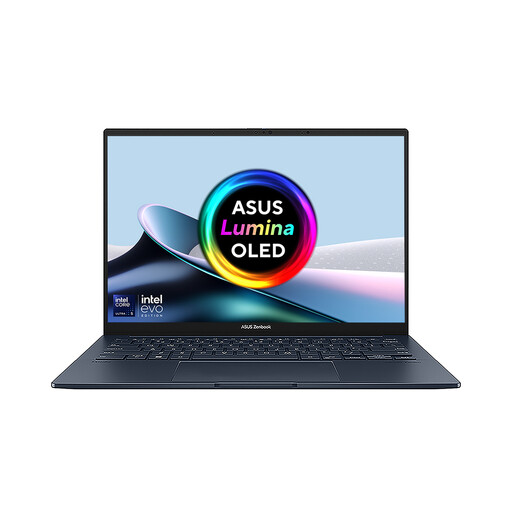 Image unavailable
ASUS Zenbook DUO UX8406CA-QL135W, dual 14-inch OLED touchscreens
The two built-in screens suit a reading list beside an editing window without an external monitor.
Intel Core Ultra 7 255H, 16 GB LPDDR5X RAM and 1 TB SSD.
Confirm the screen resolution for this variant before ordering. If you intend to add external monitors, check how many the exact configuration supports alongside its built-in screens.
View on Joybuy
Common questions
Does “two screens” mean two external monitors?
No. It may mean the laptop’s built-in screen plus one monitor, two external monitors, or two screens built into the laptop. Decide which layout you need before checking the exact model’s display support.
Will a USB-C port or dock run two monitors?
Not necessarily. Check the laptop and dock manufacturer’s specifications for two independent external displays at your monitors’ intended resolutions and refresh rates; a USB-C connector alone does not establish that capability.
What should I check if an external screen is not showing in Windows?
Start by checking the physical connections, as Microsoft Support advises. In Windows display settings, identify and arrange the connected screens, and try detecting a screen that does not appear.
What if a laptop cannot deliver the display setup it was advertised to support?
Contact the seller with the listing, order confirmation and details of the configuration that failed. GOV.UK explains that consumer rights protect purchases of goods; the remedy for a laptop that does not match its description depends on the circumstances.


