Choose a laptop that runs your required test tools and dependencies, then check the exact model’s display outputs against the screens you intend to use. A built-in screen plus one monitor calls for a different check from two external monitors. If your tests also run through Docker, WSL, virtual machines or a full IDE, give memory, storage and platform compatibility more attention than processor branding alone.
Who this setup suits
Two-screen test writers
If you want code on one screen and tests, terminal output or documentation on the other, confirm that your laptop and monitor can form an extended desktop. Microsoft’s Windows guidance distinguishes this from duplicating the same picture on both displays.
Container and IDE-heavy developers
If your test runner shares the laptop with Docker, WSL, a full IDE or larger repositories, check the operating-system requirements, memory and local storage for the tools you actually use. Docker’s Windows guidance also discusses managing the resources allocated to WSL 2.
Portable cross-platform coders
If you work away from your desk as well as at a monitor, consider how the laptop works on its own and how it connects when you return. Apple’s current MacBook Air specifications, for example, describe external-display support while its built-in screen remains active; your development tools still need to work on macOS.
What to check before buying
Settle your required operating system and the meaning of “two screens” before comparing configurations: it could mean the laptop screen plus one monitor, or two external monitors as well as the laptop screen.
| Concern |
What to check |
Who this matters to |
| Extended workspace |
Check the exact model’s external-display limit and video-capable ports against your monitor, cable or dock. Confirm the intended screens can be extended, not just duplicated. |
I want code and test output in separate spaces, so my monitor connection has to support the workspace I intend to use. Around 50% of consumers would put that display requirement first. |
| Local test workload |
List the IDE, test runner, containers and other tools you will run together; compare their requirements with the chosen memory, SSD and operating-system configuration. |
When I run containers or a full IDE alongside tests, I need enough capacity for those processes at the same time. Roughly 30% of consumers would make local-workload capacity their primary concern. |
| Platform and portability |
Confirm that required project tools work on the operating system, then check whether the size and connection arrangement suit work away from your desk. |
I move between locations, but the laptop still has to run my project’s dependencies wherever I work. About 20% of consumers would prioritise that combination of platform fit and portability. |
Mistakes to avoid
-
Assuming any USB-C socket will connect a monitor
The connector’s shape alone does not establish its video-output capability. Even with a suitable dock, the available display modes depend on the laptop, dock and monitor combination.
Match the exact laptop’s port and display specifications to the monitor input. If you plan to use a dock, check its stated compatibility and display modes; Dell publishes model-specific modes for its SD25TB4 dock.
-
Choosing by processor name alone
A light editor-and-test workflow and one that also runs containers, an IDE and test services place different demands on a laptop. Docker’s WSL 2 guidance specifically addresses CPU and memory allocation.
Write down what must run concurrently, then check memory, SSD capacity and tool compatibility for that workload before comparing processors.
-
Duplicating the display instead of extending it
Duplicate mode shows the same content on both screens, so it will not give code and test output separate workspaces.
Once the monitor is connected, select Extend and arrange the screens in Windows display settings, as described by Microsoft Support.
-
Assuming a listed configuration matches the one you can order
Memory, operating system, keyboard and connections can differ between configurations of a laptop line. A specification for one variant should not be applied to another.
Check the exact model number, keyboard layout, operating system, warranty terms and display outputs on the product you intend to order.
Relevant brands to consider
Apple
The MacBook Air is worth considering if your required development environment runs on macOS and you want a portable laptop for use both at and away from a monitor.
- Apple UK lists 16GB unified memory at entry level, two Thunderbolt 4 ports and support for up to two external displays alongside the built-in display for the current M5 MacBook Air.
- Check your project dependencies and workplace or course tools for macOS compatibility. Plan how those two ports will accommodate your monitor and other connections.
Dell
Dell’s Latitude line offers configurations to examine if you need a Windows or Ubuntu development environment or plan a dock-based desk setup.
- Dell UK lists Windows 11 Pro and Ubuntu 22.04 LTS options, 16GB to 64GB memory configurations and 256GB to 2TB SSD options for the Latitude 7450 line.
- Those options are configuration-specific. Dell’s SD25TB4 dock also has stated multi-display modes, which need checking against the exact laptop and monitors.
Lenovo
A ThinkPad T-series configuration may suit someone seeking a business laptop with a specified UK keyboard and Windows Pro configuration.
- Lenovo UK lists a ThinkPad T14 Gen 6 configuration with 16GB DDR5 memory, a 512GB SSD, Windows 11 Pro and a backlit English (UK) keyboard.
- Confirm the ports and external-display support for the precise T14 configuration you are considering rather than assuming they are identical across the line.
Joybuy laptops for this setup
These laptops offer Mac and Windows-oriented choices for writing unit tests. Compare each one with your required software and screen arrangement; a laptop’s listed memory or display size does not establish that your complete test setup will work.
 No image available
Apple 13-inch MacBook Air (2026) M5, 24GB, 1TB SSD, Midnight
Consider this for unit tests on macOS if your tools and dependencies are compatible.
- The listed variant has a 10-core CPU, 10-core GPU and 24GB unified memory.
- Apple UK states that the M5 MacBook Air supports up to two external displays while retaining its built-in display. Check your intended monitors and connections.
View on Joybuy
 No image available
ASUS ProArt P16 H7606WW-SE006W, 64GB, 2TB SSD
Consider this Windows laptop if your local tools call for the listed memory and storage, while checking its output against your planned monitors.
- The listed configuration has a 16-inch 4K OLED touchscreen, AMD Ryzen AI 9 HX 370, NVIDIA GeForce RTX 5080 16GB and Windows 11 Home.
- Confirm the supported external-display count and resolution or refresh-rate modes for the exact connection you plan to use.
View on Joybuy
 No image available
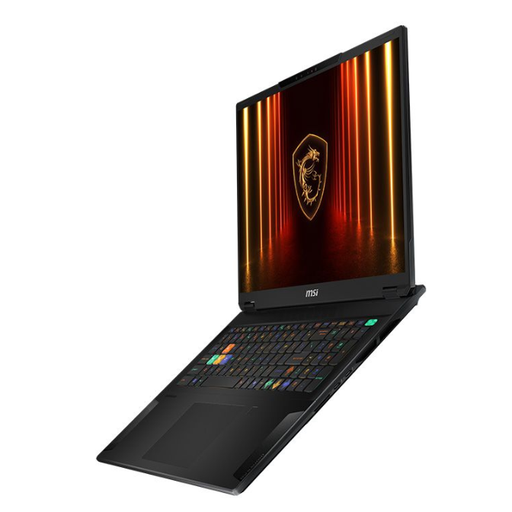
MSI Stealth 18 AI Studio A1VGG-001UK, 32GB, 2TB SSD
Consider this configuration if you want the listed memory and storage for local development and an 18-inch laptop suits where you work.
- The listed variant has an Intel Core Ultra 9 processor and NVIDIA GeForce RTX 4070 graphics.
- Check the external-display modes for your monitor arrangement before choosing it.
View on Joybuy
 No image available
Lenovo LOQ Essential 15ARP11, Ryzen 7 170, 16GB, 1TB SSD
Consider this for a test workflow that fits its listed memory and storage, provided its display connection meets your two-screen plan.
- The listed variant has a 15.6-inch FHD 144Hz screen and GeForce RTX 5050 graphics.
- If you expect to run more local tools later, check whether this exact configuration has the memory capacity you will need.
View on Joybuy
 No image available
ASUS Vivobook 14 X1407QA-LY003W, Snapdragon X, 16GB, 512GB SSD, Quiet Blue
Consider this 14-inch option for work between desks only after checking that your required development tools and dependencies work with its platform.
- The listed configuration has a Snapdragon X processor, 16GB memory and a 512GB SSD.
- Check your software’s Windows on ARM requirements and the supported display modes for your intended monitors.
View on Joybuy
Common questions
Do I need support for two external monitors to have two screens?
No: the laptop’s built-in screen plus one external monitor makes two screens in total. Check that the exact laptop supports an external display while its own screen remains active. If you mean two external monitors as well, check the stated display count and the applicable resolution and refresh-rate conditions; Apple UK lists support for up to two external displays alongside the built-in screen on the current MacBook Air.
How do I make a Windows monitor a separate workspace?
Select Extend rather than Duplicate after connecting the monitor. Microsoft Support advises using Windows display settings to arrange connected screens so you can place code and test output in separate areas.
What matters most for Docker-based unit tests on Windows?
Start by checking that the chosen Windows version meets Docker Desktop’s requirements and supports the backend you intend to use. Docker documents WSL 2 as its default backend for most Windows users and provides guidance on managing its CPU and memory allocation; compare those needs with the tools you will run at the same time.
Can I cancel an online laptop order after delivery?
For a standard online goods purchase, GOV.UK guidance says customers must be told they can cancel without giving a reason up to 14 days after delivery. Check the seller’s return procedure and whether an exception applies to your order. Change-of-mind cancellation is a separate question from what happens if a laptop is faulty or misdescribed.


