Keep your laptop if it still runs your work reliably and supports the display and connections you need; for regular desk work, assess a separate screen, keyboard and mouse before replacing the computer. Replace the laptop if its work-software, portable-use or external-display limits are the problem, and choose a dock only after checking the exact laptop’s video, charging and operating-system compatibility.
Who is this setup for?
The useful upgrade depends on whether your difficulty is the laptop itself, the position of your desk equipment or a connection needed for meetings and peripherals.
Regular home and hybrid desk workers
If you use a laptop for sustained document work at home but also carry it elsewhere, consider the desk arrangement separately from the portable computer. The Health and Safety Executive’s guidance for home and hybrid display-screen-equipment users recommends assessing the workstation in each place it is used.
Laptop owners who need more screen space
If the computer still handles your work, an external display and separate input devices may address a cramped desk arrangement without a laptop replacement. Check the laptop’s supported display connection and the space available to position the screen, keyboard and mouse.
Frequent video-meeting users
If calls drive your purchase, compare the camera and microphone functions you actually need with your computer and meeting platforms. Check optional webcam software against your operating system and processor rather than assuming every advertised feature will work.
What should you check before buying?
Start with what your current laptop cannot do, then check the display and desk connections required to solve that particular problem. A USB-C socket alone does not establish that a proposed monitor, hub or dock will provide video and charging.
| Priority |
What to check |
Your needs |
| Laptop replacement |
Check required work applications and portable-use needs. For a proposed replacement, confirm its model-specific external-display limits and charging connections. |
My current laptop no longer handles the work I need to do, or its display capability prevents the desk setup I want. |
| Desk position |
Check how the screen, keyboard and mouse can be positioned together. For prolonged laptop use, the Health and Safety Executive advises separate input devices when the laptop screen is raised or a separate display is used. |
I work at a desk for long stretches and want to position the screen without keeping the laptop keyboard and trackpad in the same fixed arrangement. |
| External display |
Match the laptop’s video-output method to the monitor input. Check supported display count, resolution and refresh rate for the exact computer; Apple says these factors affect how many displays a Mac can use simultaneously. |
More screen space would help me work across documents or applications, but I need the intended monitor arrangement to work with my laptop. |
| Dock or hub |
Check each port’s function, the laptop’s video protocol and its charging requirement against the device’s delivered power. Microsoft Support documents that USB-C hardware, software and cable combinations can limit display or charging functions. |
I want fewer connections to make each time I sit down, or I need to attach wired networking and several peripherals. For a portable setup, a smaller hub may cover the connections I actually use. |
| Video meetings |
Check camera connection, meeting-platform compatibility, microphone arrangement and any privacy shutter. Verify the operating-system and processor requirements for optional software features. |
I join calls often enough that camera placement, audio connections or a physical way to cover the lens matters to me. |
Common setup mistakes
-
Assuming every USB-C port supports the same dock functions
A connector that fits does not establish the video, data and charging behaviour of the whole connection. Microsoft Support describes limited display and charging functions as possible USB-C problems, while Lenovo specifies protocol requirements for its docks.
Find the exact laptop model and check its port specifications against the dock’s required protocol, display arrangement and charging output. Include the intended cable in that check.
-
Choosing a hub by port count alone
Ports with the same connector shape can serve different functions. Anker says its 555 USB-C Hub outputs video through HDMI, not through its USB-C data ports; it also reserves 15W of its stated pass-through charging capacity for the hub.
List the display, charging, storage and other connections you need, then assign each one to a named port in the exact hub specification.
For the Anker 555, also account for a compatible wall charger: Anker states that one is not included.
-
Adding a monitor without planning the keyboard and mouse
A separate screen does not resolve an awkward input position if you still have to type on the laptop in an unsuitable place. The Health and Safety Executive advises using a separate keyboard and mouse when raising a laptop screen or using a separate display.
Plan where the screen, keyboard and mouse will sit as one desk arrangement before deciding which item to add.
-
Assuming optional webcam features work on every computer
Basic camera compatibility and software-enabled enhancements are different buying checks. A feature that depends on companion software may also depend on the computer running it.
Confirm the webcam’s connection and meeting-platform support first, then check the stated operating-system and processor requirements for any enhancement you intend to use.
Relevant brand examples
These examples illustrate different workspace components, not a ranking of brands or a promise that every model in a brand’s range has the same connections.
Dell
Dell’s UltraSharp U2424HE illustrates a fixed-desk monitor that combines a display with a USB hub and stated laptop power delivery.
- Dell UK specifies a 23.8-inch Full HD IPS screen, an adjustable stand and 90W power delivery for the U2424HE.
- A one-cable arrangement still depends on the particular laptop supporting the required video and charging functions.
Lenovo
Lenovo’s USB-C and Thunderbolt docks are relevant when a fixed desk needs several connections, but the required protocol and display configuration must be checked by model.
- Lenovo UK lists up to three 4K-at-60Hz displays and 65W charging in the key details for its ThinkPad Universal USB-C Dock.
- Lenovo says its cited docks require a laptop Type-C port supporting USB-C Alt Mode, DisplayLink or Thunderbolt; the available display arrangement also depends on the laptop and configuration.
Anker
Anker’s 555 USB-C Hub is an example of a compact adapter for a setup needing HDMI output and additional connections rather than a large fixed-desk dock.
- Anker UK states that the 555 supports HDMI display output and up to 100W pass-through charging, with 15W reserved for hub operation.
- Anker states that its USB-C ports do not output video on this model. Check the power needed by your laptop and the charger you will use.
Logitech
Logitech provides examples of desk peripherals for switching between devices and adding a separate meeting camera.
- Logitech UK specifies switching among up to three devices for the K780 keyboard and lists Microsoft Teams, Google Meet and Zoom compatibility for the Brio 505 webcam.
- For a webcam, distinguish basic call compatibility from optional software functions and check those functions against the computer you use.
Joybuy options for a hybrid-work desk
These options cover a laptop, a separate monitor, keyboard and mouse, a USB-C adapter and a webcam. Choose the component that addresses your setup’s limitation, then check its connections against your computer before buying.
 No image available
ASUS ProArt PA278CV IPS WQHD monitor
A separate screen is worth considering if your laptop still handles your work but you need more space at the desk. This model is identified as an IPS WQHD monitor; check your laptop’s supported display mode and the monitor’s charging output before planning to use one connection for both video and power.
View on Joybuy
 No image available
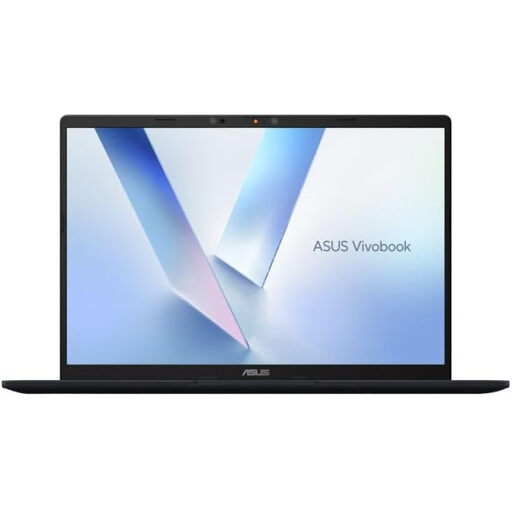
ASUS Vivobook 14 X1407QA-LY003W Copilot+ PC, Quiet Blue
Consider a replacement laptop when the current computer cannot meet your work or portable-use needs, not solely because you want a more usable desk. This Snapdragon X variant is identified with 16GB RAM and a 512GB SSD; check required application compatibility, external-display limits and charging connections for this exact model before pairing it with a monitor or dock.
View on Joybuy
 No image available
HP 680 CFT Dual-Mode keyboard and mouse set
Separate input devices let you plan keyboard and mouse placement independently of a raised laptop or external screen. Check the keyboard layout against your typing needs and confirm how the dual-mode connection will work with the devices you intend to use.
View on Joybuy
 No image available
V7 V7UC-U3CRJ45HDVG-BLK USB-C adapter
This adapter is an option when your desk needs a display connection, wired networking and USB peripherals rather than a multi-display dock. Its name identifies 4K HDMI, VGA, Gigabit Ethernet, 100W Power Delivery and two USB 3.0 ports. Check the exact supported display mode, your laptop’s USB-C video capability and the charging accessories required for your setup.
View on Joybuy
 No image available
Targus 2K webcam with autofocus
A separate webcam may suit a desk where camera placement and call setup matter. The title identifies autofocus, but the stated video resolution differs between the title and technical details; confirm the recording mode before choosing it for a particular image-detail requirement.
View on Joybuy
Frequently asked questions
Will any USB-C dock work with my laptop?
No. USB-C describes the connector, not a guaranteed set of display and charging functions. Check the exact laptop’s supported video protocol, the dock’s display configuration and its charging output; Microsoft Support also notes that hardware and cable combinations can limit USB-C functions.
Can a hub charge my laptop while a monitor is connected?
It can if the laptop accepts charging through that port and the connected hub, charger and cable provide compatible power while supporting the intended display path. For example, Anker says its 555 hub accepts up to 100W pass-through charging but reserves 15W for its own operation, and video output on that model uses HDMI rather than its USB-C data ports.
Can a MacBook run two external monitors through a dock?
Check the exact Mac model before buying a two-monitor arrangement. Apple says the number of displays a Mac can use simultaneously depends on its model and on each display’s resolution and refresh rate; a dock does not remove those model-specific limits.
Should I replace my laptop to make regular desk work more comfortable?
Not necessarily: if the laptop still meets your computing needs, start by assessing its screen position and separate input devices. For prolonged laptop use, the Health and Safety Executive advises a separate keyboard and mouse so the laptop screen can be raised, or a separate display can be used. Replace the computer if its own capability or portable-use limitations remain the obstacle.


