Who is this for?
The useful starting point is how and where you use the laptop, not how many accessories you can connect to it.
Regular home-and-office laptop workers
If you use a laptop for sustained work in both places, assess the screen position, input devices and connections in each setup. The Health and Safety Executive (HSE) says a workstation assessment should guide equipment decisions for relevant regular display-screen-equipment users in Great Britain.
Workers raising a laptop screen
A portable stand may help position the existing screen when you move between desks. For prolonged use with the laptop raised, HSE posture guidance calls for a separate keyboard and mouse, so plan space to use them as well.
People connecting several desk devices
If a laptop needs to connect to a display, peripherals and a network at a desk, a hub or dock may simplify those connections. Check the exact laptop’s video output, charging support and operating-system display behaviour before choosing one.
What should you check first?
Identify the workstation problem, then check the laptop and accessory specifications needed to solve it. A screen-position change, extra display, port expansion and better call setup are different decisions.
| Priority |
What to check |
Your needs |
| Screen position |
Assess where the laptop screen sits during sustained work. For a stand, check laptop size and weight limits, adjustment and desk space; raising the laptop also calls for separate input devices during prolonged use, according to HSE posture guidance. |
My laptop screen needs raising, but I can still make room for a keyboard and mouse. |
| Extra display |
Decide whether you need more screen area or a different screen position. Match the laptop’s supported video output to the monitor input; for video and charging over one USB-C connection, check DisplayPort Alt Mode and Power Delivery support at both ends. |
A separate screen would help me arrange the work I need to see at my desk. |
| Separate input |
Check keyboard layout, mouse suitability and the connection method. A wireless set using a USB-A receiver needs an available compatible port or adapter. |
I want to position the screen without having to type on a raised laptop keyboard. |
| Desk connections |
List the displays and peripherals you actually use. Compare the dock’s ports, required host video capability, charging arrangement and operating-system notes; a USB-C connector alone does not establish which functions work. |
I would rather reconnect my desk devices through a suitable hub or dock than plug each one into the laptop separately. |
| Video calls |
Identify whether the issue is camera framing, microphone pickup, call audio or privacy. Check the device’s connection, mounting and meeting-platform requirements, along with workplace policy. |
Frequent calls make a particular camera or audio limitation worth addressing. |
| Work equipment |
Ask about the workstation assessment and the employer’s provision, expenses, repairs and IT process. In Great Britain, HSE says workers cannot be charged where their DSE assessment indicates action such as providing DSE equipment is needed. |
Before paying for a work accessory, I want to know what equipment my employer will provide and support. |
Relevant brand references
Use brand documentation to narrow a choice, then check the exact model: ports, mounting arrangements and compatibility differ within a range.
Dell
Dell’s UK monitor listings are a reference point when comparing external displays and USB-C monitor connections.
- Model listings specify connection details, including DisplayPort Alt Mode and Power Delivery where applicable.
- Confirm the chosen monitor’s resolution, inputs and charging output against the laptop; one Dell model’s ports do not describe the range.
Kensington
Kensington’s EQ Adjustable Aluminium Laptop Stand illustrates the portable-riser route rather than an extra-display or connectivity upgrade.
- Kensington specifies five preset height and angle combinations and support for 10- to 17-inch laptops and tablets up to 3 kg for that stand.
- Check the individual laptop’s dimensions, weight and cooling clearance, and plan separate input devices for prolonged raised-laptop use.
Anker
Anker’s dock documentation is useful for checking host requirements and external-display behaviour before choosing a USB-C connection setup.
- Anker specifies full-function USB-C, USB4 or Thunderbolt host requirements with DisplayPort Alt Mode and Power Delivery for its A210B model.
- Its stated Windows and macOS display behaviour is model-specific; check the intended laptop, operating system and number of displays.
Logitech
Logitech has separate keyboard-and-mouse and webcam ranges relevant to input and video-call decisions.
- Logitech lists Microsoft Teams, Zoom and Google Meet certification for its C920e webcam specifically.
- Check the selected model’s connection, keyboard layout or camera mounting against your equipment; C920e details do not apply to every Logitech device.
Joybuy product options
These options address several distinct hybrid-work needs: desk connections, a separate screen, keyboard-and-mouse input, a webcam or a headset. Choose by the problem you need to solve, then confirm compatibility with your laptop and work setup.
 No image available
Targus USB-C Universal Dual HDMI 4K Docking Station, 100W Power Delivery Pass-Thru
Consider this for a desk that needs display, network and peripheral connections: its listing specifies two HDMI 2.0 outputs, Gigabit Ethernet and up to 100W Power Delivery pass-through. Check the laptop’s video-output and charging support before relying on those functions. The listing specifies an external 100W+ power adapter as the power source; confirm what the package includes.
View on Joybuy
 No image available
ASUS ZenScreen MB249C IPS USB-C monitor
This separate screen is an option when the laptop display alone does not suit your desk arrangement. The listing describes a 23.8-inch Full HD IPS display with HDMI and USB-C connections and 60W Power Delivery; check the laptop’s video support and charging requirement before planning a single-cable setup. If you intend to move it regularly, confirm its weight: the listed figures of 2.8 kg and 4.84 kg conflict.
View on Joybuy
 No image available
Philips 3000 Series SPT6318B/05 wireless keyboard and mouse, UK English, black
This set provides separate input devices for a raised-laptop workstation. Its description specifies a 2.4GHz wireless connection using a USB-A nano receiver, so check for a suitable laptop port or adapter. Confirm that the stated UK English version has the layout you need.
View on Joybuy
 No image available
Targus webcam with autofocus
Consider an external camera if your current call setup has a specific framing or microphone need. This listing describes an adjustable laptop or monitor clip, a built-in microphone and a privacy slider. Confirm the resolution if it matters to you: the title says 2K, while the technical specification says Full HD 1080p at 30fps. Check the USB connection arrangement and workplace device policy too.
View on Joybuy
 No image available
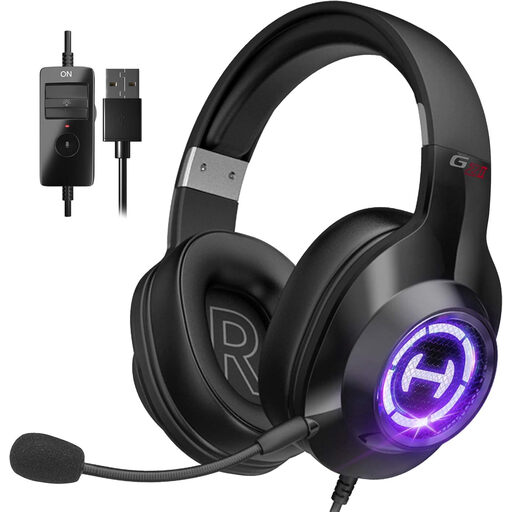
Edifier G2II USB wired gaming headset, black
This headset is an option when a separate microphone and headphones address a call-audio need. The listing describes a USB-wired connection and a noise-cancelling microphone; it presents the G2II as a gaming headset, not as a meeting-platform-certified device. Check the laptop port and compatibility with your call software before choosing it for work.
View on Joybuy
Frequently asked questions
Do I need an accessory if I work from home only part of the time?
Not automatically. In Great Britain, HSE says display-screen-equipment requirements can apply to people who routinely divide their work between home and a workplace. For relevant regular users, the workstation assessment should establish what needs changing rather than treating an accessory as a default purchase.
Should a laptop stand come with a separate keyboard and mouse?
For prolonged laptop use with the screen elevated, plan on separate input devices. HSE posture guidance describes using a separate keyboard and mouse so the laptop screen can be raised without keeping your hands at the raised keyboard.
Will any USB-C port run a dock, monitor and laptop charging?
No. Check the exact laptop for supported video output, including DisplayPort Alt Mode where required, and for its Power Delivery charging capability. Match those specifications to the chosen dock or monitor; the USB-C connector’s shape alone does not establish the functions available.
Can a dual-monitor USB-C hub show different content on two Mac displays?
Check the particular hub and Mac before relying on that arrangement. Anker states that its A210B model mirrors the same content across external monitors on macOS, while its stated Windows Extended Mode supports different content on each. That model-specific behaviour should not be assumed for other docks.
Should I ask my employer before buying a work accessory?
Yes, ask what the workstation assessment calls for and how equipment is provided and supported. Acas advises agreeing who provides or pays for home-working equipment and repairs. In Great Britain, HSE says workers cannot be charged where a DSE assessment indicates action such as providing DSE equipment is needed.


