Windows and Linux lab builders
If you run several development, test, networking or security VMs locally, plan for memory shared by the host and its guests, and confirm that your chosen Windows virtualisation software supports the configuration.


Choose an x86 Windows laptop if your local VM workflow requires Hyper-V or existing x64-oriented guests, but check the Windows edition, virtualisation requirements and memory before buying. An Apple-silicon MacBook Pro is an alternative when your guests and tools work with Arm virtual machines. With few plug sockets, either choice also depends on whether the exact laptop and your intended charger or dock support a suitable charging arrangement.
If you run several development, test, networking or security VMs locally, plan for memory shared by the host and its guests, and confirm that your chosen Windows virtualisation software supports the configuration.
If wall sockets are scarce, a powered USB-C or Thunderbolt dock may combine charging with displays and peripherals. The laptop must accept charging through the chosen connection, and the dock must deliver suitable power.
If you prefer macOS, Apple silicon is worth considering when your required guest operating systems, VM software and tools are compatible with Arm virtualisation.
Choose when: Your workflow calls for Windows Hyper-V or existing x64-oriented VM tools and guests.
Check first: Hyper-V needs an eligible Windows edition and supported hardware; a USB-C connector alone does not establish that a dock can charge the laptop.
Choose when: You want a macOS host and your required guests and tools work as Arm virtual machines. Microsoft Learn confirms an Arm64 VM route on Apple-silicon Macs.
Check first: Confirm each guest image, driver and VM application rather than assuming an existing x64 workflow will transfer unchanged.
| Concern | What to check | Who this matters to |
|---|---|---|
| Host memory and virtualisation | For Hyper-V, confirm an eligible Windows edition, processor and firmware support, and installed RAM for the host and active guests. Microsoft Learn sets out the Hyper-V requirements. | If I keep several VMs open, I need memory for both my laptop and each guest. Around 33% of consumers put host capacity first. |
| Charging and docking | Check USB-C Power Delivery input on the exact laptop, the power its charger requires and the output of the intended dock; also confirm the display and peripheral connections you need. | At a desk with few sockets, I want charging and peripherals connected without several separate adapters. Around 27% of consumers prioritise a compatible charging-and-docking arrangement. |
| Guest compatibility | List your guest OS versions, architectures, VM application and required drivers before choosing x86 Windows or Apple silicon. | If an existing guest image or specialist tool has to run locally, I need to choose a host it can use. Around 20% of consumers make guest compatibility their primary concern. |
| VM storage | Allow for guest disks, snapshots, installation media and host files when choosing SSD capacity; check the exact model’s expansion options if you may need them. | If I retain several VM images and snapshots, I need room for those files as well as my everyday work. Around 20% of consumers put local storage first. |
A USB-C port does not, by itself, establish charging input or the power a particular dock can deliver. Lenovo PSREF lists Power Delivery on a specific ThinkPad P14s Gen 6 AMD configuration, not on every laptop with USB-C.
Compare the exact laptop’s charging specification and supplied-adapter wattage with the dock’s delivered power and required display connections.
An unsuitable dock may leave you using the laptop’s separate charger or choosing another compatible power accessory.
Microsoft Learn’s Hyper-V requirements also cover the Windows edition, processor features, enabled firmware virtualisation and memory available to the host and guests.
Check those requirements against the exact laptop configuration, including its installed RAM and any memory-upgrade options.
Microsoft Learn confirms that Arm64 VMs can be created on Apple-silicon Macs. That does not establish compatibility for every x64 guest image, driver or application you already use.
Check your exact guest architecture, VM software, drivers and applications before changing host platforms.
An incompatible workload may call for a different guest image, different VM software or access to another compatible machine.
Microsoft Learn warns that VMs in some third-party virtualisation applications may fail to start or run unreliably while the Hyper-V hypervisor is running.
Decide which VM application you need and check its coexistence requirements before configuring the Windows host.
ThinkPad P-series configurations are relevant when you want to assess an x86 Windows workstation-style laptop for local VMs and a docked desk.
Precision mobile workstations are relevant if you are comparing x86 Windows configurations with substantial memory options.
MacBook Pro is relevant when macOS is your preferred host and your required VMs can use an Apple-silicon Arm workflow.
These laptops offer different starting configurations for local VM files and workloads. Compare their stated memory and storage with your plans, then check the exact VM software, operating system and charging arrangement you intend to use.
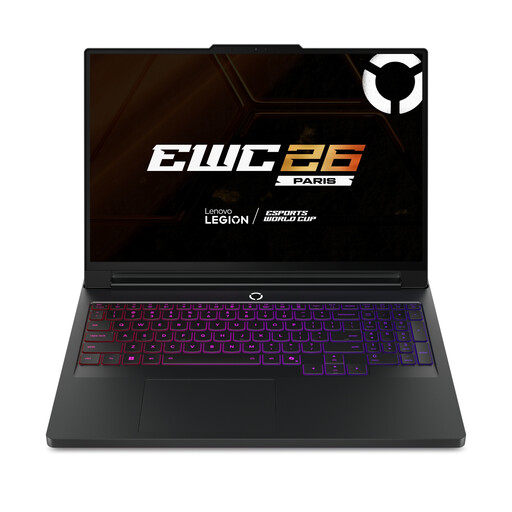 No image available
For several local VMs, compare the listed 64GB RAM and 2TB SSD with the memory and file space your guests require. This variant lists Windows 11 Home, so check the operating-system edition if you need Hyper-V; also confirm processor virtualisation and whether your intended dock can charge it.
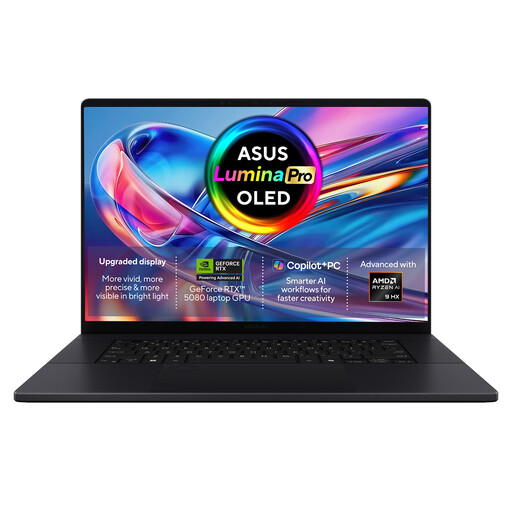 No image available
For a local VM setup with substantial memory and storage needs, this variant lists 64GB RAM and a 2TB SSD. It also lists Windows 11 Home: check your hypervisor’s edition requirements, processor virtualisation and the charging power your chosen dock can provide.
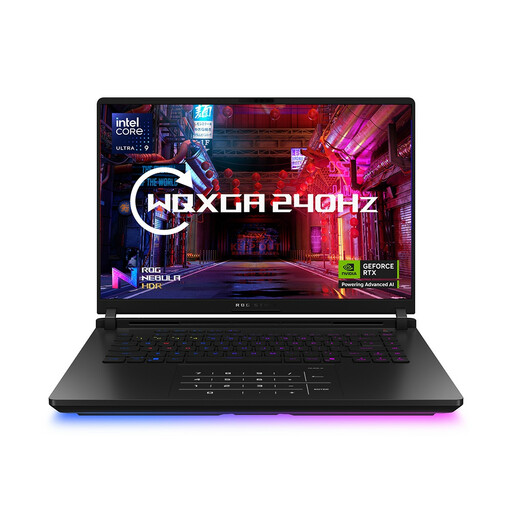 No image available
If your VM plan calls for local memory and file space, this variant lists 64GB RAM and a 2TB SSD. Its listed Windows 11 Home edition makes the edition check important for Hyper-V; confirm processor virtualisation and the exact laptop’s USB-C charging arrangements before planning a single-cable desk.
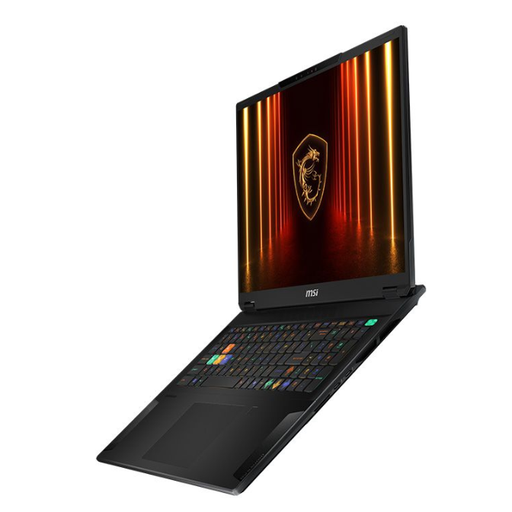 No image available
For locally stored VM images, this variant lists a 2TB SSD and an 18-inch screen. Confirm its installed RAM, Windows edition, processor virtualisation and whether the charger or dock you intend to use can power the exact configuration.
Microsoft Learn lists Windows 10 and Windows 11 Professional or Enterprise as editions on which Hyper-V can be enabled. Check the edition installed on the exact laptop; meeting the edition requirement does not replace the processor, firmware and memory checks.
Check for a 64-bit processor with the required virtualisation features, enabled hardware-assisted virtualisation and enough memory for Windows and your active guests. Microsoft Learn also lists hardware-enforced data execution prevention among Hyper-V’s requirements; confirm them for the exact processor and firmware configuration.
Yes, Microsoft Learn states that Arm64 VMs can be created on Apple-silicon Macs. Before choosing one, confirm that your intended Windows guest, VM application, drivers and work software fit that Arm-based setup.
Do not assume every VM will run reliably with both enabled. Microsoft Learn warns that some third-party virtualisation applications may fail to start VMs or run unreliably while the Hyper-V hypervisor is running, so check the coexistence requirements of the versions you plan to use.
Choose a charger intended for the applicable market and compatible with your laptop’s required input, connector and charging power. GOV.UK guidance from the Office for Product Safety and Standards explains that the Electrical Equipment (Safety) Regulations 2016 set requirements for electrical equipment placed on the Great Britain market; Northern Ireland has distinct provisions.