Windows Hyper-V developers
If your development or testing depends on Hyper-V, the installed Windows edition and processor and firmware features are compatibility checks, not optional upgrades. Microsoft Learn lists these requirements for Hyper-V.


Choose a laptop with enough installed memory and SSD capacity for the host and every virtual machine you will run at once, then check that the exact configuration supports your two external monitors at their required resolutions and refresh rates. If you intend to use Hyper-V, confirm a suitable Windows edition, processor features and firmware settings before buying; display connections need a separate check.
If your development or testing depends on Hyper-V, the installed Windows edition and processor and firmware features are compatibility checks, not optional upgrades. Microsoft Learn lists these requirements for Hyper-V.
If two external monitors will stay connected while you work in VMs, check the laptop’s documented display support and the complete path through its ports, any dock and the monitor cables. Lenovo PSREF documents independent-display support for one relevant workstation configuration, but that specification does not apply to other models.
If one laptop must handle everyday work and several local guests, size its installed memory, processor resources and SSD for the host applications and VMs running together. Microsoft Learn notes that virtualisation can increase CPU, memory and storage demands.
The display checks below assume two external monitors, rather than the laptop panel plus one monitor. Work out which VMs will run simultaneously, then compare exact laptop configurations and your intended monitor connections.
| Concern | What to check | Who this matters to |
|---|---|---|
| Memory and VM storage | Add up memory for the host and concurrent guests; check installed RAM and SSD space for virtual disks and snapshots. | If I keep several guests open alongside my normal applications, I need capacity for all of them rather than just the host operating system. Around 31% of consumers would put memory and VM storage first. |
| Two external monitors | Check the exact configuration’s independent-display specification, then match the dock and cables to both monitors’ resolutions and refresh rates. | With two monitors on my desk, I need to know that the whole connection setup will drive both at the settings I use. Display certainty would be the primary concern for around 31% of consumers. |
| Virtualisation and CPU | For Hyper-V, confirm a 64-bit processor with SLAT and VM Monitor Mode extensions, plus enabled firmware virtualisation; assess CPU resources for concurrent guests. | When my active VMs have demanding tasks, I need both Hyper-V compatibility and processor resources for the host and guests. Around 25% of consumers would make this their main concern. |
| Platform and portability | Confirm your intended hypervisor, installed Windows edition and whether the selected memory configuration can be upgraded. | If I carry the laptop between workplaces, I need a manageable machine that still fits my software and longer-term memory plans. For around 13% of consumers, that balance would come first. |
Microsoft Learn lists Windows 11 Pro and Enterprise as editions on which Hyper-V can be enabled; an otherwise capable laptop with Home does not meet that edition requirement.
Check the installed Windows edition for the exact configuration if Hyper-V is part of your workflow.
A connector count does not establish which two external monitors the laptop can drive through your chosen connection layout.
Match the laptop’s documented display outputs and any dock’s display specification to both monitors’ resolutions and refresh rates.
Depending on the connection layout, you may also need a compatible dock and suitable display cables.
The host and active VMs share memory, while virtual disks and snapshots use SSD capacity. Microsoft Learn also notes the storage-bandwidth demands of virtualisation.
List the guests you will run together, their planned memory allocations and their virtual disks before choosing the installed configuration.
Lenovo, Dell and ASUS list different memory or operating-system configurations within the product lines discussed below. A family name alone cannot identify the variant you need.
Compare the full model or part number, fitted RAM, SSD, processor, Windows edition and display specification.
These product lines offer useful configurations to investigate; check the specification of the particular laptop you intend to buy.
The ThinkPad P14s Gen 5 Intel is worth examining when documented external-display support is central to a desk-based VM setup.
The Latitude 7450 is a business-laptop line to consider if your chosen operating system and installed memory are priorities.
The ProArt P16 is a larger-screen creator-oriented line to examine when VM work calls for a higher-memory configuration.
These laptops offer different memory, storage and screen-size configurations to assess for local VM work. For either one, check Hyper-V requirements if relevant and confirm support for your exact two-external-monitor setup before buying.
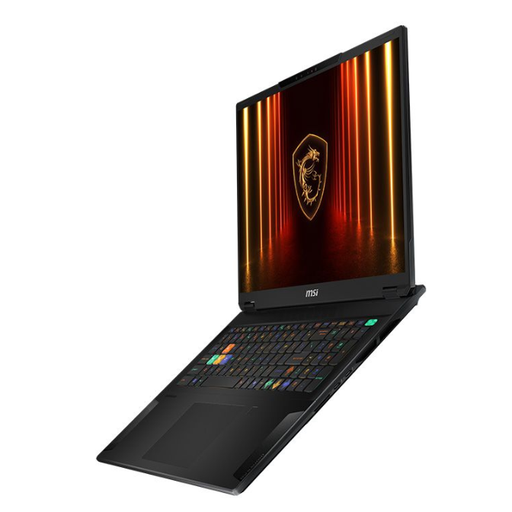 No image available
Consider this 18-inch configuration if you plan to keep VM files on an internal SSD and can accommodate a larger laptop at your desk.
The product name specifies an Intel Core Ultra 9 processor, 32G RAM, a 2TB SSD and NVIDIA GeForce RTX 4070 graphics. Check whether its installed memory covers your concurrent guests, and confirm the processor and firmware features required by your hypervisor.
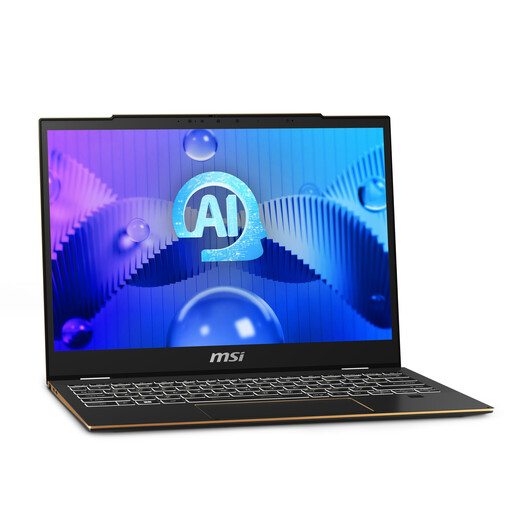 No image available
Consider this 13-inch configuration if a smaller laptop fits your travel needs and its fixed memory and storage meet your planned VM workload.
The product name specifies a 13-inch FHD+ 60 Hz touch display, Intel Core Ultra 7 155H, Intel Arc graphics, 32 GB LPDDR5 RAM and a 1 TB SSD. Check your hypervisor’s processor requirements and the exact configuration’s two-monitor capability.
Not on Windows 11 Home: Microsoft Learn lists Pro and Enterprise as editions on which Hyper-V can be enabled. If you need Hyper-V, check the installed edition on the exact laptop configuration.
Microsoft Learn lists a 64-bit processor with SLAT and VM Monitor Mode extensions, sufficient memory, enabled firmware virtualisation and hardware-enforced data execution prevention among Hyper-V requirements. Allow memory for the host as well as every VM you expect to run at once.
No. Check the exact laptop configuration’s documented independent-display support and match any dock and cables to both monitors’ resolutions and refresh rates. A port’s shape alone does not establish its display capability.
Plan for the host operating system, virtual disks, snapshots and the guests you expect to add; the appropriate capacity depends on those workloads. Microsoft Learn also advises accounting for storage I/O bandwidth when VMs share a physical disk.