Choose additions for the problem in your existing laptop setup rather than replacing the laptop by default. At a fixed desk, consider screen position, display space and separate input devices; choose a dock only after checking that your laptop supports the displays and charging arrangement you intend to use. For hybrid work, weigh anything you will carry against the value of a permanent desk setup.
Who is this setup for?
Fixed-desk laptop workers
If you work for several hours at the same home desk, consider whether display space, screen position or separate input devices would address the difficulty before replacing the laptop. The Health and Safety Executive describes a workstation as more than its screen: input devices, furniture and the immediate environment matter too.
One-cable workstation builders
If you repeatedly connect a display and other desk accessories, a dock or hub may simplify the routine. Check the exact laptop, port and intended display arrangement before choosing one; Microsoft Support notes that external-display connections depend on the device model and cable or adapter.
Hybrid workers with limited shared space
If your workspace changes or you take calls in a shared room, a portable screen, compact input devices or call equipment may be more relevant than a permanent multi-display desk. Keep the equipment you need to carry, connect and charge in mind.
What should you check first?
Start with the part of your existing laptop workspace that gets in the way most often. Then check whether the proposed peripheral fits your desk, connections and working routine.
| Concern |
What to check |
Who this matters to |
| Screen and input arrangement |
Measure the available desk space and check the monitor connection. If you raise the laptop, plan where a separate keyboard and mouse will go. |
When I spend hours at one desk, I want more room for documents and a screen and keyboard I can position separately; roughly 36% of consumers put this arrangement first. |
| One-cable expansion |
Check the exact laptop port’s video and charging functions, then match the dock to the intended displays and cable. |
If I reconnect several desk accessories each day, I want a repeatable connection that works with my laptop and screens; around 29% of consumers prioritise this expansion. |
| Calls in shared spaces |
Check headset and webcam connections, and whether the camera can be positioned where you need it. |
For frequent calls in a shared room, I may need a headset or a better-placed camera more than another display; approximately 21% of consumers put call equipment first. |
| Portable charging |
Confirm the laptop’s charging requirement and USB-C charging support. Check the charger’s output when several ports are used and the cable’s power rating. |
Moving between work locations makes a manageable charging setup my first concern; about 14% of consumers prioritise portable power. |
Buying pitfalls
-
Assuming every USB-C port supports video and charging
A USB-C connector does not establish which display or charging functions the laptop supports. Anker specifies DisplayPort Alt Mode and Power Delivery as conditions for the corresponding functions on its Nano USB-C Hub.
Identify your exact laptop model and check its port functions before choosing a hub, dock or display adapter.
-
Choosing a charger by its headline wattage alone
A hub can use some incoming power itself, and a multi-port charger’s output can depend on which ports are in use. Anker’s support guidance describes this power-sharing consideration for a pass-through hub.
Compare the laptop’s documented charging requirement with the power delivered through the chosen dock or hub, then check the charger’s simultaneous-use output and the cable rating.
-
Treating a monitor as the whole workstation
A larger screen does not settle where the laptop, keyboard and mouse will sit. The Health and Safety Executive includes input devices, furniture and the immediate environment in its description of a workstation.
Plan the screen position and available desk area together with the input devices, particularly if you intend to raise the laptop.
-
Overlooking the plug supplied with a mains-powered accessory
A charger or monitor must fit the power arrangement you intend to use; do not assume the supplied plug or an existing adaptor is suitable.
Check the exact listing’s supplied plug information and manufacturer instructions before ordering. Do not modify a plug or electrical equipment.
Brands to consider
Dell
Relevant if you are comparing docks by their published display, connection and charging specifications.
- Dell Technologies specifies 96W power delivery to non-Dell systems for its Pro Dock WD25, giving you a model-specific figure to compare with your laptop’s requirements.
- That manufacturer specification does not establish whether the WD25 supports your laptop, operating system and intended displays together.
Logitech
Relevant when separate keyboards, mice, webcams or headsets address the main difficulty in your workspace.
- Logitech presents keyboard, mouse, webcam and headset combinations for home-work setups, so these devices can be considered separately from a dock.
- Check layout, hand preference, connection method and call environment for the exact products; the brand’s comfort claims do not establish how they will suit every person.
Anker
Relevant if a portable USB-C hub or charging arrangement fits your hybrid-work routine.
- Anker’s Nano USB-C Hub information identifies DisplayPort Alt Mode for display output and Power Delivery for charging as laptop-port conditions.
- Check the exact hub, charger and cable together: power available to the laptop can differ from the power supplied to a pass-through hub.
Joybuy products for laptop workspaces
These options address different parts of an existing laptop setup: a dock for repeated desk connections, monitors for additional display space and a mouse for separate pointing control. Choose by the problem you need to solve, then confirm connections and package contents for your exact setup.
 No image available
Targus USB-C Universal Dual HDMI 4K Docking Station, 100W Power Delivery Pass-Thru (Retail Packaging)
Consider this dock if reconnecting external displays is a regular part of your desk routine.
Its title specifies dual HDMI 4K connections and 100W Power Delivery pass-through. Confirm that your laptop supports the intended displays and charging arrangement, and check whether the power adapter you need is included.
View on Joybuy
 No image available
UPERFECT 14-inch 60Hz touchscreen portable monitor with VESA mount and 180° stand
Consider a portable second screen if you change work locations and need additional display space.
This variant’s title specifies a 14-inch touchscreen, 60Hz refresh rate, VESA compatibility and a 180° adjustable stand. Check whether your laptop supports the video, power and touch connections you intend to use, and which cables or power supply come in the package.
View on Joybuy
 No image available
DELL P2425 24-inch monitor
This 24-inch monitor is an option for adding a separate screen at a fixed desk.
Check its exact inputs against your laptop and available cables. Before relying on a particular refresh rate or USB-C function, confirm the specification for this variant; also check the supplied power connection.
View on Joybuy
 No image available
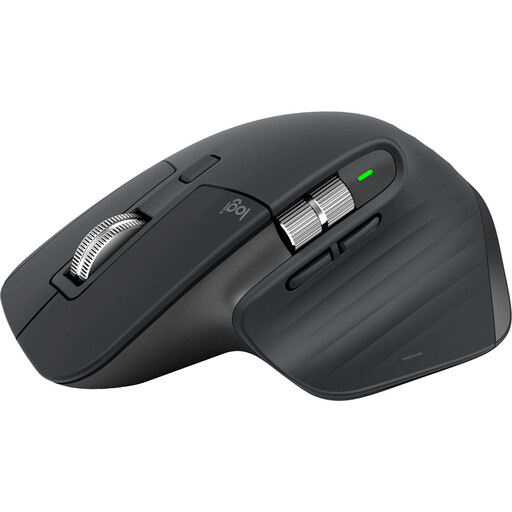
Logitech MX Master 3S Black mouse
A separate mouse may be useful when you position a laptop or external screen independently of its built-in input devices.
Check whether its shape and connection method suit you. If you plan to use a Logi Bolt receiver rather than Bluetooth, confirm whether the receiver is included.
View on Joybuy
 No image available
AOC Q32V4 31.5-inch IPS monitor with built-in speakers
Consider this larger monitor for a fixed desk if you have room for its 31.5-inch screen.
Its title identifies an IPS display and built-in speakers. Check desk fit, the laptop’s display output and the required cable or adapter, as well as the supplied power connection.
View on Joybuy
Frequently asked questions
Do I need a dock or just a USB-C adapter?
A dock is worth considering when you repeatedly connect several desk devices; an adapter may be enough for one display or a small number of ports. In either case, check your exact laptop’s port functions and the display, cable and adapter combination before buying.
Will any USB-C laptop run a monitor and charge through one hub?
Not necessarily: the USB-C connector alone does not establish video output or charging support. Check the laptop’s specifications for the functions your chosen hub requires; Anker, for example, specifies DisplayPort Alt Mode for display output and Power Delivery for charging on its Nano USB-C Hub.
What should I check before charging through a USB-C dock?
Check whether the laptop accepts USB-C charging and compare its documented power requirement with what the dock delivers to the laptop. Also check the charger’s output when other ports are in use and the cable’s power rating; a dock or hub may use some incoming power itself.
What should I check on a mains-powered accessory listing?
Check the supplied plug, item-specific safety information and manufacturer instructions for the exact accessory. Do not assume an existing travel adaptor is suitable or modify a plug to make it fit.


