For sustained laptop work, start with either an external monitor or a laptop riser, alongside a separate keyboard and mouse, so the screen and input devices can be positioned independently, as the Health and Safety Executive advises. A riser is easier to move between locations, while a monitor suits a fixed desk; add a dock or monitor arm only after checking laptop compatibility or the fit of the display and desk.
Who needs which setup?
Regular laptop-only home workers
If you spend sustained periods working on a laptop, screen height and typing position need separate consideration. The Health and Safety Executive advises using a separate keyboard and mouse when raising the laptop screen.
Hybrid workers rebuilding a desk
If you move between home and office, consider what you can carry and set up repeatedly. Oxford University Hospitals NHS Foundation Trust describes a raised laptop with a separate keyboard and mouse as one home-work arrangement.
Multi-peripheral desk users
If you repeatedly connect displays and other devices, a dock may simplify the connections. Check the laptop, dock and cable specifications together: USB Implementers Forum guidance makes clear that a connection depends on the capabilities shared by the devices.
What matters when choosing?
Decide how to position the screen and input devices before choosing connection or mounting accessories.
External monitor with separate inputs
Choose it when: You work mainly at one desk and want the main screen positioned apart from the keyboard.
Allow for: More desk space and a video connection that matches both laptop and monitor.
Laptop riser with separate inputs
Choose it when: You need to raise the laptop screen but move your setup between desks.
Allow for: The laptop’s own screen size and the keyboard and mouse you will need to carry or keep at each desk.
| Concern | What to check | Who this matters to |
|---|
| Screen and input position |
For a monitor, match its input to the laptop’s video output. For a riser, check laptop fit and plan for a separate keyboard and mouse. |
If I work on my laptop for long stretches, I want to place the screen without moving my typing position with it; around 36% of consumers put that separation first. |
| A repeatable portable setup |
Check the riser’s folded size and laptop fit, plus the keyboard and mouse connection method. |
When I change desks regularly, I need equipment I can pack and set up again without relying on a permanent display; roughly 29% of consumers prioritise that portability. |
| Dock and display compatibility |
Check the exact laptop port’s video capability, supported display arrangement and charging requirements against the dock and operating system. |
If I reconnect several devices each day, I want the intended displays and charging to work through my chosen connection; around 21% of consumers make compatibility their primary concern. |
| Desk space and arm fit |
Match the monitor’s VESA fitting, weight and depth to the arm, then check the desk and mounting method. |
With a fixed desk that needs more usable surface or screen adjustment, I care whether an arm will physically fit; about 14% of consumers put mounting fit first. |
Mistakes to avoid
-
Raising the laptop but typing on its built-in keyboard
A riser raises the keyboard along with the screen. The Health and Safety Executive advises separate input devices so the laptop screen can be elevated independently.
Plan the riser, keyboard and mouse as one setup. If you do not want separate inputs, consider whether an external monitor better fits the way you use the laptop.
-
Assuming every USB-C dock will handle the same displays
Display output and charging depend on the laptop as well as the dock. Anker’s specifications for its 565 hub, for instance, give different dual-display modes for laptops with DP 1.2 and DP 1.4.
Check the exact laptop model, intended monitor count and resolution, charging requirement, operating system and dock documentation before choosing a connection.
The intended setup may also require a suitable charger and cable.
-
Choosing a monitor arm by screen size alone
Mounting pattern, monitor weight and depth, and desk thickness can all affect fit. Ergotron specifies a 9.1–19.1 kg capacity for its HX Desk Monitor Arm and an 18–25 mm desk range for its low-profile clamp version; those figures apply to those named configurations.
Check the monitor’s VESA pattern and weight, then measure the intended desk mounting point against the exact arm’s requirements.
-
Expecting a USB-A adapter to add native USB-C video
A connector adapter alone does not give an older laptop DisplayPort Alt Mode or Thunderbolt capability. A MoneySavingExpert Forum question about connecting two monitors through a USB-C dock illustrates why the laptop’s own video specification matters.
Check the laptop manufacturer’s display-output specifications before choosing a dock or an alternative display connection.
Relevant brands to consider
Logitech
Keyboard and mouse ranges for fixed desks and setups that move between locations.
- Logitech lists wired, Bluetooth and receiver-based input options, including compact and ergonomic lines.
- Match the chosen connection method to the laptop’s ports or Bluetooth support.
Kensington
Docking stations for connecting displays and peripherals at a desk.
- Kensington specifies USB-C and USB-A laptop connections and up to two 4K displays for its SD4781P dock, subject to the model’s conditions.
- For that model, USB-A laptop use needs a separate power source; confirm the intended display setup against its operating-system requirements.
Anker
Portable hubs and desk docks for adding laptop connections.
- Anker lists USB-C and Thunderbolt-based options; its 565 hub specifications distinguish display modes by the host laptop’s DP capability.
- Check the exact hub or dock and laptop together. The 565 hub’s USB-C Power Delivery input is for charging, not an additional data connection.
Ergotron
Monitor arms for desks where a separate display needs a compatible mount.
- Ergotron publishes monitor-weight and desk-mount limits for configurations of its HX Desk Monitor Arm.
- Those limits are model-specific; check the monitor’s mounting pattern, weight and depth alongside the desk and clamp.
Joybuy products for a separate-screen setup
These monitors offer separate-screen options for a laptop desk; the keyboard-and-mouse set provides separate inputs. Choose the screen connection and input setup to match your laptop rather than assuming the accessories work together automatically.
 No image available
Samsung S40GD LS22D400GAUXXU 22-inch Full HD monitor
Consider this separate screen for a fixed laptop desk. Its stated size is 22 inches with Full HD resolution; check that your laptop has a suitable way to connect it, and plan separate inputs if you need to position the screen away from the laptop keyboard.
View on Joybuy
 No image available
CRUA 32-inch 1500R curved QHD monitor, black
Consider this larger separate screen for a fixed desk with room for it. The title states 2560×1440 resolution, HDMI and DisplayPort inputs, and VESA 100×100 mm mounting; confirm the laptop connection and any proposed arm and desk fit. If colour coverage matters to your work, check the exact specification before ordering.
View on Joybuy
 No image available
KOORUI E2412F 24-inch FHD monitor
Consider this separate screen if a 24-inch display fits your desk arrangement. Check its connection against your laptop’s video output, and confirm the stand adjustments you need before relying on it for screen positioning.
View on Joybuy
 No image available
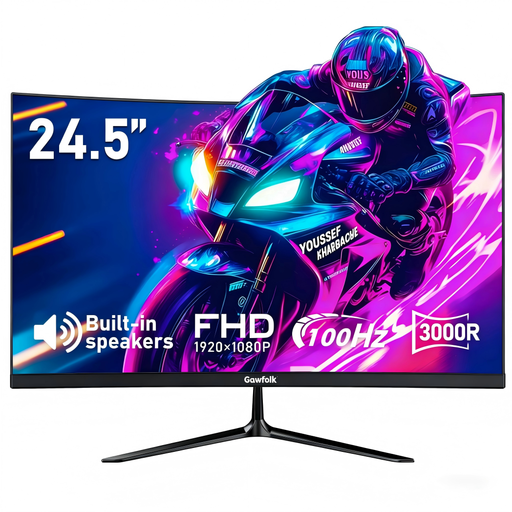
Gawfolk 24.5-inch FHD 3000R curved monitor
Consider this separate display for a fixed laptop setup. The title states HDMI and VESA 75×75 mm mounting; check the laptop’s video connection and the exact monitor and arm specifications if you plan to mount it.
View on Joybuy
 No image available
HP 680 CFT dual-mode keyboard and mouse set
Consider this set when you need separate inputs alongside a raised laptop or external screen. Check which of its connection methods your laptop can use; the keyboard and mouse do not themselves reposition the screen.
View on Joybuy
Common questions
Do UK display screen equipment rules apply when I work from home?
They can apply to routine home or hybrid work involving display screen equipment daily for continuous periods of an hour or more, according to the Health and Safety Executive. Occasional or short home use is different; where an individual workstation assessment is required, use it to determine equipment needs.
Is a laptop riser enough without a separate keyboard and mouse?
Not for the screen-and-input arrangement the Health and Safety Executive advises for prolonged laptop use. A riser raises the built-in keyboard with the screen, while separate inputs let you position them independently.
Will any USB-C dock run my monitor and charge my laptop?
No: a USB-C connector alone does not establish video, charging or multi-display capability. Dell and Apple Support advise checking the relevant laptop and adapter specifications; compare those with the dock’s display, power and operating-system requirements for your exact setup.
Can a USB-A-to-USB-C adapter connect two monitors through a USB-C video dock?
The adapter alone cannot give a USB-A laptop port the native video capability required by a dock that uses DisplayPort Alt Mode or Thunderbolt. Check the laptop manufacturer’s supported display outputs and the dock’s connection requirements before choosing a two-monitor arrangement.


