Choose the accessory that addresses the friction in your regular workday: an external display and separate input devices for sustained desk work, a dock for repeatedly connecting peripherals, or call equipment when the laptop’s built-in camera or audio does not meet your needs. Before buying, check your exact laptop’s video output, display limits, charging requirements and connections, as well as the space available on your desk; a USB-C connector alone does not establish that video output will work.
Who is this setup for?
Fixed-desk document workers
If several documents or windows stay open throughout the day, screen space and the position of the display and input devices matter more than they do for occasional laptop use. The Health and Safety Executive advises considering the whole workstation when assessing display-screen work at home.
Single-connection desk users
If you reconnect a display and peripherals whenever you sit down, a dock or hub monitor may simplify the routine. Check the laptop’s port capabilities first: Dell notes that not every USB-C port carries video.
Call-heavy workers in shared homes
Regular meetings can make camera placement, a privacy shutter or a separate microphone more important than extra screen area. Choose between a webcam and headphones or a headset according to the particular problem your laptop’s built-in equipment leaves unresolved.
What should you prioritise?
Start with the task that causes the most friction, then check the laptop and desk conditions that could prevent an accessory from doing that job. The percentages below describe consumers grouped by their primary purchasing need, rather than suggesting that everyone needs every accessory.
| Concern |
What to check |
Who this matters to |
| Screen space and desk position |
Match the laptop’s video output to the monitor input and cable. Check desk depth and whether a stand with separate input devices would address the problem without another screen. |
If I spend long periods comparing documents or working across windows, I need room to see my work and position the screen comfortably. Around 33% of consumers put screen space or desk arrangement first. |
| Connections and charging |
Check the exact USB-C port standard, supported displays, dock cable and power delivery against the laptop’s requirements. |
Repeatedly plugging in desk equipment interrupts my routine, so one compatible connection is my priority. For around 27% of consumers, connecting peripherals and charging is the primary need. |
| Meeting audio and video |
For a webcam, check its mount, connector and required software support; for call audio, check the microphone arrangement, connection and wearing comfort. |
When calls are frequent or other people share my home, I want to address a specific problem with camera position, privacy or voice pickup. Meeting communication comes first for around 20% of consumers. |
| Space on a shared desk |
Measure usable width and depth, and consider whether equipment must be put away. Check the footprint of a monitor or stand and the fit of compact input devices. |
If the desk serves another purpose after work, I need equipment that fits and can be moved without making the setup awkward to use. Around 20% of consumers make space and flexibility their first concern. |
Buying pitfalls
-
Assuming every USB-C port can drive a display
USB-C identifies the connector, not all of its capabilities. Dell notes that some USB-C ports do not support video, so a dock or hub monitor may not provide the display connection you expect.
Look up the exact laptop model and port specification, then match it to the accessory’s required video standard and your intended display arrangement.
-
Checking ports but overlooking power and cables
A connection that handles peripherals may still charge slowly or offer limited functionality. Microsoft lists charging and display limitations among possible USB-C connection problems.
Compare the laptop’s charging requirement with the dock or monitor’s stated power delivery, and check that the cable supports the required functions.
-
Buying a monitor without checking the full display chain
For a Mac, Apple says supported display count, resolution and refresh rate depend on the exact model and connected configuration. A cable or adapter can also limit available display modes.
Check the laptop, monitor input, dock or adapter and cable together for the number of screens and display mode you intend to use.
A different cable or adapter may be needed, while a display beyond the laptop’s supported limit may remain unusable.
-
Choosing call equipment by its headline specification
Camera resolution alone does not establish whether a webcam mounts where you need it or supports required meeting software. Noise cancellation for listening does not establish what other people will hear from a headphone microphone.
Check webcam position, privacy controls and software support, or the headphones’ connection, microphone arrangement and comfort, against your actual call routine.
Brands to consider for laptop workspace accessories
Dell
Relevant to fixed-desk displays, USB-C hub monitors and docking stations.
- Dell’s guidance distinguishes USB-C video and docking connection types, providing useful checks before choosing a dock.
- Dell cautions that not every USB-C port supports video; confirm compatibility for the exact laptop and monitor or dock.
Logitech
Relevant to webcams and separate keyboards and mice for laptop desks.
- Logitech documents connection and operating-system details for its named business webcam models and offers compact input-device options.
- Camera features, software support, keyboard layout and mouse fit need checking for the particular model and user.
Jabra
Relevant to work-focused headphones and headsets for frequent calls.
- Jabra describes voice-pickup and noise-control features across specified office-headset products.
- Those descriptions do not mean household noise will disappear from a call; check the exact microphone, connection, comfort and any required meeting-platform support.
Joybuy product choices
These choices cover external screens, USB-C connections for a laptop desk and headphones for calls. Pick the route that addresses your main need, then check the exact laptop and workspace requirements before choosing a model.
 No image available
Samsung S40GD LS22D400GAUXXU 22-inch Full HD monitor
Consider this external screen if your main need is a separate display for regular desk work.
The product name specifies a 22-inch Full HD monitor. Check your laptop’s video connection and the screen’s fit on your desk.
View on Joybuy
 No image available
AOC Q32V4 31.5-inch 2K IPS monitor
Consider the larger external screen when visible workspace is the priority and your desk has room for it.
The product name specifies a 31.5-inch IPS display and built-in speakers. Check the intended resolution and refresh rate against your laptop, cable and available desk space.
View on Joybuy
 No image available
Targus USB-C™ Universal Dual HDMI 4K Docking Station, 100W Power Delivery Pass-Thru
This dock is relevant when repeatedly connecting a laptop to displays and other desk equipment is the main inconvenience.
Its name specifies dual HDMI and 100W power-delivery pass-through. Confirm the laptop’s supported display count and charging requirement, and check whether a suitable power adapter is included.
View on Joybuy
 No image available
V7 V7UC-U3CRJ45HDVG-BLK USB-C adapter with HDMI and VGA
Consider this adapter for a desk that needs one external display alongside wired networking or USB peripherals.
The product name specifies 4K HDMI, VGA, Gigabit Ethernet, 100W power delivery and two USB 3.0 ports. Check the laptop’s USB-C video capability and whether the intended display mode and charging arrangement suit your setup.
View on Joybuy
 No image available
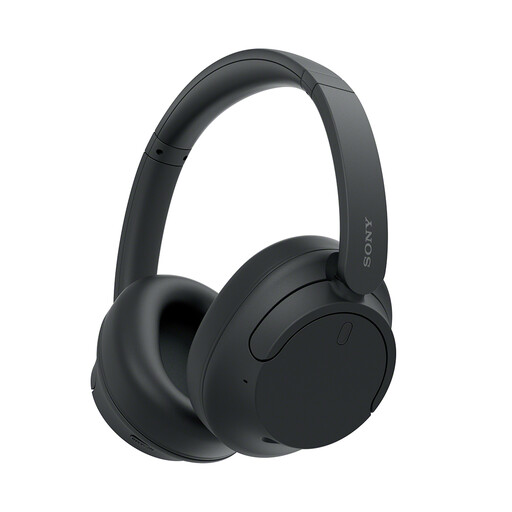
Sony WH-CH720N noise-cancelling over-ear headphones, black
These headphones are relevant if you want a separate listening and microphone device for home-working calls.
Check the connection and microphone behaviour against your meeting requirements. Noise cancellation in the product name does not establish that household sound will be removed from what others hear.
View on Joybuy
Common questions
When should a home-working display-screen workstation be assessed?
Regular, sustained screen work warrants considering the whole workstation, not just the laptop. The Health and Safety Executive identifies people who use display-screen equipment daily for continuous periods of an hour or more as display-screen-equipment users and advises assessing equipment, furniture and working conditions together.
Will any USB-C port run a monitor or dock?
No: Dell states that not every USB-C port supports video output. Check the exact laptop’s port specification for a supported video or docking route, then match the dock or monitor, cable and intended display mode to it.
Why might an external display stay blank when connected to a Mac?
The display arrangement may exceed the Mac model’s supported number of external screens. Apple also says resolution and refresh rate depend on the model and connected configuration, so check the display limit and the capabilities of the cable and adapter before replacing the screen.


