Buying priorities
Start with the work limitation you need to solve, then confirm laptop compatibility and employer requirements before choosing an accessory.
| Priority |
What to check |
Your needs |
| Screen and input position |
Use a separate keyboard and mouse if raising the laptop screen. Check that the complete arrangement supports a comfortable, sustainable posture. |
I work on my laptop for long periods and want the screen, keyboard and mouse to sit independently rather than in one fixed position. |
| Display and charging compatibility |
Confirm the exact laptop’s HDMI, DisplayPort, Thunderbolt or USB-C video support. Check supported display count, charging input and whether a splitter duplicates rather than extends a signal. |
I need a monitor or dock that can deliver the display arrangement I actually use, without relying on the connector shape alone. |
| Employer approval and support |
Check approved hardware, USB-device policy, support arrangements and any reimbursement or repair process. Do not alter managed-device settings to make an accessory work. |
I need to know whether my employer will provide, permit or support the accessory before I connect it to a work laptop. |
| Call equipment |
Check operating-system and conferencing-platform compatibility. For webcams, consider camera placement and a physical privacy shutter; for headsets, check the permitted connection type. |
I only want to add call hardware where camera position, privacy or audio is a real limitation in my meetings. |
Joybuy product options
Joybuy product options for laptop-based home and hybrid work, covering a desk adapter, external monitors and a wired headset. Confirm laptop compatibility and employer approval for any work-device accessory.
 No image available
V7 V7UC-U3CRJ45HDVG-BLK USB-C Adapter
Consider this for one desk connection to a single external display, wired network and USB peripherals, where the laptop supports USB-C Alt Mode.
Stated features include 4K HDMI at 30 Hz, VGA, Gigabit Ethernet, two USB 3.0 ports and 100W power delivery. It supports SST single-display operation only, so it is not for independent dual- or triple-monitor extension.
Check the laptop’s display mode and charging input, plus employer approval for Ethernet and attached USB devices.
Joybuy
 No image available
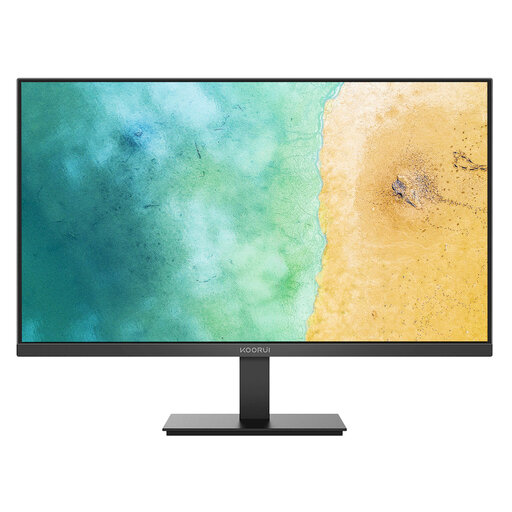
KOORUI MB27V29FS2 27-inch IPS Monitor
A separate screen can be positioned independently of the laptop keyboard and touchpad at a fixed home desk.
The stated specification includes a 27-inch Full HD IPS panel, HDMI 1.4, VGA, tilt adjustment and VESA 100 × 100 mm mounting.
Confirm the laptop’s available output, any adapter requirement, desk fit and the overall display screen equipment arrangement.
Joybuy
 No image available
ASUS ZenScreen MB166C Portable USB Monitor
This portable second-screen option suits hybrid workers who regularly set up away from a permanent desk.
It has a stated 15.6-inch Full HD IPS display, USB Type-C upstream connection, anti-glare surface, flicker-free technology and 780 g weight.
Check that the laptop’s USB-C port supports video output and required power. The catalogue states no HDMI input and no built-in speakers.
Joybuy
 No image available
CRUA 32-inch Curved QHD Monitor
This is a larger separate-screen option for a fixed desk that needs more display area than a laptop screen.
Stated features include 2560 × 1440 resolution, dual HDMI, dual DisplayPort, audio output, tilt adjustment and VESA 100 × 100 mm mounting.
Check laptop output compatibility, desk depth and viewing distance. The stated 165 Hz maximum has a DisplayPort cable condition.
Joybuy
 No image available
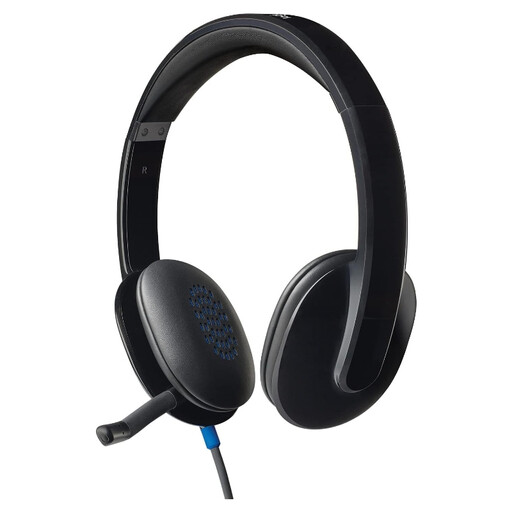
Logitech H540 Wired Headset
Consider this call-focused accessory where meeting audio is the actual limitation and USB audio devices are permitted.
The stated specification includes a noise-cancelling boom microphone, inline volume and mute controls, LED mute indicator, USB-A connection and 1.8 m cable.
Check USB-A availability, employer device policy and support for the required calling platform. It does not address display height, screen area or docking needs.
Joybuy
Frequently asked questions
Do I need a separate keyboard and mouse if I buy a laptop stand?
For prolonged laptop use, the Health and Safety Executive says the keyboard and mouse should be separate from the laptop so its screen can be elevated on a riser or similar item. A stand without separate input devices can raise the screen while leaving the built-in keyboard and touchpad in an unsuitable position.
Can any USB-C port run a monitor, charge my laptop and connect a dock?
No. Microsoft notes that USB-C can be used for charging, docking stations and display adapters, but some hardware and software combinations have limited functionality. Verify the exact laptop’s video-output support, display-count limit, charging input and approved dock compatibility before buying.
Can I extend my laptop over two external monitors with a simple display splitter?
Usually not. Microsoft states that a splitter duplicates the same signal rather than creating two independent signals. Check the laptop graphics specification and dock documentation for independent multi-display support.
Can my employer require a display screen equipment assessment for home working in the United Kingdom?
In Great Britain, the Health and Safety Executive says display screen equipment regulations can apply to permanent home workers and hybrid workers using such equipment daily for continuous periods of an hour or more; where they apply, an individual assessment should be carried out. In Northern Ireland, the Health and Safety Executive for Northern Ireland likewise says the rules apply to home workers in this situation and employers must assess the workstation.
Should broadband and Wi-Fi be part of this laptop-workspace decision?
Only desk-side connectivity accessories, such as an Ethernet adapter, fit directly into this decision. Property-specific broadband availability, provider faults, router placement and whole-home Wi-Fi coverage need separate research; Ofcom provides postcode-based availability checking and notes that Wi-Fi can be affected by router location, walls, interference and household use.


