Desk-based laptop workers
People who use a laptop regularly at home and in the office and need to assess screen placement and desk layout at each location. The HSE says a DSE assessment should cover both situations when a worker uses DSE in both.


For long-term home or hybrid laptop work, assess screen position and desk space before deciding whether you need a monitor, a stand or separate input devices. Add a dock or video-call accessory only when it solves a specific problem in your work routine. The Health and Safety Executive (HSE) says a display screen equipment (DSE) assessment should cover both home and office situations when an employee uses DSE in both; check employer approval and your laptop’s connections before buying.
People who use a laptop regularly at home and in the office and need to assess screen placement and desk layout at each location. The HSE says a DSE assessment should cover both situations when a worker uses DSE in both.
People who repeatedly connect displays, charging and peripherals to a laptop. Lenovo’s dock guidance points to model-specific compatibility and display-output information, so the connector alone is not enough to make the choice.
People whose regular meetings create a specific need for a camera, headset or lighting change, once they have considered the underlying workstation arrangement. Logitech’s business range includes separate input and call accessories for these tasks.
Start with the workstations and tasks covered by your employer’s DSE assessment, then identify the one problem the next item needs to solve. A raised laptop may call for separate input devices, while repeated desk connections call for a different set of checks.
| Concern | What to check when buying | Who this matters to |
|---|---|---|
| Screen position and desk space | Check usable desk depth and glare; confirm that the screen or chosen mount can be positioned in the available space. | If my laptop screen is difficult to position for sustained desk work, I need to make the viewing arrangement workable without crowding the desk. Around 29% of consumers would put this need first. |
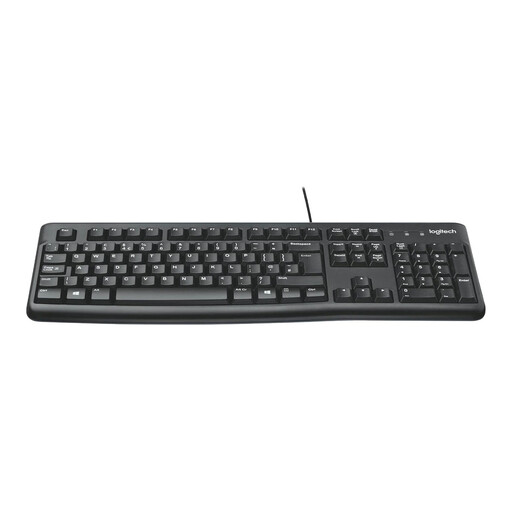
| Separate keyboard and mouse | Check keyboard layout and the laptop’s permitted wired, Bluetooth or receiver connections. | Raising my laptop could leave its built-in keyboard awkward to use, so I need separate input devices that fit where I work. For around 24% of consumers, that is the primary need. |
| Ports, displays and charging | Match the exact laptop and host port to the required display configuration and charging arrangement; check employer IT restrictions. | When I reconnect several desk devices, I need the intended displays and peripherals to work with my laptop rather than relying on a matching plug. Around 29% of consumers would prioritise this concern. |
| Video-call equipment | Check the meeting platform, permitted connections and whether the existing camera, audio and room lighting meet the task. | If regular calls expose a particular sound, picture or lighting problem, I want to change that component instead of replacing the whole setup. This would be the first concern for around 18% of consumers. |
For employees to whom DSE arrangements apply, the HSE says the assessment should address the relevant workstation situations. Where it identifies equipment that must be provided, the worker cannot be charged for that provision.
Before ordering, ask which items are employer-provided, approved for personal purchase or eligible for reimbursement, and follow the applicable approval process.
Dock features depend on the dock and host laptop. Dell Technologies lists different power-delivery figures for Dell and non-Dell systems on its WD25 dock, while Lenovo directs users to separate compatibility and display-output references.
Check the exact laptop model, host-port capabilities, displays, charging requirement and employer device-management rules against the intended dock.
Screen adjustment and reflective glare matter to a DSE workstation. Ergotron also identifies display size and weight as considerations when choosing a desk mount; neither a screen nor an arm establishes that it will fit your particular desk.
Measure the usable space and check light sources, display dimensions, mounting compatibility and the desk’s suitability before choosing a monitor, stand or arm.
A headset or webcam addresses a communication task, not a screen that cannot be positioned suitably or a desk layout that needs changing. The HSE’s assessment guidance considers the workstation as a whole.
Identify whether the unresolved problem is screen placement, input, connectivity, camera framing, sound or lighting, then check the relevant equipment and workplace permissions.
These brands illustrate different equipment routes; suitability depends on the particular model, laptop and workspace rather than the brand name alone.
Relevant when considering a dock for a Dell laptop, an employer-managed Dell fleet or a desk with several connections.
Relevant to ThinkPad users and others considering a Lenovo-branded or universal cable dock for their desk peripherals.
Relevant when the missing part of the setup is a keyboard, mouse, webcam or headset.
Relevant when the main decision concerns monitor or laptop positioning at a desk.
These keyboard-and-mouse sets, docks and hubs relate to separate input and desk connectivity. Choose between them only after checking your workstation needs, laptop compatibility and employer permissions; a monitor, stand or call accessory addresses a different task.
 No image available
A separate input set to consider when the laptop’s built-in keyboard and trackpad no longer suit its position on the desk.
Dual-mode keyboard-and-mouse combo. Check the keyboard layout and whether the connection options are permitted on your work laptop.
 No image available
A dock to consider when a compatible laptop needs desk displays and peripheral connections.
The title specifies dual HDMI 4K connections and 100 W power-delivery pass-through; it does not establish what your laptop will display or receive. Check its video support, charging needs, adapter requirements and employer IT rules.
 No image available
A separate wired input set to consider for a desk where the laptop screen has been moved away from its built-in keyboard.
Check that the work laptop has suitable connections and that wired peripherals are permitted.
 No image available
A hub to consider when a compatible laptop needs several connections at a desk.
The named configuration includes HDMI outputs labelled 4K 120 Hz and 4K 60 Hz, 10 Gbps USB-A and USB-C ports, two 480 Mbps USB-A ports, RJ45, SD/TF and a USB-C PD port. Check your laptop’s video support and charging arrangement rather than treating those port labels as a supported host configuration.
 No image available
An adapter to consider when a laptop desk needs more connection types and the host supports the intended arrangement.
The named ports include two USB 3.0 and two USB 2.0 connections alongside the display, Ethernet, card-reader and audio connections. Confirm display support, power requirements and employer IT permissions for the exact laptop before relying on a multi-display setup.
They can apply to employees who routinely split display-screen work between home and a workplace. The HSE says the rules can apply to permanent, long-term and hybrid home working; check whether your work meets its DSE-user criteria and follow your employer’s assessment process.
Yes, when you use DSE in both places, the HSE says the assessment should cover both situations. It should consider the workstation and work conditions rather than assuming that equipment suitable at one desk resolves a problem at the other.
The HSE says a worker cannot be charged where a DSE workstation assessment indicates that action, such as providing equipment, is needed. Confirm the assessment outcome and your employer’s provision or approval process before making a personal purchase.
No: a matching plug does not establish the displays, charging or other features your laptop can use. Check the exact laptop and dock models, host-port capabilities, required display arrangement and employer IT rules; Lenovo provides separate compatibility and display-output references for its docks.