Side-by-side app workers
If you want several windows visible at once, decide whether one ultrawide screen or separate displays suits your workspace, then check that your laptop can output the chosen screen’s intended resolution.


Start by deciding how many independent displays you need, then check your exact laptop model’s supported display count, resolution and refresh rate. A monitor changes your available workspace, while a compatible dock can simplify connections; neither can make an unsupported native output available. Consider replacing the computer only if its verified limits prevent the setup you need and no acceptable adapter-based option meets your requirements.
If you want several windows visible at once, decide whether one ultrawide screen or separate displays suits your workspace, then check that your laptop can output the chosen screen’s intended resolution.
If you have a display plan in mind, check your laptop’s ports, supported display count and connection options before buying a monitor or dock.
If you want independent external displays through a convenient laptop connection, check whether the dock uses a video path your laptop supports or relies on software-based display expansion.
For a laptop workspace with several applications, the main decision points are screen layout, laptop output, independent displays and whether a computer limitation makes replacement worth considering.
Consider it when: You want one wider desktop for side-by-side windows, or separate screens that can be positioned independently. Match the monitor’s input and intended display mode to your laptop’s supported output.
Keep in mind: A monitor’s advertised resolution and refresh rate do not establish what the connected laptop and cable will deliver. LG’s UK specifications, for example, describe the 34WQ75C-B monitor, not the capabilities of a connected laptop.
Consider it when: Your laptop already supports the displays you need and you want a simpler everyday connection. A DisplayLink-based option may suit some setups where native display support is limited, provided its software requirements work for you.
Keep in mind: USB-C alone does not confirm video support. Plugable explains that DisplayLink is software-based; its macOS guidance also describes Screen Recording permission requirements and a protected-video limitation.
Consider it when: You have checked the exact model’s limits and ruled out a compatible monitor, native dock or acceptable software-based option. Define the display count and required resolution-and-refresh combinations before comparing computers.
Keep in mind: Display support varies by model. Apple specifies support for up to two external displays on the UK MacBook Air with M5; that specification does not apply to every MacBook Air or other laptop.
| Concern | What to check when buying | Who this matters to |
|---|---|---|
| Workspace layout | Decide between one continuous desktop and separately positioned displays. Compare the monitor’s native resolution and inputs with your laptop’s supported output. | If I want several windows visible without managing separate screens, one wide workspace may suit me; around 36% of consumers prioritise usable space for simultaneous applications. |
| Laptop output compatibility | Check the exact laptop model, video-capable port, cable or adapter, connected display count and the supported resolution-and-refresh combination. | When I already have a screen in mind, I need to know whether my laptop can drive it at the setting I want; around 29% of consumers put output compatibility first. |
| Independent displays and docking | Match the dock’s supported host and display combinations to your laptop. Check software and operating-system requirements for a DisplayLink-based option. | If I need separate desktops on multiple external screens, I want to confirm that a dock extends the workspace rather than simply adding sockets; around 21% of consumers prioritise convenient independent multi-display connections. |
| Whether to replace the computer | Check the current model’s specifications and troubleshoot its connection and display settings first. For a replacement, specify the display count and required modes. | If my existing laptop cannot meet the display setup I need through an acceptable connection, I would compare replacement computers; around 14% of consumers prioritise overcoming a verified computer limit. |
Your laptop and the connection path also affect the resolution and refresh rate available on the screen.
Before buying, check the exact laptop, port, cable or adapter against the monitor’s native display mode.
If that mode is not supported, you may need a different cable, adapter or display connection.
A USB-C connector does not confirm video support, and a native dock remains subject to the laptop’s display capabilities. Software-based display expansion has separate requirements and limitations.
Check the dock’s supported host and display combinations against your laptop. Assess any DisplayLink software and operating-system requirements separately.
Microsoft Support explains that a simple splitter duplicates the signal rather than creating two independent external displays.
If you need separate desktops, check that the laptop and connection support independent displays rather than relying on the number of output sockets.
LG’s UK monitor line includes ultrawide options for a single wide workspace.
Dell’s UK listings include both a hub monitor and a separate dock for buyers comparing those connection approaches.
Samsung’s UK-business ViewFinity S65UC is an ultrawide option with USB-C and a built-in KVM for two sources.
Plugable provides dock and adapter options using native USB-C, Thunderbolt and DisplayLink approaches.
Apple’s UK MacBook Air with M5 is a model-specific reference for checking external-display support when considering a replacement computer.
These choices cover external monitors for a laptop workspace and a USB-C expansion dock. Check your laptop’s supported display modes and connection requirements before choosing a screen or dock.
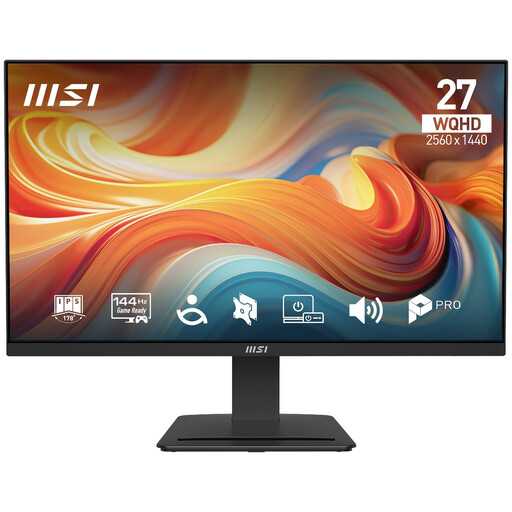 No image available
For a laptop workspace where a 27-inch WQHD screen suits the way you arrange applications; check your laptop’s output and connection against the display mode you want.
27-inch; 2560 × 1440 (WQHD); 144 Hz; IPS; HDR Ready; Adaptive-Sync.
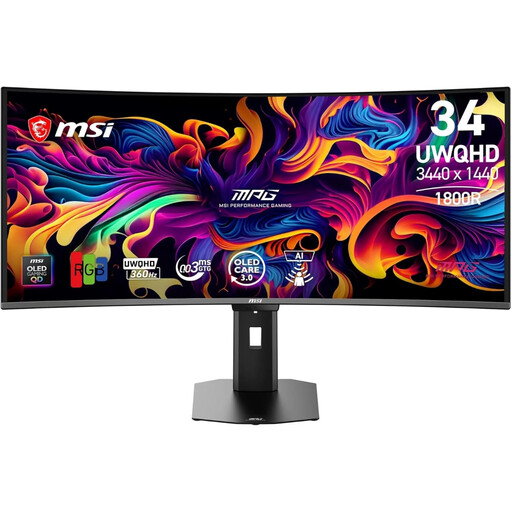 No image available
For a single wide screen to keep several applications side by side; confirm that your laptop and chosen connection support the monitor mode you intend to use.
34-inch; 21:9; 3440 × 1440 (UWQHD); 360 Hz; USB-C with 98W Power Delivery.
 No image available
For expanding a USB-C laptop workspace connection; check your laptop’s video support and the dock’s supported display combination before relying on it for external screens.
8-in-1 expansion dock; USB-C connection; dual card slots.
 No image available
For a laptop workspace where a 27-inch 4K display fits your needs; check your laptop’s supported output and whether the listed USB-C power delivery suits your setup.
27-inch; 4K UHD; IPS; USB-C 65W; Multi-Control.
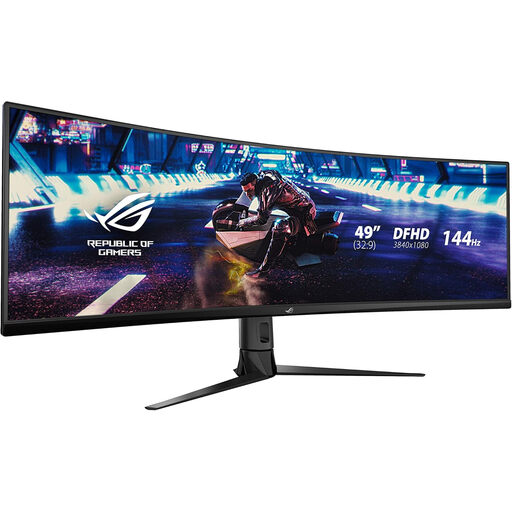 No image available
For keeping several applications side by side on one wide screen; confirm your laptop can support the intended resolution through the connection you plan to use.
49-inch; 32:9; 3840 × 1080 (DFHD); 144 Hz; HDMI; DisplayPort; USB hub.
Check that your laptop supports the required number of independent displays, then select Extend in its display settings. Microsoft Support says a simple splitter duplicates the signal rather than creating two independent external desktops.
Check your exact laptop’s supported output, the selected input, cable or adapter, connected display count and operating-system display settings before replacing hardware. Microsoft Support notes that the available resolution and refresh rate can depend on the connection and number of displays.
No. Verify that the laptop’s particular port supports the video mode you need and that the monitor or dock’s stated power delivery suits the laptop; the connector shape alone confirms neither capability. Dell Support’s USB-C video guidance recommends checking the system documentation.
Confirm the exact model’s display limits and troubleshoot the current connection and settings first. If replacement still appears necessary, compare candidates against the number of external displays and the resolution-and-refresh combinations you require; Apple’s M5 MacBook Air specification applies to that model, not to every laptop.
GOV.UK guidance says distance-selling customers generally have 14 days after receiving goods to tell the seller they wish to cancel, followed by another 14 days to return them. Faulty, misdescribed or unsuitable goods can involve separate rights, so check the guidance and the circumstances that apply to your order.