Side-by-side document worker
Regularly works with reference material, writing or spreadsheets and is weighing up whether a separate display would make it easier to keep information visible together.


Start with the task your laptop setup handles poorly: choose a monitor for sustained side-by-side work, a stand and separate input devices to reorganise a desk, or call equipment when the built-in camera or audio falls short. A dock makes most sense when you repeatedly reconnect several devices; before relying on one-cable video and charging, check your laptop’s video output, display limits and charging needs.
Regularly works with reference material, writing or spreadsheets and is weighing up whether a separate display would make it easier to keep information visible together.
Often reconnects a laptop to several desk devices and wants to work out whether a hub monitor or compatible dock fits that routine.
Has frequent calls and needs to identify whether the built-in camera or audio has a specific shortcoming before adding call equipment.
Start with the part of your current setup that gets in the way of your regular work. Buy for that specific need, and check laptop compatibility before choosing a monitor or dock.
| Concern | What to check when buying | Who this matters to |
|---|---|---|
| Usable screen space | Compare screen size, resolution, desk fit and stand adjustment. Philips specifies a 27-inch, 2560 × 1440 display for the 27E1N1600AE/00; BenQ specifies a 23.8-inch, 1080p display for the GW2490. Check that your laptop supports the chosen display output. | If I work for long stretches with documents or spreadsheets, I want enough room to keep material visible without taking up more desk space than I can spare. About 29% of consumers put screen space first. |
| Connecting several devices | Check the laptop’s exact port, supported display count and resolution, and required charging power. Dell specifies 130 W for Dell systems and 96 W for non-Dell systems with the WD25TB4; Apple notes that a supported hub does not increase a MacBook Air’s maximum display count. | If I regularly reconnect several desk devices, I want one setup that works with my laptop’s actual display and charging limits. About 23% of consumers prioritise connecting their devices reliably. |
| Desk layout and input | Check that a stand fits and is stable, and that a keyboard and mouse use connections your laptop can accommodate. | If I want to change how my laptop sits on a fixed desk, I need input devices I can use separately without adding a screen or dock I do not need. About 18% of consumers prioritise desk layout and input. |
| Call camera and audio | Identify the specific shortcoming first, then check the accessory’s connection and camera or microphone arrangement. Logitech specifies USB-C, 1080p capture and a mono noise-reducing microphone for the Brio 300. | If I spend a lot of time on calls, I want to fix the camera or audio issue I actually notice rather than add another device without a clear purpose. About 18% of consumers prioritise call equipment. |
| Avoiding unnecessary kit | Identify the task that is difficult, check what your current equipment already does and, if you are an employee, discuss who provides or pays for equipment. | If my laptop already handles my work, I would rather avoid buying accessories that do not solve a demonstrated problem. About 12% of consumers prioritise keeping additions to a minimum. |
A connector’s shape alone does not confirm video output or suitable charging. The laptop’s display limits also apply to a connected monitor or dock.
Check the exact laptop-port specifications, required charging power and intended display arrangement before buying.
A separate power lead or adapter, or a different dock, may be needed for the setup you want.
A supported hub does not raise a MacBook Air’s maximum supported display count. A DisplayLink-based setup on macOS also requires additional software and permissions.
Identify your laptop model and operating system, and check whether the dock uses native display output or DisplayLink before choosing it.
A driver-based approach adds software installation and permission steps.
A monitor, dock and call accessory solve different problems. If you already have equipment through work, buying another item could duplicate it.
Try your current setup against your usual document and call tasks, then check any equipment-provision or payment arrangement before purchasing personally. Acas advises employees and employers to discuss who provides or pays for home-working equipment and repairs.
Unneeded accessories can leave you with extra equipment to accommodate and connect.
A monitor option to consider when you want a QHD screen with USB-C connectivity.
A basic external-display option when you want a smaller FHD monitor rather than built-in docking features.
Relevant to comparing a hub-style monitor with a separate Thunderbolt dock.
The ThinkVision T27h-30 is a hub-style monitor to consider for a QHD desk setup.
A multiport dock option for buyers who need additional wired connections.
A call-accessory option when the laptop’s existing camera or microphone has a specific shortcoming.
These Joybuy choices cover ways to reorganise a laptop desk or add screen space, wired input devices or a USB-C dock. Check your laptop’s video output, charging requirements and available connections before choosing a monitor or dock.
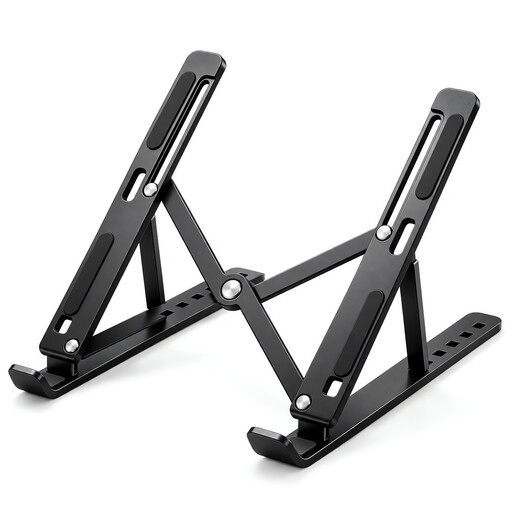 Image unavailable
A stand for changing the position of a laptop on a desk without adding another screen or dock.
Seven tilt levels from 15° to 45°; ventilated panel; anti-slip silicone pads; fits 10–17-inch laptops.
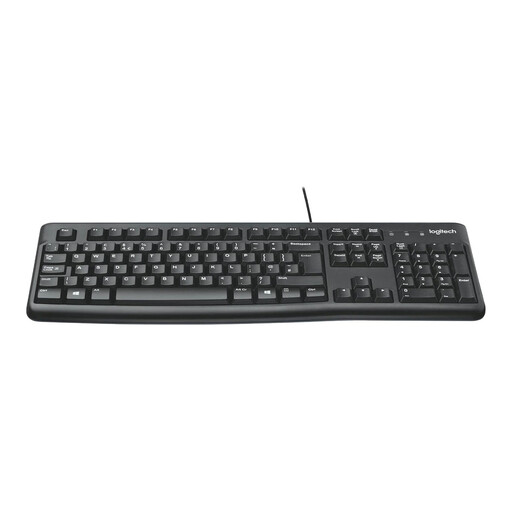 Image unavailable
A wired keyboard and mouse set for a desk-based laptop setup that uses separate input devices.
Wired keyboard and mouse combo; black.
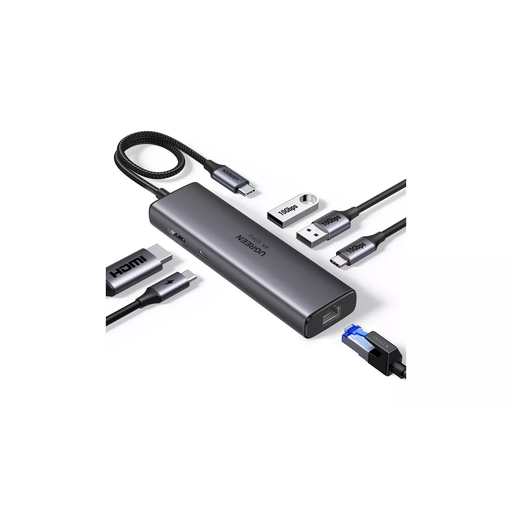 Image unavailable
A dock for a desk setup where you want to connect a laptop to additional wired devices.
USB-C connection; HDMI, 2 × USB-A 3.2, USB-C 3.2 and RJ45 connections are listed. Check that your laptop’s USB-C port supports the video and charging functions you intend to use.
 Image unavailable
An external display option for keeping more work visible on a laptop desk; check that your laptop supports the intended display connection.
27-inch 4K UHD IPS display; USB-C with 65 W power delivery; Google TV; Dolby Audio.
 Image unavailable
An external display option for a desk where you want more screen space for laptop work.
IPS display; WQHD resolution. Check your laptop’s supported display output and the connections needed for your setup.
No. Check the exact laptop’s video output through the chosen port, supported display count and resolution, and charging requirement against the monitor or dock. Apple notes that a supported hub does not increase a MacBook Air model’s maximum display count; Dell specifies different WD25TB4 power delivery for Dell and non-Dell systems.
Connect the appropriate cable, then use Settings > System > Display to identify, arrange or detect displays and choose a display mode. Microsoft Support recommends checking the cable connection and Windows updates when troubleshooting.
Yes, if the dock uses DisplayLink. DisplayLink Support says DisplayLink Manager must be installed and granted macOS Screen Recording permission for the connected display arrangement to work.
If you are an employee, discuss who provides or pays for equipment and repairs rather than assuming a particular accessory is funded; Acas recommends discussing the arrangement. For an eligible UK distance purchase, GOV.UK says you can notify the seller of cancellation within 14 days of receiving the item and then have another 14 days to return it. Faulty goods have separate rights.