Choose accessories for the task that is hardest to do on your laptop alone: an external monitor adds screen space, while a stand with separate input devices lets you change the laptop screen’s position. A hub or dock is more relevant when you repeatedly connect several devices; a webcam or headset addresses a specific problem with calls. Check your laptop’s video output, charging needs and connection permissions before buying, and follow your employer’s display screen equipment assessment process where it applies.
Who is this setup for?
Desk-based laptop workers
If you spend sustained periods on screen-based tasks at home, decide whether limited screen space, screen position or the laptop’s built-in keyboard and trackpad is the main obstacle. The Health and Safety Executive (HSE) says display screen equipment rules can apply to home workers who use a screen daily for continuous periods of an hour or more.
Workers moving between home and office
A setup you carry or reconnect needs to work with the ports, power and desk arrangement in both places. Where an individual display screen equipment assessment applies, the HSE says it should cover both home and office use.
Users connecting several devices
If you regularly attach displays, storage, Ethernet and input devices, start with your laptop’s supported connections and charging requirement. A dock’s collection of ports does not establish what the connected laptop can drive.
What should you check before buying?
Start with the task you want to improve, then check the connection and space requirements of the accessory that addresses it.
| Priority | What to check | Your needs |
|---|
| Screen arrangement |
Decide whether you need more display area or a different screen height. For a USB-C monitor, check the laptop’s video output and the monitor’s connection and power requirements; Lenovo specifies DP 1.2 Alt Mode and PD 2.0 for its ThinkVision M14. |
I work across documents and other windows at a desk, so another screen may be useful. If screen height is the issue instead, I would check whether a stand fits my laptop and desk. |
| Dock compatibility |
Compare the exact laptop’s supported displays and charging needs with the dock, cable and operating system. StarTech.com says USB-C video using DisplayPort Alt Mode depends on compatibility across the connection path. |
Connecting several devices each time I sit down takes effort; I want to know whether one hub or dock can connect the equipment I actually use. |
| Separate input |
Check keyboard layout, connection method, operating-system compatibility and any employer restrictions on Bluetooth, receivers or software. |
When I raise the laptop screen, I still want to place the keyboard and mouse where I can use them independently of the display. |
| Moving between desks |
Check the accessory’s laptop-size limits, carrying dimensions, required cables and available ports at both locations. Kensington lists different size limits for its Easy Riser stand models. |
I split my week between locations, so an accessory needs to fit what I carry and reconnect without relying on a port or cable available at only one desk. |
| Video meetings |
Identify the problem with the built-in camera or microphone first. Check the accessory’s connection, conferencing-platform compatibility and employer device policy. |
Calls are the sticking point for me; I would choose a separate webcam or headset to address a specific camera, sound or privacy need. |
Common buying mistakes
-
Assuming every USB-C port carries video
A matching connector is not enough. StarTech.com says DisplayPort Alt Mode video depends on the host, cable and connected device; Anker says its 568 hub cannot provide an external display if the host port lacks DP Alt Mode.
Look up the exact laptop model’s display-output specification, then compare it with the monitor or hub and the cable you intend to use.
-
Choosing a dock by its advertised display maximum
The stated configuration may depend on the laptop and connection path. Dell lists display arrangements for particular docks, while StarTech.com notes that USB-C video requires compatible components throughout the connection.
Compare the laptop maker’s display-support information with the exact dock’s interfaces, operating-system requirements and charging arrangement.
-
Treating an accessory purchase as a DSE assessment
For workers covered by UK display screen equipment rules, the HSE says an employer’s assessment considers the individual workstation, including equipment, furniture and working conditions. Buying a stand or monitor does not assess the whole arrangement.
Check your employer’s home-working equipment and assessment process before choosing equipment for an identified workstation need.
-
Buying for portability without checking both workplaces
A portable display still needs a compatible video and power arrangement, and a folding stand still needs to fit the laptop and desk. Lenovo and Kensington state model-specific connection or size requirements for their portable products.
Check what you will carry and which ports, cables, power connections and desk space are available at home and at the office.
Brand references by accessory type
These examples help identify model-specific features to check; a brand name alone does not establish compatibility with your laptop.
Dell
Dell’s UK dock information is useful when comparing connections for a desk with displays, a network cable and peripherals.
- Dell lists video interfaces and supported operating systems for named dock models, including the Pro Thunderbolt 4 Dock WD25TB4.
- Check the host laptop’s connection and display support before relying on a dock’s stated configuration.
Lenovo ThinkVision
The ThinkVision M14 and M14d are portable USB-C display examples for a workstation that moves between locations.
- Lenovo specifies 14-inch displays and USB-C connections for these models.
- The M14 specifically requires a laptop USB-C port supporting DP 1.2 Alt Mode and PD 2.0; check the requirements of the exact display you choose.
Logitech
Logitech offers separate input devices and webcams to consider when laptop controls or built-in call equipment do not meet a particular need.
- Logitech lists multi-device switching for MX Keys S and 1080p video for Brio 500.
- Check connection and software permissions; manufacturer feature descriptions do not determine how a device will work in every room or managed IT environment.
Kensington
Kensington’s Easy Riser stands are examples to compare when you want to change laptop screen height without adding another display.
- Kensington specifies adjustable, foldable designs and laptop-size limits for individual Easy Riser models.
- Check laptop fit and desk stability. A stand does not add screen area or provide separate input devices.
Anker
Anker’s hubs and docks provide model examples for comparing display, USB, network and charging connections.
- Anker describes display, Ethernet, audio and USB connections for its 565 USB-C Hub.
- Anker’s support guidance says a host port without DP Alt Mode cannot provide an external display through its 568 hub; check the exact hub and laptop together.
Joybuy workstation accessories
These Joybuy options cover separate keyboards and mice, portable second screens and a USB-C dock for laptop workstations. Choose between them by the task and connections you need, rather than treating the accessories as substitutes for one another.
 No image available
HP 680 CFT Dual-Mode keyboard and mouse combo
A separate keyboard and mouse option when you want to position a raised laptop screen independently of your input devices. Check that its connection methods are permitted on your work laptop; customising its programmable keys requires HP software.
View on Joybuy
 No image available
ASUS ZenScreen MB166CR FHD portable monitor
A second-screen option for working across windows away from a fixed desk. Before buying, confirm that your laptop’s USB-C connection supports the video output required by this monitor.
View on Joybuy
 No image available
Targus USB-C Universal Dual HDMI 4K dock, 100W PD pass-through
A dock to consider when you regularly reconnect displays and other desk devices. Its named configuration includes dual HDMI 4K and 100W Power Delivery pass-through; check the laptop’s display support and charging needs against the dock before relying on either figure.
View on Joybuy
 No image available
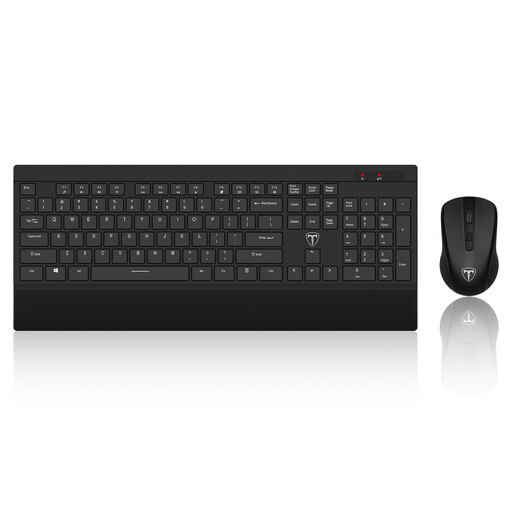
ET Silent 2.4GHz wireless keyboard and mouse, US layout
A separate input set for a laptop workstation. The product name specifies a full-size keyboard and US layout; check that the layout and wireless connection suit your work device before choosing it.
View on Joybuy
 No image available
UPERFECT 16-inch 2K 144Hz portable monitor
A portable second-screen option with a stated 2560 × 1600 resolution, 16:10 aspect ratio, Mini HDMI and Type-C connections. Check the connection requirements against your laptop, particularly if you intend to use Type-C for video.
View on Joybuy
Frequently asked questions
Do UK display screen equipment rules apply when I work from home?
They can. The Health and Safety Executive says the rules can apply to permanent or long-term home workers and people who routinely split work between home and the workplace when they use display screen equipment daily for continuous periods of an hour or more. Where the rules apply, an individual assessment should cover both locations if both are used.
Does a USB-C port guarantee that a monitor or dock will show video?
No. StarTech.com says DisplayPort Alt Mode video requires a compatible host connection, cable and connected device. Check your exact laptop’s specifications alongside the monitor or dock requirements before buying.
Do I need a Thunderbolt dock for a hybrid-work desk?
Only consider one if your laptop supports the required Thunderbolt connection and the dock’s connections address your workflow. Compare its display and charging requirements with your laptop; Intel describes Thunderbolt 4 single-cable power and accessory use with a charging qualification for thin-and-light laptops requiring less than 100 W.
Is a laptop stand enough for sustained screen work?
A stand can change screen height, but it does not add display area or separate the keyboard and mouse from the laptop. Check laptop fit and desk stability, then consider whether separate input devices are needed; where UK display screen equipment rules apply, follow the employer’s individual assessment process for the whole workstation.


