What should you check first?
For a home or hybrid laptop workspace, identify the problem that would determine your first addition, then check compatibility before deciding on a particular device.
| Concern |
What to check |
Who this matters to |
| Screen space and position |
Check display support and monitor inputs. If raising the laptop screen, plan for a separate keyboard and mouse, as the Health and Safety Executive advises for prolonged use. |
When I work across documents and reference material for long periods, I need a screen arrangement that does not leave me typing on a raised laptop; around 36% of consumers would put screen space and positioning first. |
| Desk connections |
Match the laptop’s video-capable port, display limits and charging requirement to the exact hub or dock. Check which cables and power accessories come with it. |
Reconnecting power, a display and peripherals each workday is the friction I want to remove; roughly 29% of consumers would prioritise a repeatable desk connection. |
| Meeting audio and video |
Identify whether you need a camera, microphone or listening improvement. Check the device’s connection and any operating-system or software conditions. |
If calls are a regular part of my day, I want to address the part of the conversation setup that causes trouble rather than buy both a webcam and headset automatically; about 21% of consumers would make meeting equipment their first priority. |
| Moving between workplaces |
Check packed size, connection requirements and whether a portable display or hub works with the laptop. Pair a raised laptop with separate input devices. |
I need equipment I can carry and set up again without depending on a permanent desk; around 14% of consumers would put portability ahead of a larger fixed setup. |
Joybuy products for laptop workstations
These products cover fixed and portable screens, desk connections and wired call audio. Choose by the task you need to improve, then check the exact laptop and any accessories required for your setup.
 No image available
BenQ MA320UP 32-inch 4K UHD USB-C Mac Monitor
Consider this monitor for a fixed desk where a larger document workspace and an adjustable screen position matter.
The product name specifies a height-adjustable stand and USB-C connection. Check the laptop’s USB-C display support and charging requirement before planning a single-cable setup.
View on Joybuy
 No image available
Targus USB-C Universal Dual HDMI 4K Docking Station, 100W PD Pass-Through
Consider this dock when repeatedly connecting desk displays and accessories is the main inconvenience.
The named variant has dual HDMI 4K connections and 100W Power Delivery pass-through. Check the laptop’s supported display modes and charging needs, and confirm which power accessories are supplied.
View on Joybuy
 No image available
V7 V7UC-U3CRJ45HDVG-BLK USB-C Adapter
Consider this adapter for a movable laptop setup that needs one external display and additional connections.
Its name specifies 4K HDMI, VGA, Gigabit Ethernet, dual USB 3.0 ports and 100W Power Delivery. The stated video operation is limited to one display; check the laptop’s USB-C video support and whether the necessary power adapter is supplied.
View on Joybuy
 No image available
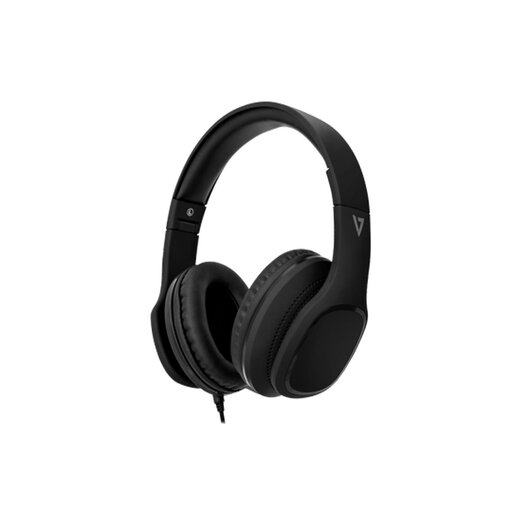
V7 HA701-3EP Wired Over-Ear Headphones with Inline Mic
Consider these for laptop calls if you want wired listening and an inline microphone without managing a headset battery.
The named variant has 40mm drivers and passive noise isolation, not stated active noise cancellation. Confirm that the laptop’s 3.5mm connection supports both headphone audio and the microphone.
View on Joybuy
 No image available
ASUS ZenScreen MB166C 15.6-inch Full HD USB-C Portable Monitor
Consider this screen when you want an additional display that can move between work locations rather than remain on one desk.
The named variant has a 15.6-inch Full HD IPS screen and USB Type-C connection. Check that the laptop’s USB-C port provides video output and confirm the positioning accessories you need; this model is listed without an HDMI input or built-in speakers.
View on Joybuy
Frequently asked questions
Do I need a monitor, a dock or both?
Choose a monitor when screen space or screen position is the main problem, and a hub or dock when reconnecting desk equipment is the problem. You may want both for an external display with fewer repeated connections, but the laptop must support the intended display setup.
Will any USB-C port run a monitor and charge my laptop?
No: USB-C identifies the connector, not every function available through it. Anker’s specifications for the 565 hub distinguish display results by the laptop’s DisplayPort capability and identify ports with different charging and data roles. Check both the laptop manual and the exact accessory specification.
Should I ask my employer before buying equipment for regular hybrid work?
Yes, if the equipment is for your job, ask about your employer’s workstation assessment and equipment arrangements before making a personal purchase. The Health and Safety Executive says display screen equipment rules can apply in Great Britain to workers who routinely split their time between home and another workplace; that does not establish whether a particular personal purchase will be reimbursed.
How should I dispose of an old monitor or accessory?
Use an appropriate electrical-waste route rather than ordinary household waste. GOV.UK describes retailer take-back of waste equipment of the same type as an item bought; check the seller’s arrangements or local electrical-recycling options, and remove personal data where relevant.
What should I check if a powered dock or monitor comes with a non-UK plug?
Confirm the included power supply and plug are suitable for the socket where you will use them before purchase. UK electrical-safety rules require plug-in equipment intended for direct connection to a BS 1363 socket to be compatible with that socket; laptop connection compatibility is a separate check.


