Home workers with a slow or unreliable laptop
For people whose documents, browser work or office tasks are delayed by loading or download problems. Which? advises assessing the laptop itself before spending on desk accessories.


Replace the laptop when routine work is slow or unreliable even when it is used on its own; a monitor or dock will not correct weak core performance. If the laptop remains dependable, a monitor with separate keyboard and mouse can improve a regular desk setup, while a dock only makes sense after checking the laptop’s video, charging and multi-display support.
For people whose documents, browser work or office tasks are delayed by loading or download problems. Which? advises assessing the laptop itself before spending on desk accessories.
For people working mainly at one home desk who need more viewing space, easier accessory connections or a more adaptable screen position. Dell, HSE and Which? guidance highlights the importance of the whole workstation, connection ports and monitor adjustment.
For people who need documents, browser applications and calls visible at the same time. Check whether the laptop can extend to the intended external display arrangement before choosing a monitor or dock.
Start by deciding whether the limitation is computing performance, desk workspace, connection convenience or input comfort. Then check the exact laptop, display and cable combination rather than relying on connector shape alone.
| Priority | What to check | Your needs |
|---|---|---|
| Core laptop performance | Compare the exact processor, memory and storage configuration. For a replacement, look for evidence covering office software, web browsing, Wi-Fi and battery use rather than relying on a model-family name alone. | I need documents, browser applications, downloads and office software to run without delays that interrupt work. |
| Desk workspace and comfort | Match monitor size and resolution to the desk and text-heavy work. Check height, tilt and swivel adjustment, and plan for a separate keyboard and mouse if the laptop screen will be raised. | I want more room for several windows and a screen position that works for regular desk sessions, rather than extra computing power. |
| Port and display compatibility | Confirm the laptop’s HDMI, DisplayPort, Thunderbolt or USB-C DisplayPort Alt Mode support. Check the supported display count, resolution, refresh rate, cable capability and whether the setup extends rather than mirrors displays. | I need a monitor, cable, adapter or dock to work with my exact laptop and provide the display arrangement I intend to use. |
| Traceable electrical accessories | Check the seller and manufacturer details, appropriate product marking, instructions and warnings. Keep the model information and proof of purchase for recall checks or support. | I want chargers, docks, hubs and monitors from identifiable sellers and manufacturers, with clear setup information and recall support. |
Dell notes that not every USB-C port supports video output, while Lenovo states that its USB-C and Thunderbolt docks require compatible USB-C Alt Mode or Thunderbolt support.
Check the technical manual for the exact laptop model, including its video protocol and charging behaviour, then compare it with the monitor or dock documentation.
An incompatible hub, adapter or cable may need replacing.
The laptop, dock, graphics hardware, cable and monitors all affect the final display arrangement. Microsoft explains that a display splitter normally duplicates one signal instead of creating two independent extended desktops.
Confirm the supported number of independent displays and the intended resolution and refresh rate for the exact laptop-and-dock combination before buying.
The setup may require a different dock, lower display settings or an additional direct cable.
A new laptop may not solve limited screen space, screen position or multi-window working. HSE guidance considers the whole workstation, the work being done and the conditions of use.
Test whether normal work is fast enough first, then decide whether a monitor, keyboard and mouse would address the desk-use limitation more directly.
A laptop replacement can still leave you needing a monitor or peripherals for screen position and workspace.
GOV.UK advises checking appropriate marking, instructions, warnings and identifiable manufacturer details for electrical products, and provides an official product-recall service.
Use sellers and manufacturers you can identify, retain the model and proof of purchase, and check the official recall service for products you own or are considering second-hand.
Relevant to laptop-and-dock setups: Which? includes Lenovo IdeaPad models in its current UK laptop index, while Lenovo documentation gives an example of model-specific dock compatibility and display limits.
Relevant to laptop replacement and one-cable desk setups: Dell models appear in the current Which? laptop review index, and Dell publishes compatibility-led docking guidance.
Relevant as a laptop and monitor consideration: Acer appears in Which?’s current UK laptop review index and among brands covered in its monitor testing.
These Joybuy options cover the laptop-replacement, external-monitor, dock and peripheral routes for a home-working desk setup.
 No image available
For regular desk-based multi-window work where the existing laptop is still performing adequately.
Stated features include a 27-inch 2560 × 1440 IPS display, HDMI, DisplayPort, USB-C, USB hub, anti-glare coating, VESA support and height, tilt, swivel and pivot adjustment.
Check the laptop’s exact USB-C video and charging support before planning a one-cable setup, and confirm the monitor’s USB-C power-delivery output meets the laptop’s charging needs.
 No image available
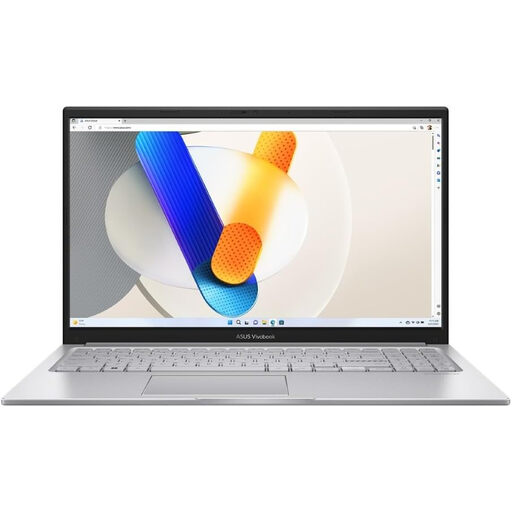
For replacing a laptop that struggles with routine office workloads while retaining a portable 15.6-inch format.
The stated configuration includes an Intel Core 5 120U processor, 24 GB DDR5 memory, 1 TB SSD, Full HD anti-glare IPS display, HDMI, USB-C ports, USB-A ports, Wi-Fi 6, HD webcam and microphone. Weight is stated as 1.70 kg.
Check the exact model documentation before relying on USB-C for video output, charging input or a dock. The stated battery figure is standby time, so confirm expected unplugged working use separately.
 No image available
For making a laptop desk setup more comfortable when the computer itself remains fast enough.
Listed features include quiet keys, a built-in wrist rest, negative tilt, programmable controls, Bluetooth and receiver connectivity for up to three devices.
Check that the supplied keyboard layout suits UK typing requirements. This set does not add screen workspace or resolve slow laptop performance.
 No image available
For a compatible laptop that needs one desk connection for a display, wired network and USB accessories.
The adapter is stated to provide HDMI up to 3840 × 2160 at 30 Hz, VGA, Gigabit Ethernet, two USB 3.2 Gen 1 ports and USB-C power-delivery pass-through up to 100 W.
It requires a host USB-C port with DisplayPort Alt Mode and is specified for one SST display. Check the laptop’s charging requirement, charger capability and whether 30 Hz is suitable for the intended monitor.
 No image available
For video calls from a raised laptop or external monitor where camera placement needs more flexibility.
Listed features include 1080p video, autofocus, auto lighting correction, dual microphones with noise cancellation, a 67-degree field of view, privacy slider, rotating clip, tripod thread and USB-C connection with adapters.
Check the framing if several people or a wide workspace must be visible, and test placement and lighting with the conferencing platform you use.
Replace it if normal office work is already slow or unreliable when the laptop is used alone. A monitor, keyboard, mouse or dock can improve workspace and connection convenience, but cannot correct inadequate laptop performance.
No. USB-C describes a connector shape, not guaranteed video capability. Dell says that not every USB-C port supports video output, and Lenovo requires USB-C Alt Mode or Thunderbolt support for its compatible USB-C and Thunderbolt docks.
Usually no. Microsoft Support explains that a display splitter duplicates the same signal rather than creating two independent signals. Check the laptop graphics capability and dock documentation before planning a two-monitor extended setup.
Check the exact laptop port and video protocol, the intended display count, resolution and refresh rate, dock power delivery, cable capability and operating-system support. Lenovo notes that actual dock video output depends on the system, while Microsoft Support advises using compatible ports, docks and cables for USB-C and USB4 connections.
GOV.UK advises checking the seller, appropriate marking, clear instructions and warnings, plus the manufacturer’s name and address. For Great Britain, CE and/or UKCA marking may apply depending on the product rules; Northern Ireland has different marking arrangements. Check the official product-recall service for a model you own or are considering second-hand.