Who this setup is for

Regular laptop-only home workers

People using a laptop daily for extended home work who need to raise the screen while keeping a separate keyboard and mouse for prolonged use. Health and Safety Executive guidance supports this arrangement for prolonged laptop work.

Hybrid workers with a fixed home desk

People moving regularly between office and home who need a repeatable desk setup with an external display, separate inputs or a single-cable dock. In Great Britain, the assessment should cover both work locations.

Multi-display and multi-device users

People connecting displays, wired networking, storage or several USB devices at one desk who need to check their laptop’s video, USB or Thunderbolt, and charging support before choosing a dock.

What to check before buying

Raised laptop with separate inputs

Choose it when: You mainly work on one laptop screen and can place a separate keyboard and mouse on the desk.

Consider: A stand does not add screen area, ports, wired networking or charging.

External display setup

Choose it when: A laptop screen is too small for regular tasks or cannot be positioned comfortably while typing.

Consider: The laptop, cable or adapter must support the intended display resolution, refresh rate and display count.

Docked fixed desk

Choose it when: You repeatedly connect monitors, input devices, Ethernet and charging at one desk.

Consider: USB-C ports, charging levels and display modes vary between laptop models.

Priority What to check Your needs
Screen and input position Check whether the laptop screen can be raised while a separate keyboard and mouse remain at a workable desk height. Consider an external display if one laptop screen is not enough. I want the screen higher without making the attached laptop keyboard and trackpad my main controls.
Dock and display compatibility Confirm the laptop’s documented USB-C, USB4, Thunderbolt or DisplayPort Alt Mode support. Check display count, resolution, refresh rate, required ports and accepted charging wattage. I need the monitor, dock, cable and laptop to work together for the connections I use at my desk.
Assessment and funding Check the employer’s DSE process before treating equipment as a personal purchase. Review the workstation after a setup change or when pain or discomfort is reported. I want to separate optional convenience upgrades from equipment identified as necessary for my work setup.

Common buying mistakes

  • Buying a laptop stand without separate input devices

    Raising the laptop screen while continuing to use its attached keyboard and trackpad works against the purpose of improving the screen position for prolonged work.

    For prolonged laptop use, pair a riser or stand with a separate keyboard and mouse unless an external display is your primary screen.

  • Assuming USB-C means universal docking, video and charging

    USB-C hardware and software combinations can have limited functions, and a host laptop may accept less charging power than a dock can provide.

    Record the exact laptop model, host port type, required monitor count and resolution, required ports, original charger wattage and operating system before comparing dock documentation.

    A mismatched dock, cable, adapter or power supply can mean replacing equipment while display or charging functions remain limited.

  • Choosing a multi-display dock from port count alone

    Several video outputs do not guarantee that the laptop can drive every connected display at the intended resolution and refresh rate.

    Verify the laptop’s documented display limit and the dock’s stated conditions. Kensington specifies DSC v1.2 requirements for its maximum SD4843P configuration, while Targus states that dual displays on its Alt Mode dock require host MST support.

  • Paying personally before checking the employer’s DSE process

    For covered workers in Great Britain, equipment needs should be determined through a workstation assessment. HSE states that workers cannot be charged where an assessment identifies required action.

    Ask how to complete or update the DSE assessment before treating equipment as an out-of-pocket requirement, and report relevant setup changes, pain or discomfort.

Relevant brand references

Dell

Relevant for laptop-specific and Thunderbolt dock options, including higher-power dock models for Dell and non-Dell systems.

  • Dell states that its SD25TB4 provides up to 130W power delivery for Dell systems and up to 96W for non-Dell systems.
  • These are model-specific specifications; check the laptop’s compatibility and supported display configuration.

Targus

Relevant for portable and universal-style docks, including DisplayLink-based and DisplayPort Alt Mode models.

  • Targus lists compact DisplayLink and Alt Mode docks with stated multi-display and power-delivery configurations.
  • The stated dual-display capability of an Alt Mode model depends on MST support from the host device.

Kensington

Relevant for docking options across USB-C, USB4 and Thunderbolt laptop ecosystems, including multi-display desk setups.

  • Kensington states that its SD4843P supports specified Thunderbolt, USB4 and USB-C Alt Mode Windows laptops, with up to three 4K displays and up to 100W dynamic power delivery.
  • Its maximum display configuration has prerequisites, including DSC v1.2 support across the relevant laptop, dock and monitor setup.

Logitech

Relevant for separate keyboard and pointing-device options, including compact and ergonomic-oriented product lines.

  • Logitech offers ergonomic mice and keyboards, and states that its Lift vertical mouse is designed for small to medium hands with a left-handed option.
  • Fit and comfort claims do not establish that any particular mouse or keyboard is necessary for every worker or replace an individual DSE assessment.

Joybuy product options

Joybuy product options for separate laptop inputs, external displays and a compatible fixed-desk dock setup.

HP 680 CFT Dual-Mode Keyboard and Mouse Combo

HP 680 CFT Dual-Mode Keyboard/Mouse Combo

A separate keyboard and mouse option for a raised laptop screen and hybrid use across several devices.

Stated features include quiet keys, a wrist rest, negative tilt, Bluetooth or receiver connectivity, and connection to up to three devices. Check the keyboard layout and confirm that Bluetooth use or a USB receiver is suitable for the work laptop.

Joybuy

Targus USB-C Universal Dual HDMI 4K Docking Station with 100W Power Delivery Pass-Through

Targus USB-C Dual HDMI 4K Docking Station

A fixed-desk option for connecting monitors, input devices, network access and charging through one host connection.

The listing states USB-C Alt Mode, two HDMI 2.0 outputs, USB ports, card readers, Gigabit Ethernet and up to 100W power-delivery pass-through. Verify laptop video support, display limits, accepted wattage and whether a suitable external power adapter is included.

Joybuy

AOC Q32V4 31.5-inch 2K Ultra HD IPS monitor

AOC Q32V4 31.5-inch QHD IPS Monitor

A large external-screen route for a regular fixed home workstation that needs more display area.

The listing specifies a 31.5-inch 2560 × 1440 IPS panel, HDMI and DisplayPort inputs, a matte surface and 100 × 100 mm VESA compatibility. Check the laptop’s QHD output capability and whether the supplied stand provides the height adjustment you need.

Joybuy

ASUS ZenScreen MB166C 15.6-inch Full HD portable USB monitor

ASUS ZenScreen MB166C 15.6-inch Full HD Monitor

A portable second-screen option for hybrid work away from one fixed desk.

The listing states a 15.6-inch Full HD IPS display, USB-C upstream connection, anti-glare surface, flicker-free backlight and a 780 g weight. Confirm that the laptop’s USB-C port supports the required video output and can supply sufficient power.

Joybuy
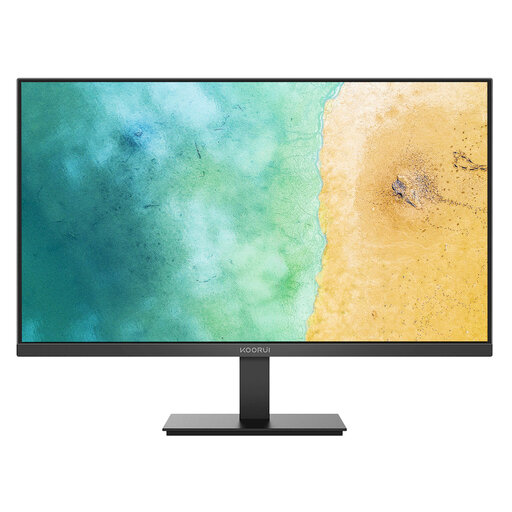
KOORUI MB27V29FS2 27-inch IPS monitor

KOORUI MB27V29FS2 27-inch IPS Monitor

A conventional external display for a fixed desk where a separate screen is needed for routine laptop work.

The listing specifies a 27-inch Full HD IPS panel, HDMI 1.4 and VGA inputs, tilt adjustment and 100 × 100 mm VESA mounting. Check the laptop’s HDMI or VGA connection path and whether the standard stand provides adequate screen height.

Joybuy

Frequently asked questions

Does a regular home worker in Great Britain need a DSE assessment?

For workers who use DSE daily as part of normal work for continuous periods of an hour or more, the Health and Safety Executive says employers must carry out a workstation assessment. This can apply to permanent home workers and people who routinely split work between home and office; occasional or short-period home use falls outside this HSE guidance.

Can a Great Britain employee be required to pay for equipment identified by a DSE assessment?

No. The Health and Safety Executive states that where a DSE workstation assessment indicates action is needed, such as providing DSE equipment, workers cannot be charged for it.

How does Northern Ireland differ from Great Britain?

Northern Ireland has its own Health and Safety (Display Screen Equipment) Regulations (Northern Ireland) 1992 and HSENI guidance. HSENI says the rules can apply to long-term home and hybrid workers who use DSE daily for an hour or more, with employers assessing risks, identifying equipment needs and implementing suitable controls.

Does a USB-C port guarantee dock, monitor and charging compatibility?

No. Microsoft notes that hardware and software combinations can limit USB-C functionality. For Macs, Apple specifies DisplayPort Alt Mode or Thunderbolt compatibility requirements for display adapters, while display count, resolution and refresh rate depend on the model; check the laptop specification and dock compatibility information.

What should be checked before buying a power-delivering dock?

Check the laptop’s supported charging input and maximum accepted wattage, the dock’s host power delivery, its power supply and the peripherals you intend to connect. Microsoft notes that insufficient power can reduce or disable dock functions, while USB-A/B docking connections generally do not charge a laptop.