Buying priorities
Choose the screen and input arrangement first, then match cables, charging and expansion hardware to the exact laptop and the way the desk is used.
| Priority |
What to check |
Your needs |
| Screen and input position |
Check whether the laptop screen can be raised while a separate keyboard and mouse remain at a comfortable height. Consider an external monitor when you need a display positioned independently of the laptop. |
I work on a laptop for sustained periods and want to avoid raising the screen while leaving the keyboard and trackpad too high. |
| Display and dock compatibility |
Confirm the exact laptop model’s supported display count, resolution and refresh rate. Match the laptop and monitor ports, cable type and any USB-C video or charging requirements. |
I need one or more external screens, but I want to know that my laptop can run the intended arrangement before I buy a dock or adapter. |
| Repeatable desk connection |
Decide whether a direct monitor cable, USB-C hub monitor or dock fits the number of displays, USB devices and network connections used at the desk. Check power delivery against the laptop’s needs. |
I return to the same desk regularly and want fewer cables to reconnect without paying for ports I will not use. |
| Employer equipment process |
Ask whether a display-screen equipment assessment applies and whether the employer will provide, approve or reimburse equipment. Keep any approval and check arrangements for repairs and support. |
I need to know whether equipment identified through a work assessment should be arranged through my employer rather than purchased privately first. |
Joybuy product options
Joybuy product options for laptop-based home and hybrid work, covering separate displays, docks and external input devices for different desk arrangements.
 Image unavailable
ASUS ZenScreen MB249C IPS USB-C Monitor
A separate 23.8-inch IPS display for a fixed or flexible desk, with USB-C and HDMI connection options.
Stated features include Full HD resolution, anti-glare coating, speakers, up to 60W USB-C power delivery, and kickstand, C-clamp arm and partition-hook mounting options. Check whether the laptop supports USB-C DisplayPort Alt Mode and whether 60W charging is sufficient; confirm UK box contents if an adapter is needed.
Joybuy
 Image unavailable
Targus USB-C Universal Dual HDMI 4K Docking Station
A dock for a fixed desk with recurring monitor, peripheral, wired-network and charging connections.
The listing states two HDMI 2.0 outputs at 4K@60Hz, USB ports, Gigabit Ethernet, SD and MicroSD readers, USB-C Alt Mode and up to 100W power-delivery pass-through. Verify that the laptop and operating system support two independent displays, and check whether a suitable 100W or higher power adapter is included.
Joybuy
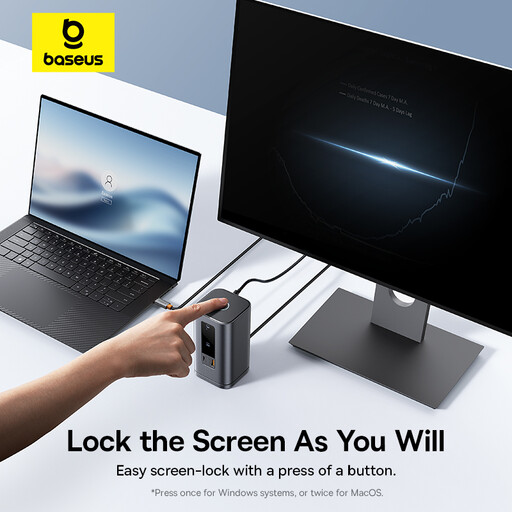 Image unavailable
Baseus Wisdom Series 11-in-1 WIN Workstation
A connectivity-focused option for a permanent desk with several monitors, accessories and a wired network connection.
Stated connections include two HDMI ports, two DisplayPort outputs, 10Gbps USB-A and USB-C data ports, Gigabit RJ45 and audio, with up to 100W USB-C PD input. Check the laptop’s video-output support, graphics limits, operating-system requirements and charger capacity before relying on multiple displays.
Joybuy
 Image unavailable
HP 680 CFT Dual-Mode Keyboard and Mouse Combo
Separate input devices for an elevated-laptop arrangement or a desk shared between compatible devices.
The listing states Bluetooth and HP Unifying Dongle connectivity, support for up to three devices, quiet keys, programmable controls and Windows, macOS and ChromeOS compatibility. Check the preferred UK key layout and confirm Bluetooth availability or a free USB port for the receiver.
Joybuy
 Image unavailable
Dell P2425H 24-inch Full HD IPS Monitor
A conventional fixed-desk display for document and spreadsheet work where the screen needs independent adjustment.
The listing states a 24-inch 1920×1080 IPS panel, 100Hz refresh rate, HDMI, DisplayPort, USB-C and VGA connections, plus height, tilt and swivel adjustment. Check the laptop output, cable requirements and whether USB-C video and laptop charging are required for a one-cable setup.
Joybuy
Frequently asked questions
When should I use a laptop stand instead of an external monitor?
Use a stand when one laptop screen is enough and you can add a separate keyboard and mouse. The Health and Safety Executive says these input devices should be separate when the laptop screen is elevated; choose an external monitor when you need more screen area or a display independent of the laptop.
Will any USB-C dock run two independent external monitors?
No. Check the exact laptop model before buying. Microsoft Support says a system may not support more than one external monitor even if one works, while Apple says simultaneous external-display support depends on the Mac model and the displays’ resolution and refresh rate.
What should I check before choosing a USB-C hub monitor?
Confirm that the laptop USB-C port supports the necessary video output, that the monitor’s power delivery suits the laptop’s normal workload, and that the cable supports the required functions. Dell lists up to 90W power delivery for its P2425E, but that is a specification for that model rather than a universal USB-C feature.
If my employer’s DSE assessment identifies equipment I need, can it charge me for it?
For qualifying display-screen users, the Health and Safety Executive states that workers cannot be charged where a workstation assessment indicates action such as providing DSE equipment. Ask whether the employer will supply the item directly, approve a purchase, arrange support and repairs, or reimburse an agreed expense.
Do UK DSE rules apply to every person who occasionally uses a laptop at home?
No. The Health and Safety Executive says the rules can apply to people working from home permanently or long term, or routinely splitting time between home and workplace, where display-screen equipment is used daily for continuous periods of an hour or more. It says they do not apply to occasional or short-period home use.


