Buying priorities
Set up the screen and input arrangement first, then check connections and extras against the work you actually do at home.
| Priority |
What to check |
Your needs |
| Screen and input position |
Choose either a separate display or a stable riser with separate keyboard and mouse. Check that input devices can sit at a usable height and that the laptop remains accessible and ventilated. |
I want the screen higher without having to type on an elevated laptop keyboard or use its trackpad for sustained desk work. |
| Hub and dock compatibility |
Check video output, charging input, USB4 or Thunderbolt support where required, operating-system support and cable capability. A USB-C connector alone does not confirm every function. |
I need a hub or dock to provide the ports, display connection and charging route my particular laptop can use. |
| External display path |
Confirm the laptop’s supported display count, resolution and refresh rate, then match the monitor input and cable or adapter. Check the host laptop before choosing a multi-monitor dock. |
I want the monitor to run at a suitable resolution and refresh rate rather than relying on the number of ports on a dock. |
| Employer assessment |
For regular work use, ask whether the employer’s display-screen equipment assessment covers both home and office arrangements. Keep the laptop model and connection details available for any assessment. |
I want to know whether the equipment is a personal purchase or something my employer should assess first. The Health and Safety Executive reported that 38% of workers in Great Britain were remote or hybrid in January 2026; this describes working arrangements, not product-buying priorities. |
Joybuy product options
Joybuy options for fixed-desk external-display setups and call-led home working. Confirm your laptop’s display output, cable and port compatibility before choosing a monitor or webcam.
 No image available
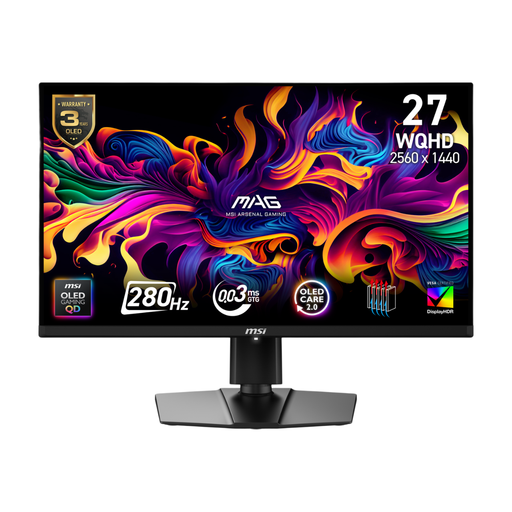
MAG 274QP QD-OLED X24 27-inch WQHD Monitor
A dedicated 26.5-inch 2560 × 1440 display for a fixed desk can separate screen placement from the laptop keyboard and trackpad.
Stated features include HDMI, DisplayPort, VESA mounting and height, tilt, swivel and pivot adjustment. Check that the laptop, cable and any adapter support the intended resolution and refresh rate.
Joybuy
 No image available
MSI MAG 271QP QD-OLED X28 27-inch QHD Monitor
This 26.5-inch 2560 × 1440 monitor suits a permanent desk where a separate working screen is needed.
The listing states DisplayPort, HDMI, USB-C with 15W Power Delivery, a four-way adjustable stand and VESA compatibility. Its stated 15W USB-C power delivery does not establish that it can replace a laptop’s normal charger.
Joybuy
 No image available
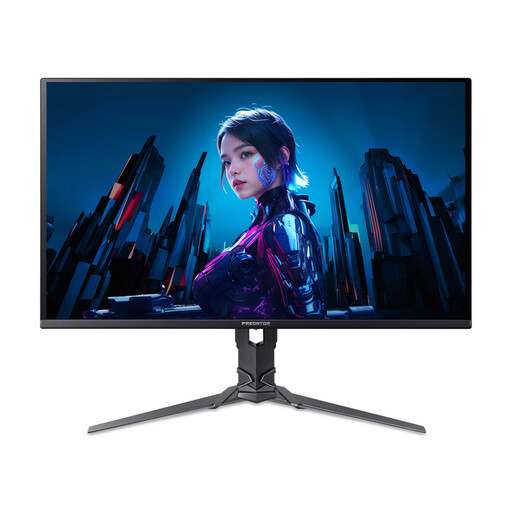
Acer X Predator X27U W3 26.5-inch Quad HD Monitor
A separate 26.5-inch 2560 × 1440 display can suit a stable home desk needing more screen area than a laptop alone.
The listing states two HDMI 2.1 ports, DisplayPort 1.4, VESA mounting and an ErgoStand. Confirm the stand’s adjustment range and the laptop’s HDMI or DisplayPort output compatibility for the planned setup.
Joybuy
 No image available
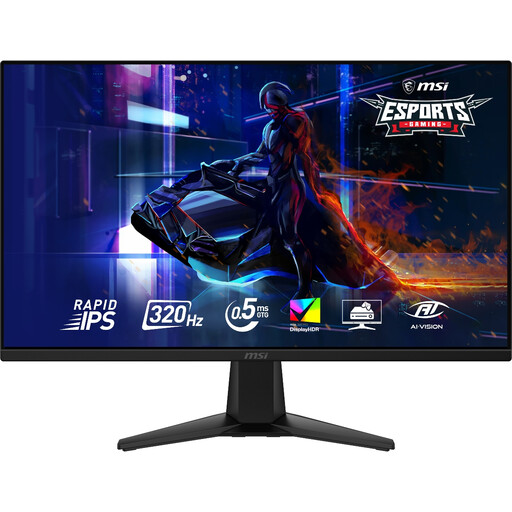
MAG 275QF X32 27-inch WQHD Monitor
This 27-inch 2560 × 1440 monitor provides a dedicated external-display route for a home desk.
Stated connections are HDMI 2.1 and DisplayPort 1.4a, with tilt adjustment and VESA mounting. The supplied stand is stated to tilt only, so check whether height, swivel or pivot adjustment is required.
Joybuy
 No image available
EMEET All-in-One 4K Webcam with Sony Sensor
For call-led hybrid work, this combines a stated 4K camera, four-microphone array and dual speakers in one device.
The listing states fixed focus and an adjustable 98° field of view. Verify the USB connection type, cable length and conferencing-platform requirements for the intended setup.
Joybuy
Questions about home laptop workstations
Do I need an external monitor, or is a laptop stand enough?
For prolonged laptop use, the Health and Safety Executive identifies two workable routes: raise the laptop with a riser while using a separate keyboard and mouse, or use a separate display. Choose a monitor when you need more screen space or a fixed desk; choose a stand-plus-inputs setup when compactness and portability matter more.
Can any USB-C laptop use a hub or dock for a monitor and charging?
No. USB-C can carry several functions, but the laptop, cable, dock and operating system must support the function required. Check the laptop manufacturer’s specification for video output, USB4 or Thunderbolt support where applicable, maximum external displays and charging input before purchase.
Why can a monitor run at lower resolution or refresh rate through a dock?
The laptop’s display limit, monitor, video cable and any adapter all affect the result. Apple states that an unsuitable cable or adapter can cause lower resolution or refresh rate, and that maximum display capability varies by Mac model and connected-display configuration.
When should my employer assess or provide home-workstation equipment?
In Great Britain, the Health and Safety Executive states that display-screen equipment assessments can apply to workers who work at home long term or routinely split time between home and workplace and use display-screen equipment daily for continuous periods of an hour or more. The assessment should cover home and office circumstances; where it identifies a necessary action such as providing equipment, workers cannot be charged. Northern Ireland has its own regulations and Health and Safety Executive for Northern Ireland guidance.
Should I buy a monitor, stand or keyboard before asking my employer?
If the setup is used for qualifying work and display-screen equipment requirements apply, raise the issue through your employer’s assessment process first. The Health and Safety Executive says the assessment should determine whether additional equipment is needed and that workers cannot be charged where it identifies equipment provision as necessary.


