What should you choose first?
Decide how the screen and input devices need to sit, then check connections and charging before adding a dock.
Raised laptop and separate input
Choose when: You can use the laptop’s own screen and need to position it independently of the keyboard and mouse.
Trade-off: This arrangement does not add screen area or consolidate desk connections.
Separate monitor
Choose when: You need a display you can position separately and your laptop has a compatible video output.
Trade-off: The display still needs a compatible connection, and separate input devices remain relevant to the workstation arrangement.
Dock and peripherals
Choose when: You regularly reconnect several desk devices and your laptop supports the dock’s required functions.
Trade-off: A dock’s stated display and charging capabilities depend on the host laptop and connection.
| Priority | What to check | Your needs |
|---|
| Screen position | Check whether a stable riser can place the laptop screen appropriately, or whether a separate display better fits the desk. The HSE advises keeping the screen central, with its top around eye level and roughly an arm’s length away. | For long sessions, I want to position the screen without having to type on a raised laptop keyboard. |
| Separate input | Check the keyboard layout, mouse connection and available desk space. For a raised laptop, the HSE advises using a separate keyboard and mouse. | I need input devices I can place independently of the laptop screen. |
| Video connection | Match the exact laptop port and supported display output to the monitor, cable or dock. A USB-C connector alone does not establish video support; VESA describes DisplayPort Alt Mode as one way USB-C can carry video. | If I add a monitor, I want to know it will work with my particular laptop and intended connection. |
| Charging and peripherals | Compare the laptop’s charging requirement with the dock or monitor’s stated power delivery, and check the required ports and host cable. Capabilities can vary with the connected laptop. | I reconnect several devices at my desk and want to check whether one connection can handle the ones I use. |
| Employer assessment | For UK work covered by DSE rules, ask about an individual assessment before personally buying equipment to address a workstation problem. The HSE says workers cannot be charged for DSE equipment an assessment indicates is needed. | If my workstation needs changing for regular work, I want to know what my employer’s assessment calls for before choosing accessories myself. |
Joybuy workstation components
These options cover separate displays, USB-C desk connections and separate keyboard-and-mouse input. Choose components for the arrangement and laptop connection you intend to use; an individual item is not necessarily a complete workstation setup.
 No image available
ASUS ZenScreen MB249C IPS USB-C monitor
Consider this separate display if you want to position a screen independently of your laptop. Check the laptop’s USB-C video capability and the connection you plan to use; confirm the bundle if you also need a keyboard and mouse.
 No image available
Targus USB-C Universal Dual HDMI 4K Docking Station, 100W PD pass-through
This dock is an option for a desk where you regularly reconnect displays and peripherals. Its title specifies dual HDMI and 100W power-delivery pass-through; check the laptop’s supported display modes and charging needs, and confirm the required power adapter and host cable.
 No image available
ASUS ProArt PA278CV IPS WQHD monitor
Consider this separate display for a home desk where screen positioning is part of the setup. Check its physical fit and your laptop’s intended video connection; if you plan to use USB-C charging, confirm the power-delivery level for your laptop. Check the bundle for separate input devices.
 No image available
V7 V7UC-U3CRJ45HDVG-BLK USB-C adapter
This adapter is an option when your desk connection needs HDMI or VGA alongside Gigabit Ethernet and dual USB 3.0 ports. Its title states 4K HDMI and 100W power delivery; check the required display mode, USB-C video support and charging setup against your laptop. Do not rely on it for multiple displays without confirming that configuration.
 No image available
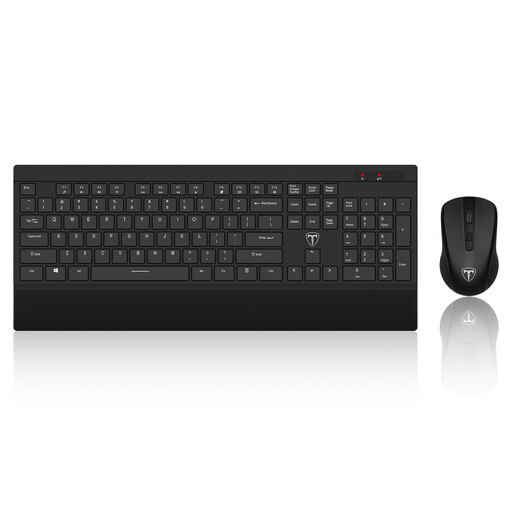
ET 2.4GHz wireless keyboard and mouse set, US layout
A separate keyboard and mouse can form part of a raised-laptop setup. Check that the US keyboard layout suits your typing and whether the bundle contains a riser; use a suitable riser separately if needed to position the laptop screen.
Common questions
Does a UK hybrid worker have to buy their own workstation accessories?
Not automatically. The HSE says UK DSE rules can apply to hybrid workers who use DSE daily for continuous periods of an hour or more; where they apply, the employer should carry out an individual assessment covering the home and office workstations as appropriate. That assessment guides what equipment is needed.
Can an employer charge for equipment identified by a DSE assessment?
No. The HSE states that when a DSE workstation assessment indicates action is needed, such as providing DSE equipment, workers cannot be charged for it.
Will any USB-C port run a monitor and charge a laptop through a dock?
No. Video, charging and dock functions depend on the laptop, cable and connected equipment. VESA describes DisplayPort Alt Mode as one way USB-C carries video; check the exact port’s supported functions and the dock’s charging specification before buying.
What is a starting arrangement for prolonged laptop work?
The HSE advises a separate keyboard and mouse so the laptop screen can be raised on a riser or similar support, or a separate display. Position the screen and keyboard centrally, with the screen top around eye level and the screen roughly an arm’s length away.
What should I check before connecting a dock to a work laptop?
Check the exact laptop port and display limits against the dock’s host connection, intended monitor setup, charging capability and required cable. For an employer-managed laptop, check any IT restrictions before relying on the dock for essential work connections.


