Laptop-only multitaskers
If documents, spreadsheets, browser tabs and messages compete for room on one laptop screen, an external display is worth considering. Check the laptop's display support before choosing one.


Start with the part of regular home or hybrid laptop work that holds you back: screen space, repeated desk connections, typing and pointing, or calls. A monitor addresses screen space; consider a dock when the laptop supports the video, data and charging arrangement you need. Check your exact laptop, desk space and any employer workstation-assessment process before buying.
If documents, spreadsheets, browser tabs and messages compete for room on one laptop screen, an external display is worth considering. Check the laptop's display support before choosing one.
If you reconnect a laptop to the same monitor and peripherals after working elsewhere, a dock or hub could reduce cable swapping. Its connections must match the laptop's actual port and display capabilities.
If sustained input or frequent meetings matter more than another screen, look at separate keyboard and mouse devices or suitable call equipment. The Health and Safety Executive advises considering the whole workstation, the work and individual requirements in a display-screen assessment.
For a regular home laptop workstation, identify the task that most needs a change before choosing equipment; buying a dock does not, by itself, add laptop display capacity.
| Concern | What to check | Who this matters to |
|---|---|---|
| Visible workspace | Check the laptop's supported external displays and the intended monitor's connection. For independent screens, confirm extended-display support. | If documents and messages crowd my laptop screen, I want room to see work side by side. About 31% of consumers put visible workspace first. |
| Desk connections | Match the laptop's port capabilities to the dock or hub's video and charging requirements; USB-C shape alone is not enough. | When I return to my home desk, I want to reconnect my screen and peripherals without handling several cables. Desk reconnection is the primary need for about 31% of consumers. |
| Input and positioning | Check desk space and stand placement, plus the keyboard and mouse connection methods. | For long stretches of typing and pointer work, I need the laptop and separate controls arranged around the task. About 23% of consumers prioritise input and positioning. |
| Remote meetings | Check the calling software and whether the webcam or headset connects to an available laptop or dock port. | If calls dominate my day, I care about equipment that fits how I speak and listen in meetings. Call equipment comes first for about 15% of consumers. |
According to Kensington's connectivity guidance, USB-C speed, video and power-delivery capabilities depend on how the laptop manufacturer implements the port. A dock's advertised connections alone do not establish what your laptop can use.
Compare the exact laptop model's port and display specifications with the dock's host requirements before choosing it.
A mismatch can mean changing the planned dock, cable or charging arrangement.
Microsoft Support explains that a splitter duplicates a signal rather than creating two independent signals. The laptop's display adapter must also support the intended monitor count.
If you need separate extended screens, check both the laptop's display support and the dock or adapter's connection method.
For workers covered by the applicable display-screen equipment requirements in Great Britain, the Health and Safety Executive says an assessment may identify equipment that needs to be provided; workers cannot be charged for equipment the assessment finds necessary.
Ask your employer about its home or hybrid workstation-assessment and approval process before making a purchase intended to address an assessed need.
External-display and port specifications are model-specific. Apple, for example, publishes technical specifications for named MacBook Air models rather than a single specification for every Mac laptop.
Use the specifications for your exact laptop and configuration when planning monitor count, connections and charging.
Relevant when comparing docks for a home desk, particularly where video connections and laptop charging are part of the plan.
A dock and hub range to examine when consolidating monitor and peripheral connections at a desk.
Relevant when keyboards, mice, webcams or headsets are the immediate workstation need.
Its model-specific specifications are a starting point for MacBook Air owners planning an external display or dock.
These products cover separate input devices, external displays and desk-connection equipment for regular laptop work at home. Choose the type that addresses your main task, then check its connection requirements against your laptop.
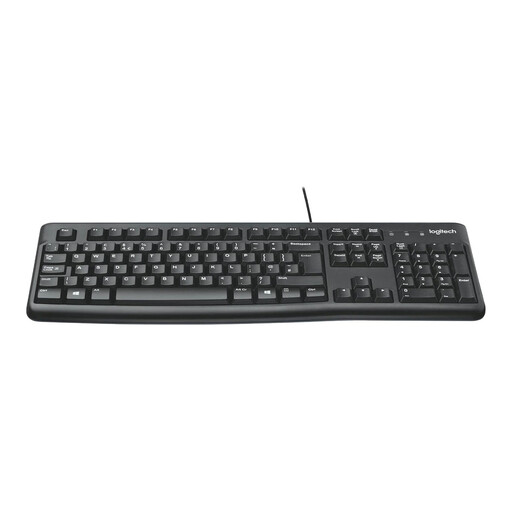 Image unavailable
Consider this set when separate typing and pointer devices are the priority, including when the laptop is positioned away from your hands. Both devices are wired; check the available computer or dock connections and the intended operating system.
 Image unavailable
Consider an additional display if a laptop screen leaves too little room for concurrent work. Confirm that your exact laptop can drive this model through the intended connection before buying.
 Image unavailable
This desktop monitor is relevant when more visible workspace is the priority and the desk has room for it. Check the laptop's output and the required cable. Confirm the exact screen diagonal before purchase, as the product information gives differing sizes.
 Image unavailable
Consider this dock if reconnecting a laptop to desk equipment is the main task. Its title specifies dual HDMI and 100W power-delivery pass-through, not a guarantee that your laptop supports two independent displays or the intended charging arrangement. Check the laptop, operating system and required external adapter.
 Image unavailable
Consider this hub when a desk setup needs several types of connection. The product name lists two HDMI outputs with different stated maximum modes, USB-A and USB-C data connections, RJ45, SD/TF and a USB-C PD connection. Check the laptop's video support and the intended display and charging arrangement; the listed output modes do not establish what your laptop can deliver.
No: a USB-C connector alone does not establish video, data or power-delivery capability. Kensington's connectivity guidance says these functions depend on the manufacturer's implementation. Compare your exact laptop's ports and external-display support with the dock's host requirements.
First check the operating system's display mode. Microsoft Support also notes that a splitter duplicates one signal rather than creating two independent displays; extension requires a suitable connection method and laptop display-adapter support.
Yes, if the purchase is intended to meet an assessed work need. In Great Britain, the Health and Safety Executive says that where an applicable display-screen equipment assessment identifies equipment that must be provided, the worker cannot be charged for it. The outcome depends on the individual assessment, so ask about your employer's home-working process.
Yes. The Health and Safety Executive for Northern Ireland publishes separate display-screen equipment guidance and says its rules apply to workers using such equipment daily for an hour or more at a time. Ask your employer about the applicable Northern Ireland assessment process rather than relying on Great Britain guidance alone.