Laptop-only home workers
If you work on a laptop for sustained periods, consider how to position its screen while using separate typing and pointing devices. The Health and Safety Executive describes this arrangement for prolonged laptop use.


For regular laptop work, choose a stand with a separate keyboard and mouse if you need to raise the laptop screen, or add an external monitor when you need another display. A dock suits a desk where several devices need reconnecting regularly; a hub may be enough for a few extra ports. Check the laptop’s display, port and charging capabilities before buying, and ask your employer about equipment arrangements if you work from home as an employee.
If you work on a laptop for sustained periods, consider how to position its screen while using separate typing and pointing devices. The Health and Safety Executive describes this arrangement for prolonged laptop use.
If you repeatedly connect a display and several peripherals, a dock could simplify reconnection. Check the laptop’s video and display limits before deciding which dock connections you need, as Laptops Direct advises in its docking guidance.
If you switch between work and personal devices, check compatibility and the method for switching peripherals. Logitech, for example, lists multi-device switching for its MX Keys S keyboard, but features depend on the product and operating system.
Decide how you want to position the screen and input devices first. Then check whether your connection needs call for a few extra ports or a dock that stays connected to your desk equipment.
| Concern | What to check | Who this matters to |
|---|---|---|
| Screen position and separate inputs | If raising the laptop, plan space for a separate keyboard and mouse. Check that the stand holds the laptop securely at the intended position. | If I raise my laptop screen for prolonged work, I need to type and point without relying on its built-in controls; around 33% of consumers put screen-and-input separation first. |
| External display space | Check the exact laptop’s supported display count, then match its connection to the monitor’s resolution and intended refresh rate. | When my laptop screen leaves too little room for regular tasks, I want a separate display that my computer can actually run. Around 27% of consumers prioritise more screen space. |
| Connections and charging | Check the laptop port’s video and power capabilities, the dock’s delivered charging power and the ports needed for desk devices. | If I reconnect several desk devices each workday, I want fewer individual connections to manage; around 27% of consumers make one-cable connectivity their main concern. |
| Compatibility across devices | Check supported operating systems and switching methods. If a display adapter uses DisplayLink, check its software requirements. | Switching between work and personal devices matters to me only if the accessories work with both. For around 13% of consumers, cross-device compatibility comes first. |
USB-C describes the connector, not a fixed combination of video, data and power features. As Laptops Direct notes in its docking guidance, a physically compatible plug does not establish that a dock will provide the intended functions.
Find the exact laptop model and port specification, then compare its video and charging capabilities with the dock and your planned display.
Two dock outputs do not establish that a laptop supports two independent external screens. Apple states that a supported hub or daisy chain does not increase a MacBook Air model’s maximum connected-display count.
Check the laptop maker’s display limit for your exact model before choosing the dock, monitors and cables.
The Health and Safety Executive’s guidance for prolonged laptop use pairs an elevated screen with a separate keyboard and mouse.
Allow desk space and connections for both input devices when planning a laptop stand.
For home workers covered by display screen equipment requirements, the Health and Safety Executive says workers cannot be charged where an assessment identifies action that the employer needs to take. Acas advises employers and staff to agree who provides or pays for equipment and repairs.
Ask your employer about the assessment, equipment policy and IT requirements before ordering work equipment yourself.
CalDigit’s TS4 is a docking option for a desk with numerous permanent connections.
Dell’s WD22TB4 module may be relevant to Dell-laptop users considering a manufacturer-branded Thunderbolt dock.
Anker offers hubs and docks, including the Prime Thunderbolt 5 dock covered by its product guidance.
Logitech’s MX Keys S is a keyboard option for people considering a separate input setup across compatible devices.
These products cover separate monitors, a keyboard and connection accessories for a regularly used laptop desk. Choose by the screen, input or connection problem you need to solve, then check compatibility with your laptop.
 No image available
Consider this dock if your desk setup calls for two HDMI display connections through a compatible laptop.
The title specifies dual 4K HDMI and 100W power-delivery pass-through. Check the laptop’s USB-C video support, external-display limit and charging needs; also confirm whether the required external 100W or higher adapter is included.
 No image available
Consider a separate monitor when you need display space beyond the laptop’s built-in screen.
This PA278CV variant is identified as an IPS WQHD monitor. Check the intended video connection and whether any USB-C charging output meets your laptop’s needs.
 No image available
Consider this adapter when you need a display connection and other desk ports from one compatible USB-C laptop port.
Its title lists 4K HDMI, VGA, Gigabit Ethernet, 100W power delivery and two USB 3.0 ports. Its stated operation is single-display, so do not assume HDMI and VGA will provide two independent screens; check USB-C video and charging compatibility with your laptop.
 No image available
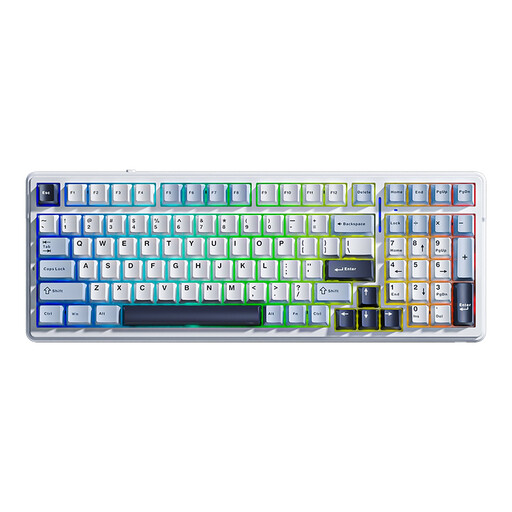
A separate keyboard is useful when you raise the laptop screen or want input devices at a different position from the display.
This F99 variant lists wired USB-C, Bluetooth and 2.4G wireless connection options. Check whether its US QWERTY key arrangement suits you; a separate mouse is still needed if you also want pointing input away from a raised laptop.
 No image available
Consider this separate display if you have room at your desk for a 32-inch monitor.
The title specifies 2560 × 1440 resolution, 165Hz, HDMI, DisplayPort and VESA 100 × 100mm mounting. Check desk space, mounting requirements and whether your laptop and chosen cable support the resolution and refresh rate you intend to use; the product information notes that HDMI may limit refresh rate.
Yes, if the equipment is for your work, ask about the applicable display screen equipment assessment and workplace policy before paying yourself. The Health and Safety Executive says workers cannot be charged where an assessment identifies action the employer needs to take; Acas advises agreeing who provides or pays for equipment and repairs.
No. The Health and Safety Executive says home workers may not need office furniture or equipment to achieve a comfortable, sustainable posture. For employees covered by display screen equipment requirements, the appropriate action depends on the individual assessment and existing setup.
No: USB-C ports do not all provide the same video and power functions. Check your exact laptop port, its external-display limit, the dock’s stated video arrangement and delivered charging power, as well as the monitor and cable requirements.
The laptop’s supported display count can limit the result even when the dock has two outputs. Apple states that a supported hub or daisy chain does not increase a MacBook Air model’s maximum connected-display count; check the limit for your exact laptop.
If the chosen dock uses DisplayLink for its display connection, check its software requirements before buying, particularly on a managed work laptop. DisplayLink’s installation guidance specifies software installation and a reboot for its Windows software, while macOS uses a separate installer.