What should you check before buying?
Start with the screen, input and desk arrangement you use most often, then check connections and any workplace assessment before choosing equipment.
| Priority | What to check | Your needs |
|---|
| Whole workstation |
Review the screen, keyboard, mouse, desk space, lighting and work routine together. For relevant DSE users, HSE says the assessment considers the whole workstation, work conditions and individual requirements. |
“I use my laptop for long stretches and want to change what makes this desk difficult to work at, rather than add every accessory.” |
| Screen and connections |
Check the space for a fixed or portable monitor, then confirm the laptop’s video output. For a USB-C hub monitor or dock, check the required video protocol, charging needs and intended display configuration against the exact devices. |
“A separate screen would help at my main desk,” or “I move between desks and want fewer connections to redo.” |
| Input and positioning |
Check keyboard layout and size, mouse connection options and available ports. For an arm or tray, check its load range, device fit and mounting surface; Ergotron lists different capacities across its desk mounts. |
“I need room to use separate input devices when the laptop is raised,” or “My desk needs a mounting arrangement that actually fits.” |
| Workplace arrangements |
Ask which DSE assessment and equipment process applies to your work location. HSE says qualifying daily DSE use in Great Britain requires a workstation assessment; Northern Ireland’s Health and Safety Executive (HSENI) sets out its own assessment and control requirements. |
“Before I buy work equipment myself, I want to know whether an assessment calls for changes and how my employer provides them.” |
Joybuy product options
These options cover separate monitors and keyboard-and-mouse sets for laptop work at a desk or across locations. Check each connection and layout against your own laptop and workspace.
 No image available
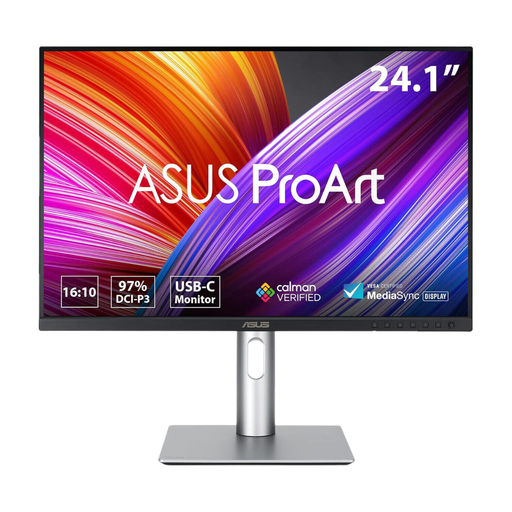
ASUS ProArt PA248CRV IPS WUXGA
A fixed-desk display option with a listed 24.1-inch 1920 × 1200 screen and height, swivel, pivot and tilt adjustment. Its listed USB-C connection offers video, data and 96 W Power Delivery; check your laptop’s video and charging support, and confirm the regional hub and cable configuration before relying on a one-cable setup.
 No image available
ASUS ProArt PA278CV IPS WQHD
Consider this listed 27-inch WQHD monitor if your desk has room for a separate screen. Its stand offers height, tilt, swivel and pivot adjustment, and the listed connections include HDMI, DisplayPort and USB-C; confirm the USB-C charging power and video compatibility with your laptop before planning one-cable use.
 No image available
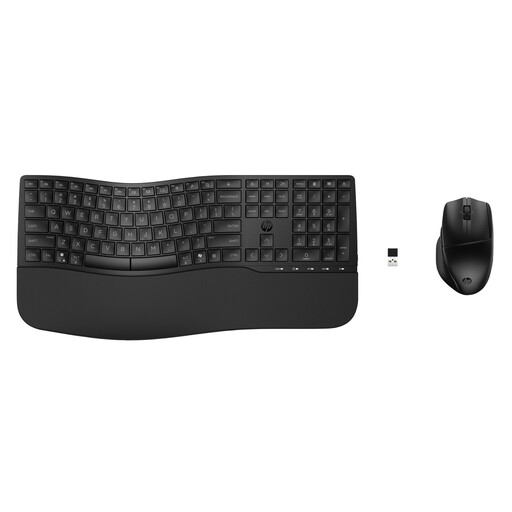
HP 680 CFT Dual-Mode Keyboard/Mouse Combo
This separate keyboard-and-mouse set can be considered when laptop input position is the issue, without adding a display. The listed connection choices are Bluetooth or a wireless USB receiver, with support for up to three devices; check the keyboard layout and your device’s chosen connection before buying.
 No image available
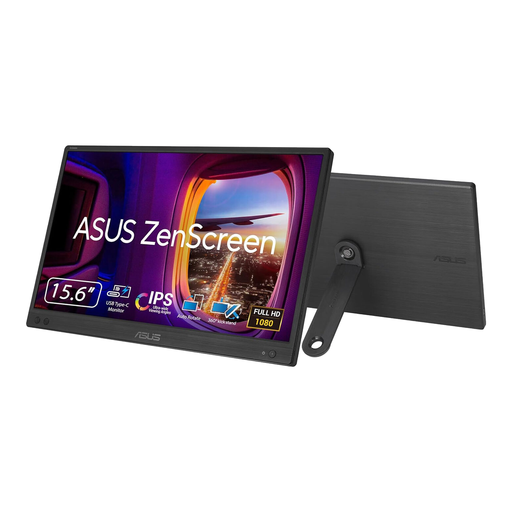
ASUS ZenScreen MB166CR FHD
A portable second-screen option for work across locations, listed with a 15.6-inch Full HD display and a weight of 780 g. It uses USB-C DisplayPort Alternate Mode for video, so confirm that your laptop supports that mode; HDMI is not supported.
 No image available
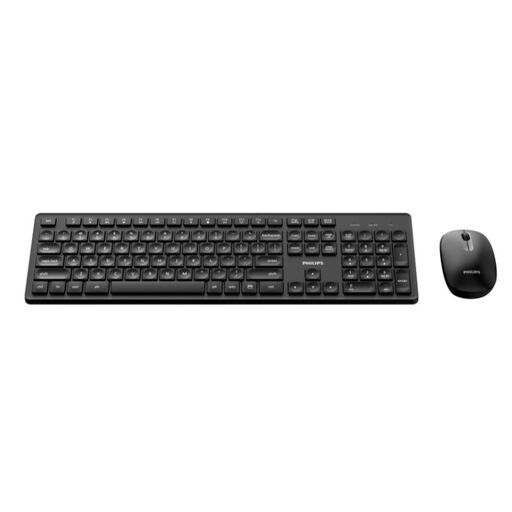
Philips 3000 Series SPT6318B/05 Keyboard and Mouse, UK English
This listed UK English keyboard-and-mouse set offers separate input devices for a desk setup. It uses a 2.4 GHz wireless connection with a USB-A nano receiver; confirm that your laptop has a suitable port or adapter, and check operating-system compatibility and power requirements.
Common questions
Does every hybrid worker need a monitor and dock?
No. Great Britain’s HSE says home workers do not necessarily need office-type equipment; an applicable workstation assessment should identify what the individual arrangement needs. Choose a monitor, input devices or dock for a specific screen, positioning or connection requirement.
When does a home or hybrid workstation need a DSE assessment in Great Britain?
HSE says employers must assess workstations for workers who use display screen equipment daily as part of normal work for continuous periods of an hour or more. Where those workers use DSE at home and in the office, the assessment should cover both settings.
Can a worker in Great Britain be charged for equipment identified by a DSE assessment?
No. HSE says workers cannot be charged when a DSE workstation assessment indicates action such as providing a piece of DSE equipment. Check your employer’s assessment and provision process before purchasing work equipment yourself.
What should employers check for home DSE users in Northern Ireland?
HSENI says employers of relevant DSE users must assess risks at work or home, identify individual and additional-equipment needs, implement suitable controls, provide information and training, and review assessments when circumstances change or discomfort is reported.
How can I check whether a dock will work with my laptop?
Compare your exact laptop model and port documentation with the dock’s host requirements, then check the intended displays and charging. Lenovo says its USB-C and Thunderbolt docks require support for USB-C Alt-Mode, DisplayLink or Thunderbolt through the Type-C port; available functions depend on the laptop and configuration.


