Start with your desk arrangement and your laptop’s documented display, charging and port capabilities, rather than buying a set of accessories in advance. Add a monitor, separate input devices, a stand or call equipment where it addresses a specific task or workstation need; consider a dock when the laptop supports the connections you need at a regular desk. For UK employees whose Display Screen Equipment (DSE) assessment identifies equipment as necessary, the Health and Safety Executive says the worker cannot be charged for it.
Who needs to plan a workstation?
Daily home-based laptop workers
If you use a laptop for sustained screen work, consider the screen, input devices and desk together. The UK Health and Safety Executive says employers must assess a workstation when an employee uses DSE daily as part of normal work, continuously for an hour or more.
Hybrid workers setting up a home desk
Moving between home and the workplace makes it useful to check which cables, displays and accessories work with the laptop at each desk. The Health and Safety Executive says homeworking DSE requirements can apply to workers who routinely split their time between the two locations.
Employees with managed work laptops
Check workplace approval before connecting a personal dock, receiver or call accessory. The Information Commissioner’s Office advises workers to use organisation-provided technology when handling personal data.
What should you check before buying?
Decide whether the issue belongs in a workplace assessment, then check the laptop and the space where each component will be used.
| Priority | What to check | Your needs |
|---|
| Workplace assessment |
Check whether daily DSE use includes continuous periods of an hour or more. Raise equipment needs through the employer’s workstation assessment where applicable; the Health and Safety Executive says workers cannot be charged for equipment that assessment identifies as necessary. |
If my work setup needs changing, I want to establish what my employer should assess before making a personal purchase. |
| Display and connections |
Check the exact laptop’s video outputs, supported external displays and charging requirements against the monitor, adapter or dock. Microsoft Support notes that a basic display splitter duplicates a signal rather than creating two independently extended displays. |
I want an extra screen or an easier desk connection, but it must work with my laptop and the display arrangement I intend to use. |
| Desk arrangement |
Check screen position, available desk space, lighting and where the keyboard and mouse will sit. The Health and Safety Executive’s DSE guidance considers the workstation as a whole, not just one accessory. |
A raised laptop or separate monitor needs to leave me with a workable place for the keyboard and mouse. |
| Device approval |
Check permitted connection methods and whether a dock, wireless receiver or call accessory needs workplace approval. The Information Commissioner’s Office advises using organisation-provided technology for handling personal data. |
With a managed laptop, I need to know which accessories I am allowed to connect before buying them. |
| Remote meetings |
Check whether the built-in camera and audio meet the needs of your calls, which ports an accessory uses and whether the work device permits it. |
If meetings are a regular part of my job, I may need a headset or camera that fits my desk and approved work setup. |
What mistakes can complicate the setup?
-
Buying personally before raising a work-related DSE issue
An accessory purchase may miss a problem with the wider workstation. Where an employer’s DSE assessment indicates equipment is needed, the Health and Safety Executive says the worker cannot be charged for it.
Describe your tasks, how long you use the screen and your current desk arrangement through the employer’s assessment process before deciding on a personal upgrade.
-
Assuming every USB-C port supports the same setup
The connector alone does not establish the laptop’s video, charging or multi-display capabilities. Microsoft Support also notes that a basic splitter duplicates a display signal rather than creating two independently extended screens.
Check the exact laptop model, intended display arrangement, dock requirements and cables against the manufacturers’ specifications.
-
Raising the laptop without planning where to type
A riser changes the position of the built-in keyboard and trackpad as well as the screen. The Health and Safety Executive’s DSE guidance treats input devices and desk layout as parts of the workstation.
Plan the stand, separate keyboard and mouse together, with enough desk space for the resulting layout.
-
Connecting personal accessories to a managed laptop without approval
A device can fit a port yet still conflict with workplace rules for hardware or software. The Information Commissioner’s Office advises using organisation-provided technology when handling personal data.
Ask about approval before purchasing a dock, receiver, webcam or headset for a managed work device.
Which brands offer relevant equipment?
These brand examples show different equipment routes; compatibility depends on the particular product and laptop.
Dell
Dell offers USB-C docks for desk setups that need supported display, peripheral and charging connections.
- Dell UK specifies power delivery of 100W for Dell systems and 96W for non-Dell systems on the Pro Dock WD25.
- Those WD25 figures do not establish the charging or display behaviour of another Dell dock or a particular laptop; check the exact combination.
Lenovo
Lenovo offers USB-C docking options for office and remote-work desks.
- Lenovo describes the ThinkPad Universal USB-C Dock as compatible with most USB-C laptops running Windows 10 and above.
- “Most” does not guarantee compatibility with every laptop or intended display arrangement; check the host device and dock specifications.
Apple
Apple’s USB-C Digital AV Multiport Adapter is an example of a focused adapter for a compatible Mac setup.
- Apple specifies an HDMI display connection alongside a standard USB device and a USB-C charging cable for supported USB-C or Thunderbolt 3 (USB-C) Mac devices.
- Check the Mac model’s display support rather than assuming this adapter establishes a multi-display setup.
Logitech
Logitech offers keyboards, mice and call accessories with wired, Bluetooth and receiver-based connection options.
- Its business range includes different connection methods, allowing selection around the ports and methods permitted at a work desk.
- Check the exact accessory and employer device rules; brand comfort claims are not a substitute for assessing the workstation.
Joybuy options for this setup
These options cover a dock, fixed and portable monitors, and call accessories for home or hybrid laptop work. Choose a component for a specific task, then confirm its connection requirements and any workplace approval.
 No image available
Targus USB-C Universal Dual HDMI 4K Docking Station, 100W PD Pass-Thru
Consider this dock for a regular desk where you want to connect HDMI displays through a USB-C docking setup. Its name specifies dual HDMI 4K connections and 100W Power Delivery pass-through; check the laptop’s video and charging support, cables and workplace approval before choosing it.
View on Joybuy
 No image available
AOC Q32V4 31.5-inch 2K IPS Monitor
A separate screen is worth considering when a laptop-only display does not suit your work and desk arrangement. This 31.5-inch IPS model has built-in speakers; check the space available, screen position and a compatible video connection from your laptop.
View on Joybuy
 No image available
ASUS ZenScreen MB166C 15.6-inch Full HD Portable Monitor
This portable screen is an option if you need an additional display across work locations rather than a fixed desk monitor. It is listed as a 15.6-inch Full HD IPS USB Type-C monitor; verify that the exact laptop supports its required video and power connection.
View on Joybuy
 No image available
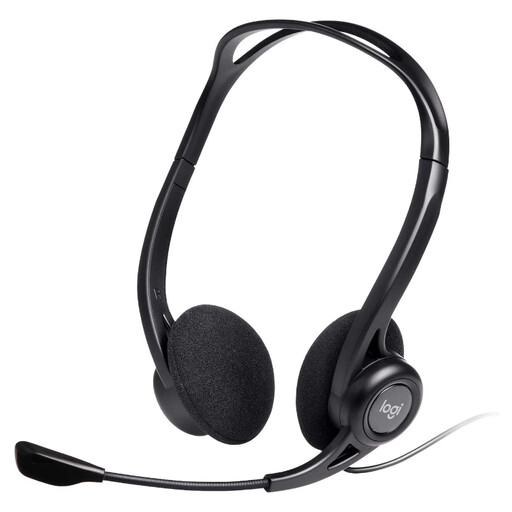
Logitech 960 Wired USB Headset with In-line Remote
For regular calls, a wired headset offers an alternative to the laptop’s built-in audio. This model is named with an in-line remote and noise-cancelling microphone; check the work device’s USB connection and peripheral rules before buying.
View on Joybuy
 No image available
EMEET All-in-One 4K Webcam, 4-Mic Array, 98° Adjustable FOV
This camera-and-audio option is worth considering when the built-in equipment does not suit regular remote meetings. Its stated features include fixed focus, a four-microphone array and speakers; check device compatibility, workplace approval and whether its framing suits the intended room.
View on Joybuy
Common questions
When does a homeworking laptop need a DSE assessment?
The UK Health and Safety Executive says employers must assess a workstation when an employee uses display screen equipment daily as part of normal work, continuously for an hour or more. Its homeworking guidance says DSE requirements can apply both to long-term home workers and to people who routinely split time between home and the workplace.
Should I buy a monitor or keyboard before asking my employer?
Raise a possible work-related DSE need through the employer’s workstation assessment first. The Health and Safety Executive says workers cannot be charged where that assessment indicates action such as providing DSE equipment; a voluntary personal upgrade is a separate decision.
Will any USB-C dock charge my laptop and run two extended monitors?
No: check the exact laptop, dock, displays and cables for the intended charging and video arrangement. Microsoft Support notes that USB-C hardware and software combinations can cause problems, and that a basic display splitter duplicates one signal rather than creating two independently extended displays.
Can I connect a personal webcam or dock to a managed work laptop?
Check your employer’s approved-device and software rules before connecting it. The Information Commissioner’s Office advises workers to use organisation-provided technology when handling personal data, so a fitting connector alone is not enough to establish that a personal accessory is permitted.


