Start with the limitation you notice most during a working day: the position of your laptop screen and input devices, the space available for windows, or the connections needed at your desk. For prolonged laptop use, the Health and Safety Executive advises using a separate keyboard and mouse so the screen can be raised. Before adding a monitor or dock, check your laptop’s display limits, video output and charging requirements; a USB-C socket alone does not establish what it supports.
Who these setups suit
Laptop-only workers with long desk sessions
If the built-in screen and keyboard are your everyday setup, consider their positions together before adding more displays. The Health and Safety Executive advises separate input devices when raising a laptop screen for prolonged use.
Home and hybrid workers using several windows
If you keep documents, messages or calls visible alongside your main task, decide whether one external monitor provides enough space before planning multiple screens. Check the external-display limit for your exact laptop model.
Hybrid workers with limited desk space
If your setup needs to move or be packed away, the footprint of a monitor, stand and peripherals matters alongside the number of ports. A compact hub may suit a simpler arrangement, provided its required connections work with your laptop.
What to check before buying
Decide which part of your current setup needs attention first, then check the space and laptop connections that choice requires. A raised screen, additional display and dock can work together; they are not interchangeable purchases.
| Concern |
What to check |
Who this matters to |
| Screen and input position |
Check stand height and laptop support, desk depth, and space for a separate keyboard and mouse. |
When I spend long sessions at the laptop, I want to raise the screen without raising the keys I use. Around 33% of consumers put screen and input position first. |
| Display workspace |
Decide whether one external monitor is enough; for multiple monitors, check the exact laptop’s display limit and the intended display modes. |
If I keep several documents or calls in view, I need enough usable screen space without crowding my desk. Display workspace comes first for around 27% of consumers. |
| Connection compatibility |
For USB-C video or charging, match the laptop port, cable and dock requirements, including DisplayPort Alt Mode and Power Delivery where needed. |
I want my display and peripherals to connect reliably, and charging through the dock matters if I plan to use it. Around 27% of consumers prioritise connection compatibility. |
| Portable setup and calls |
Check a hub’s footprint and required power supply; for a webcam, check its connection, mounting position and software support. |
When I move my setup between locations, I need equipment that is practical to carry and position for calls. Portability and calling needs come first for around 13% of consumers. |
Purchasing pitfalls
-
Assuming every USB-C socket supports the same features
A USB-C connection does not by itself establish whether a dock can charge the laptop or send video to a monitor. StarTech.com says the host port, cable and connected device must support the required technology.
Check the laptop and dock specifications for Power Delivery if you need charging, and DisplayPort Alt Mode if video will travel over USB-C. Match the cable to those requirements too.
A cable or adapter that cannot provide the required feature may need replacing.
-
Counting dock video ports instead of supported displays
A dock’s outputs do not increase the maximum external-display count supported by the laptop. Advertised display modes can also depend on the operating system, cables, monitors and technologies such as Display Stream Compression.
Start with the display limit for your exact laptop model, then check the dock’s conditions for your intended number of screens, resolution and refresh rate.
-
Raising the laptop but continuing to use its keyboard
Moving the laptop screen upwards also moves its built-in keyboard and trackpad. For prolonged laptop use, the Health and Safety Executive advises a separate keyboard and mouse so the screen can be elevated independently.
Allow desk space for those input devices when choosing a stand or planning where an external display will sit.
-
Expecting a peripheral to deliver a guaranteed outcome
Stand, keyboard and webcam claims about comfort or productivity do not establish what an individual workstation will achieve. Placement and compatibility still depend on the user’s desk and laptop.
Choose against observable requirements: screen and input position, available space, connections and the camera position needed for calls.
Brands to consider
These brands illustrate different workstation equipment and model-specific checks; their inclusion does not indicate that every product in a range suits your laptop.
Kensington
Kensington offers compact USB-C hubs and desk docks with different host requirements.
- Kensington specifies that its UH1400P needs host support for Power Delivery and DisplayPort Alt Mode to provide the corresponding features.
- Check the requirements of the particular dock rather than assuming that compatibility carries across the range.
Dell
Dell’s Thunderbolt docks are an option to investigate for a desk with displays and peripherals.
- Dell Technologies lists power delivery of up to 130 W for Dell systems and 96 W for non-Dell systems on the WD25TB4.
- Those are WD25TB4 figures, not a charging promise for every laptop; check your own laptop’s input and display support.
StarTech.com
StarTech.com supplies docks and adapters with stated USB-C and display-configuration requirements.
- Its compatibility guidance identifies the host port, cable and connected device as parts of the USB-C feature path.
- Its stated triple-display dock modes depend on conditions including DisplayPort 1.4 Alt Mode and Display Stream Compression; check the configuration for your laptop.
Ergotron
Ergotron makes laptop stands and mounting products for arranging screens on a desk.
- Ergotron lists a 15 cm height-adjustment range for its Neo-Flex laptop stand.
- Check laptop fit and desk space, and plan separate input devices if raising the laptop for prolonged use.
Logitech
Logitech offers keyboards, mice and webcams that address separate input and camera-position needs.
- Logitech lists a monitor-mounting option and privacy shutter for its C920s webcam.
- Confirm a chosen peripheral’s connection and software support; brand claims about posture or fatigue are not assured results.
Joybuy products for displays and calls
These monitors and webcams address display space and video-call positioning in a laptop workstation. Choose a monitor only after checking your laptop’s video output and available desk space; check webcam connections and calling-software support separately. Raising a laptop screen for prolonged use also calls for a separate keyboard and mouse, as advised by the Health and Safety Executive.
 No image available
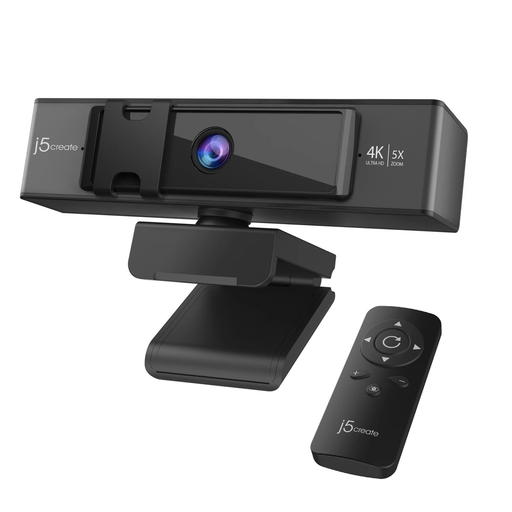
j5create JVCU435 4K webcam with 5× digital zoom
Consider this webcam if you want a separate camera position for regular laptop calls. Its named features include 4K video, 5× digital zoom and a remote control.
Check its connection and support for your laptop and calling software before ordering. The remote-control battery is not included.
Joybuy
 No image available
CRUA 49-inch curved ultrawide monitor, 5120 × 1440
This single wide display is an option to assess if you want room for several windows and have space for its 49-inch size. The title specifies a 32:9 format, 165 Hz, HDMI 2.1 and DisplayPort 1.4 inputs.
Check whether your laptop and cable support the display mode you intend to use. Confirm the monitor’s dimensions, weight and stand adjustment against your desk; the listing calls for two people to move it.
Joybuy
 No image available
CRUA 32-inch curved QHD monitor, 2560 × 1440
Consider this as a single external screen if its 32-inch size fits your desk. Its named specifications include 2560 × 1440 resolution, 165 Hz, HDMI and DisplayPort inputs, and a 100 × 100 mm VESA mounting pattern.
Check the resolution and refresh rate your laptop and cable can provide. The listing specifies the included DisplayPort cable for its stated maximum 165 Hz mode and warns that HDMI may limit the refresh rate.
Joybuy
 No image available
EMEET all-in-one 4K webcam with four-microphone array
This webcam is worth considering when a separate camera and integrated call audio fit your desk arrangement. Its named features include 4K video, dual speakers, fixed focus and an adjustable 98° field of view.
Check the USB connector and cable, operating-system support and calling-software compatibility. Consider whether fixed focus suits the camera position you plan to use.
Joybuy
 No image available
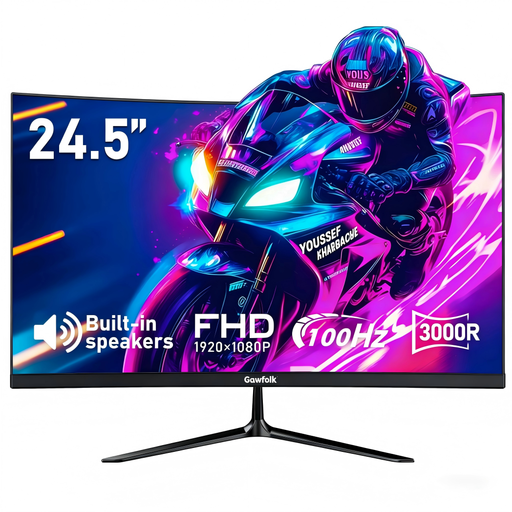
Gawfolk 24.5-inch curved Full HD monitor
Consider this screen for a single-monitor arrangement if its 24.5-inch size suits your available space. The title lists a 100 Hz refresh rate, HDMI input and built-in speakers.
Check your laptop’s video output and the display mode you intend to use. If mounting it, confirm the VESA pattern before selecting a bracket, as the listing gives differing mounting details.
Joybuy
Frequently asked questions
Will any USB-C hub charge my laptop and run a monitor?
No: those functions depend on the laptop, cable and hub supporting the required features. Check Power Delivery for charging and DisplayPort Alt Mode for USB-C video, as StarTech.com’s compatibility guidance explains.
Can a dock add more external displays than my laptop supports?
A dock does not by itself increase a laptop’s documented maximum external-display count. Apple Support makes this distinction for MacBook Air models using a supported hub or daisy chain; check the limit for your exact laptop and then the dock’s conditions for your chosen displays.
What should I add first for prolonged laptop use at home?
Check whether you can position the screen separately from the keyboard and mouse before choosing extra displays or ports. For prolonged laptop use, the Health and Safety Executive advises separate input devices so the screen can be raised on a riser or similar support.
What should I check before ordering a USB-C dock?
Match its stated host-port, display and charging requirements to your laptop and planned monitors. Also check which power adapter and cable are supplied, the charging output available to the host laptop and the dock’s stated operating-system support; these details depend on the model.


